> ## Documentation Index
> Fetch the complete documentation index at: https://docs.labellerr.com/llms.txt
> Use this file to discover all available pages before exploring further.
# How to Use Annotations
> Everything you need to know about image annotation types in Labellerr, including Bounding Box, Polygon, Line, Segmentation, Landmark/Keypoint, and Ellipse.
## Everything you Need to Know About Image Annotation
***
### These are the annotation types that you can use on Labellerr.
1. **Bounding Box**
2. **Polygon**
3. **Polyline**
4. **Keypoint**
5. **Dot**
Once on the Labelling Screen, the tools appear on the left.
Only the Objects selected while making a project would be visible. More can be added from the settings
### Bounding Box
A bounding box is a rectangular frame used to mark the location of an object in an image. It is one of the most common annotation methods, typically used for object detection and localization. Use M for manual bounding box and A for AI-assisted bounding box.
For more, check out this video tutorial
### Polygon
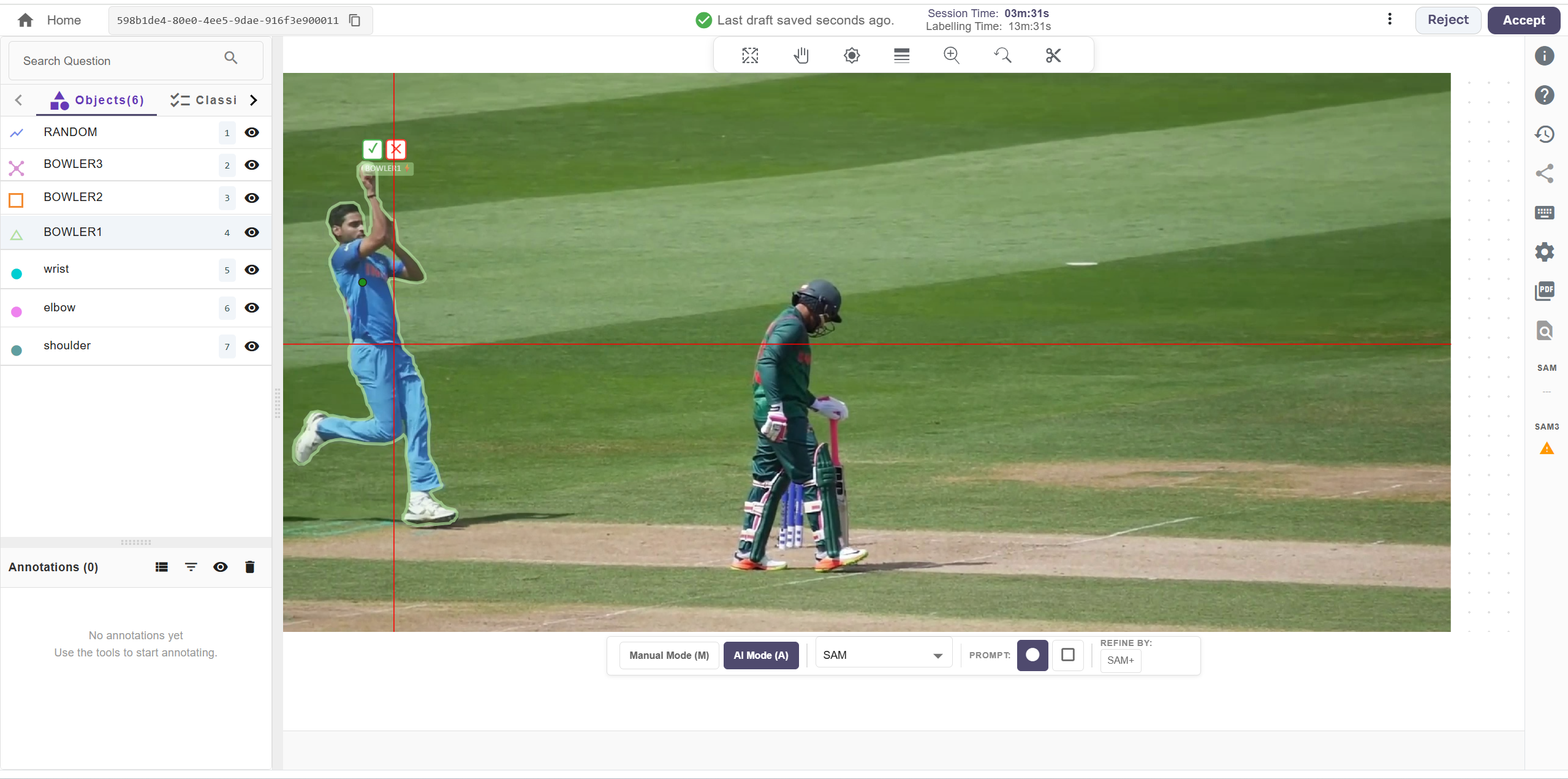
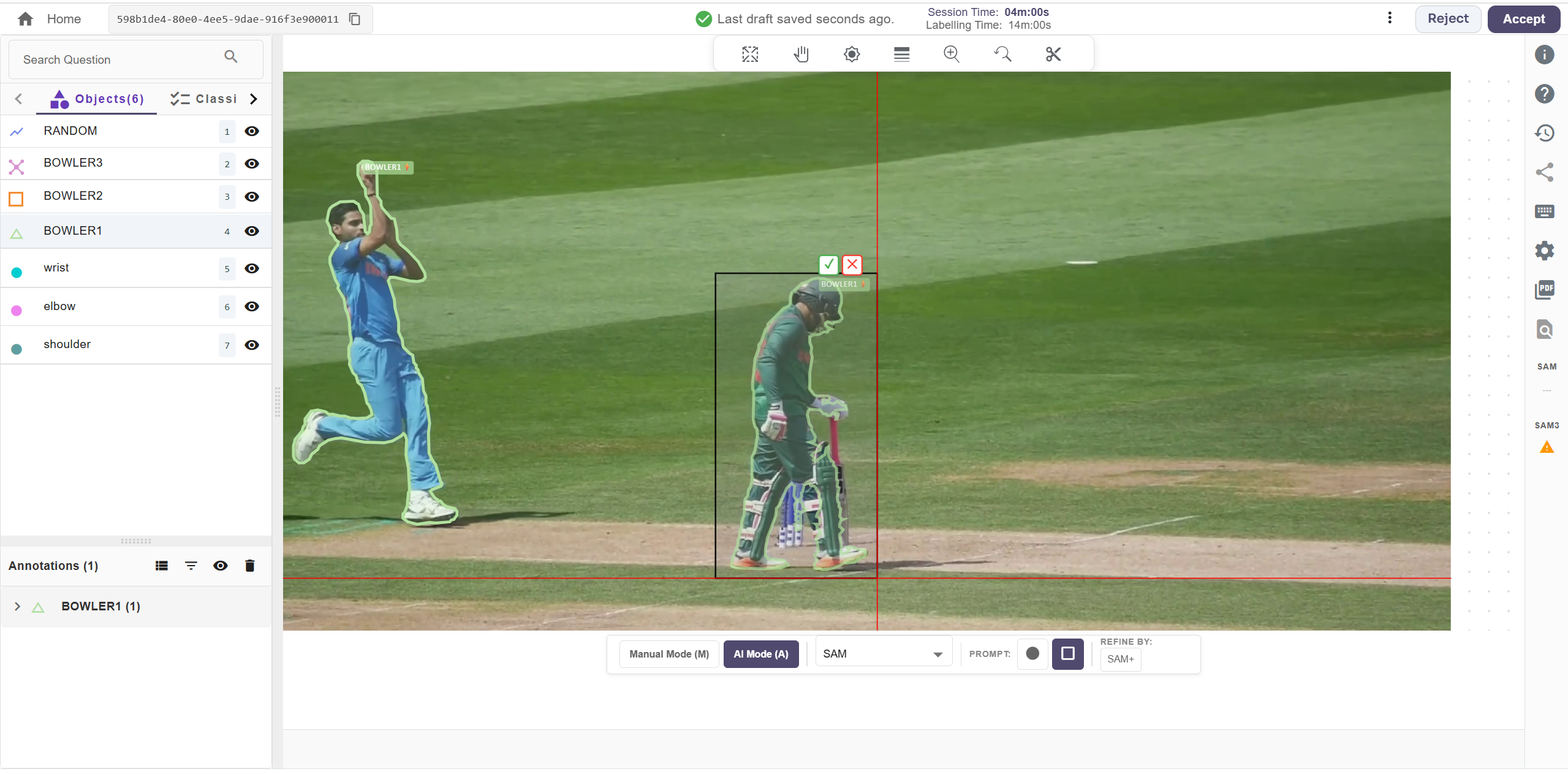
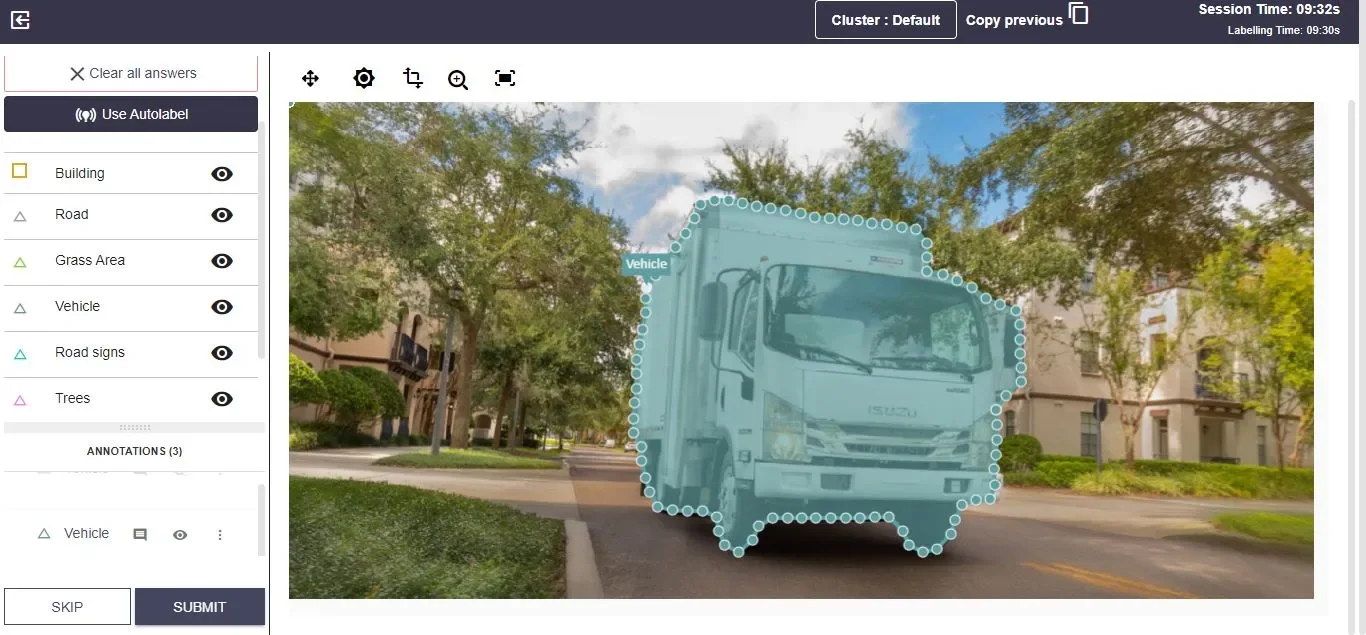
Polygon annotation is a computer vision technique that outlines objects by connecting a series of points to form a polygon. This accurately captures the true shape and boundaries of objects, making it ideal for handling complex or irregular shapes.
Additionally, you can place a single point to run SAM or use a box prompt to draw a bounding box around the object, enabling faster and more accurate polygon generation.
For more, check out this video tutorial
#### Drag Polygon
User can drag the cursor to draw the pixel perfect annotation on an object. Press 'Shift' key and then drag the cursor towards the boundaries of an object.
Press 'N' to close the polygon or simply drag the cursor to starting point.
### Polyline
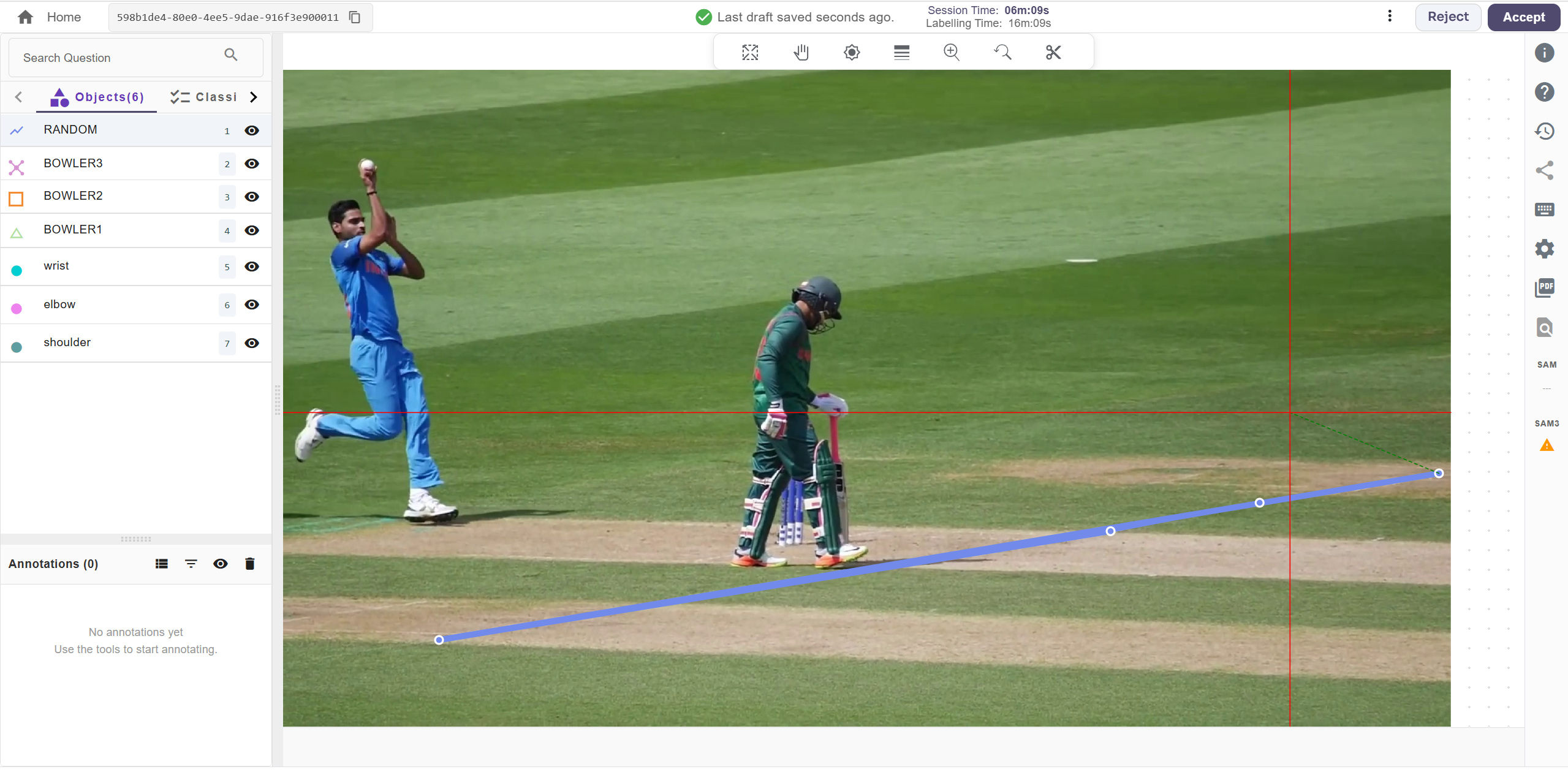
Line annotation is mainly used to create lines across the image.
### Keypoint
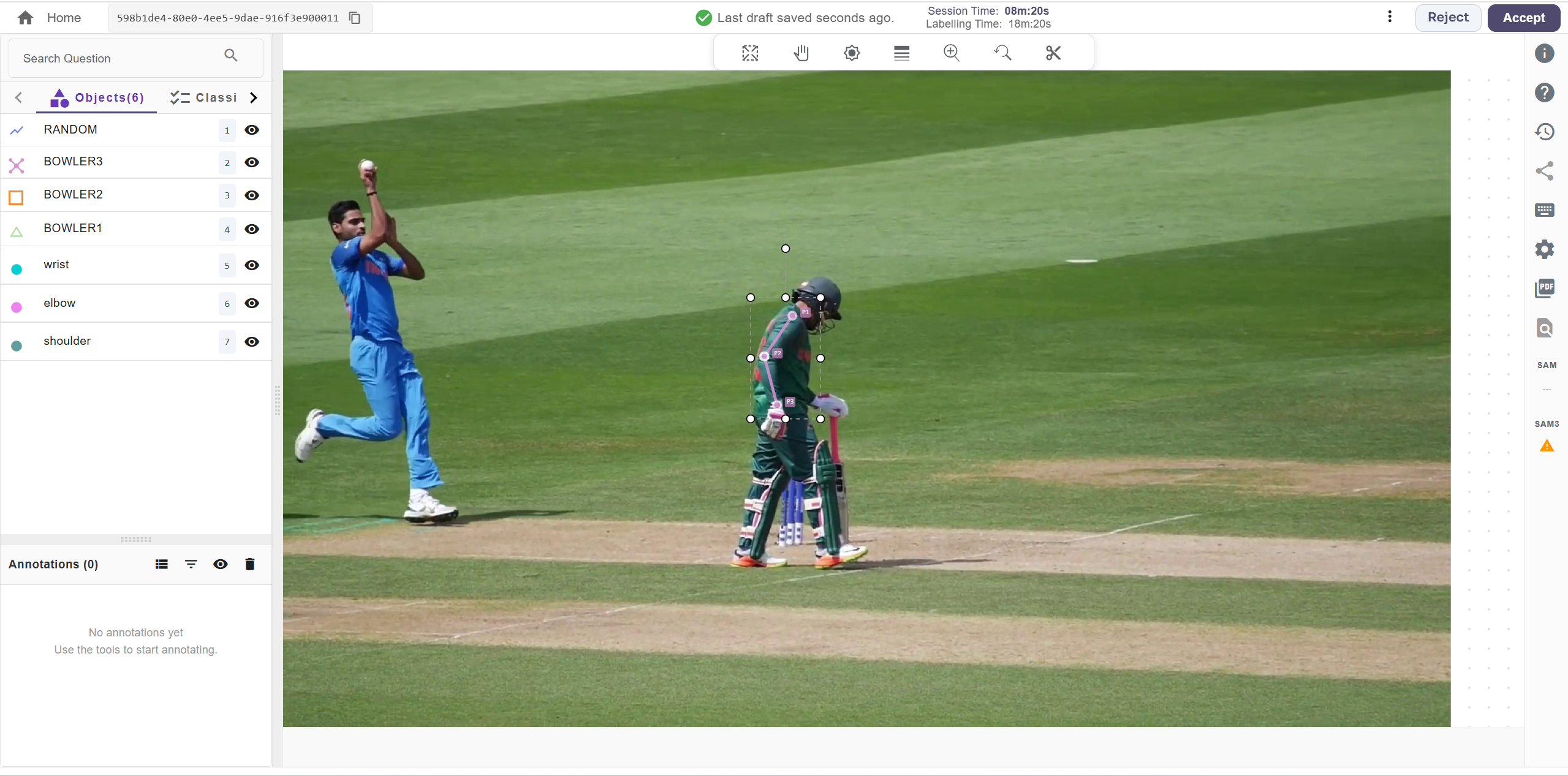
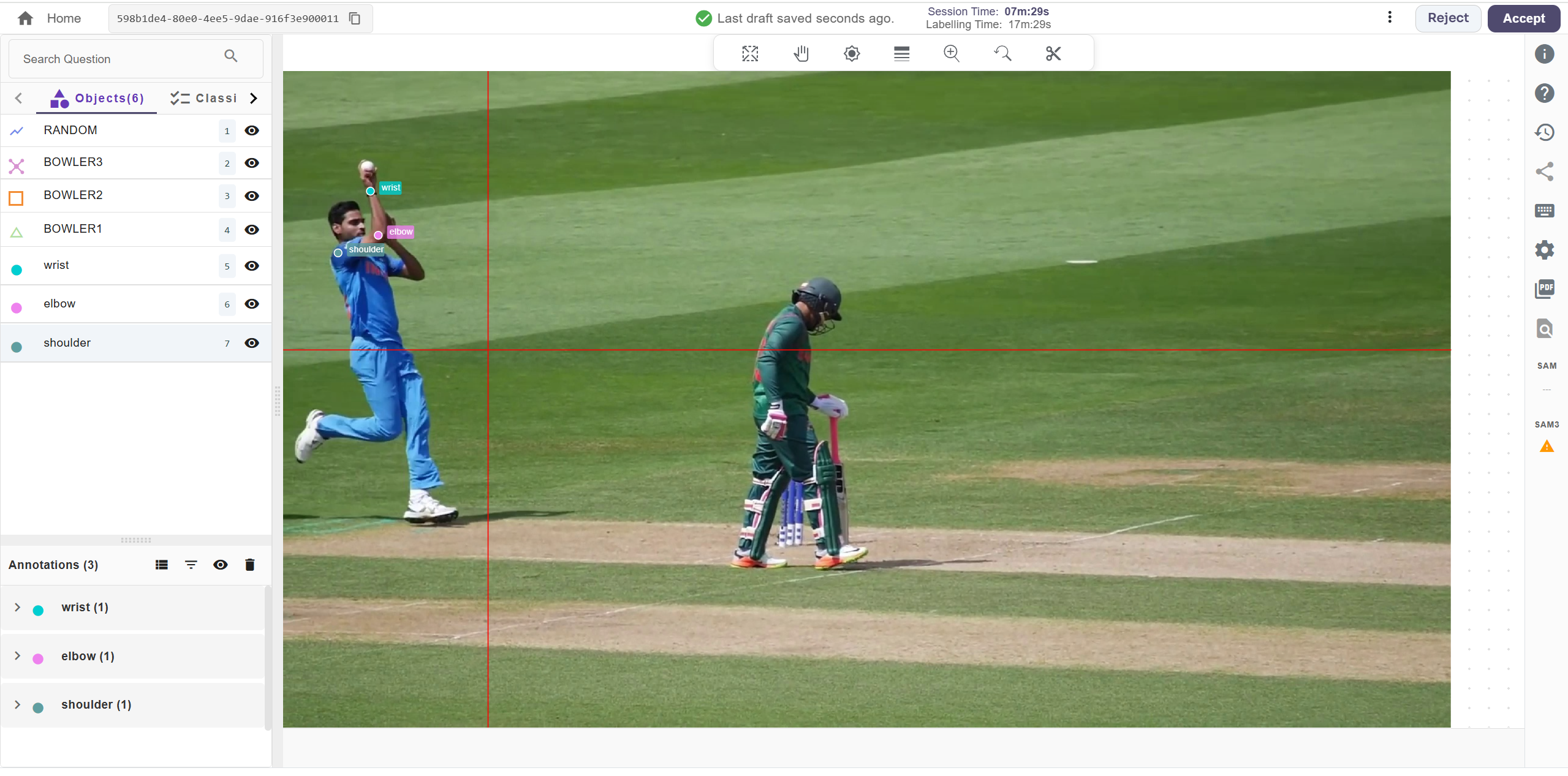
Landmark and Key-point annotation is used in shape variation and small object detection. It works by creating dots across an image, usually used for the detection of facial features, gestures, emotions, poses and body part distinction.
### Dot Annotation
Dot annotation is used to mark specific points in an image by placing single dots. It is commonly used for object counting, small object detection, and identifying points of interest.
To predict the description/brief/keywords about the image using Generative AI, visit the [Image Captioning Using Generative AI](/features/image-captioning) guide.
For further assistance contact [support@tensormatics.com](mailto:support@tensormatics.com)
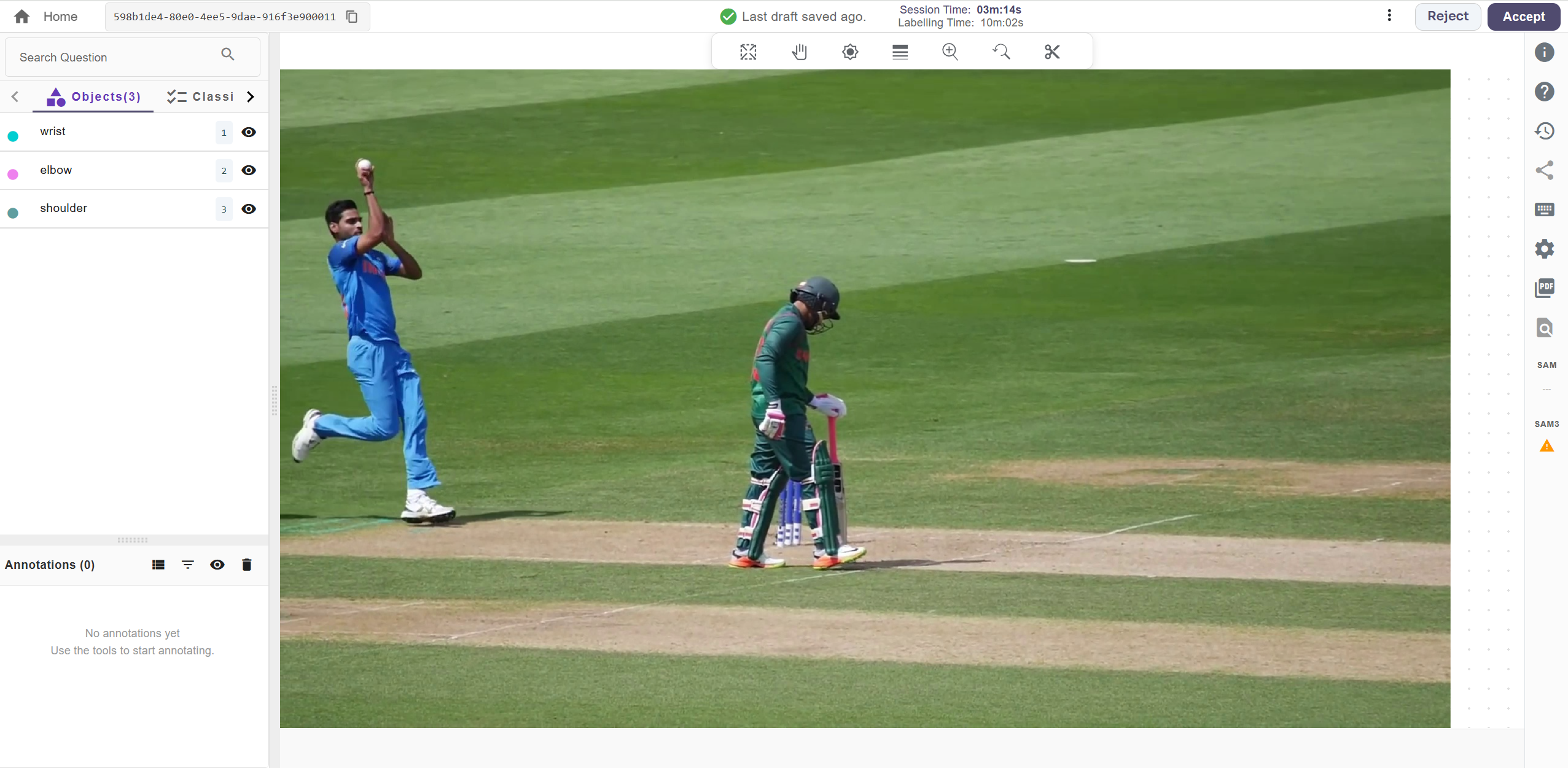 ### Bounding Box
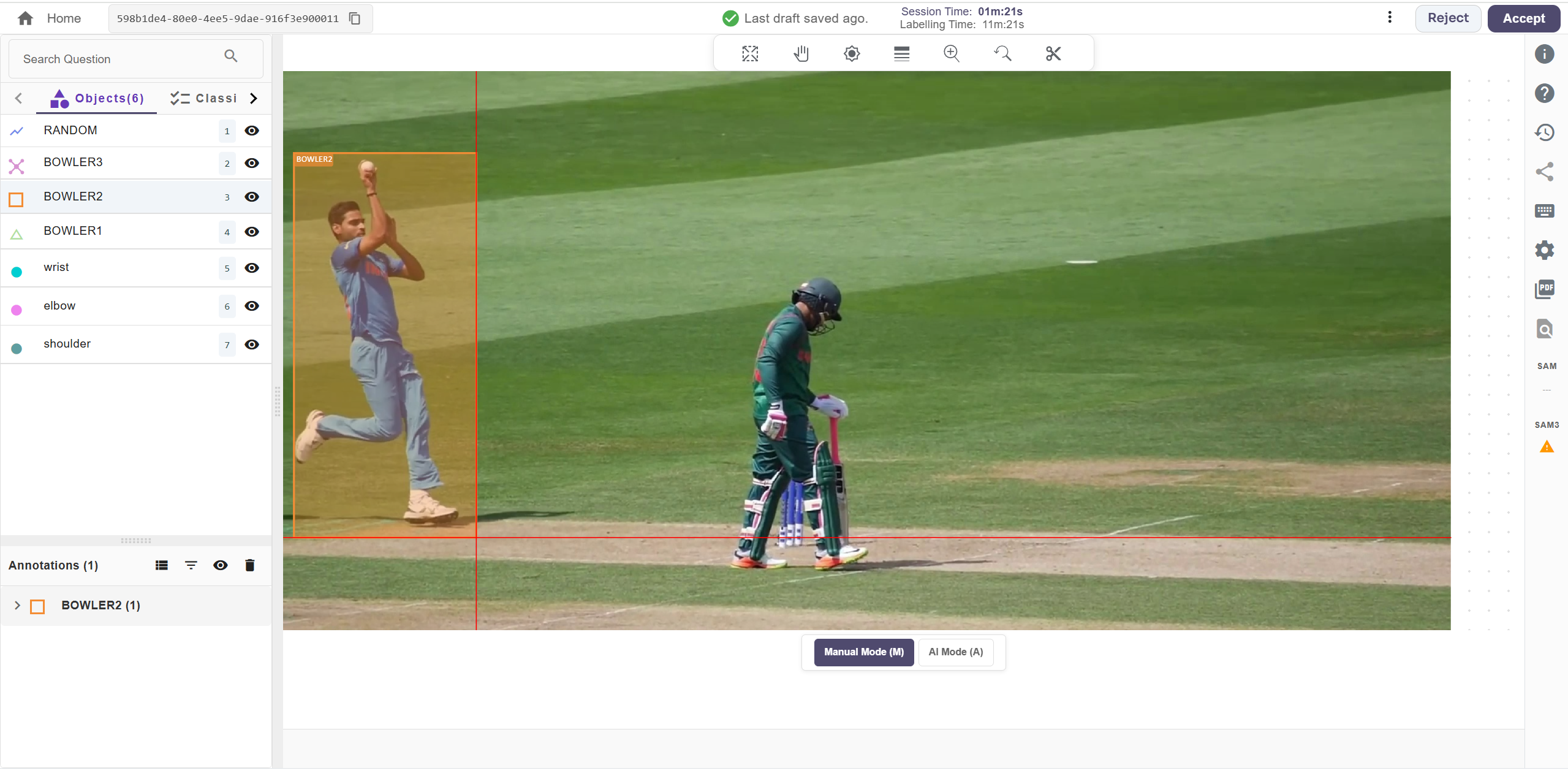
A bounding box is a rectangular frame used to mark the location of an object in an image. It is one of the most common annotation methods, typically used for object detection and localization. Use M for manual bounding box and A for AI-assisted bounding box.
### Bounding Box
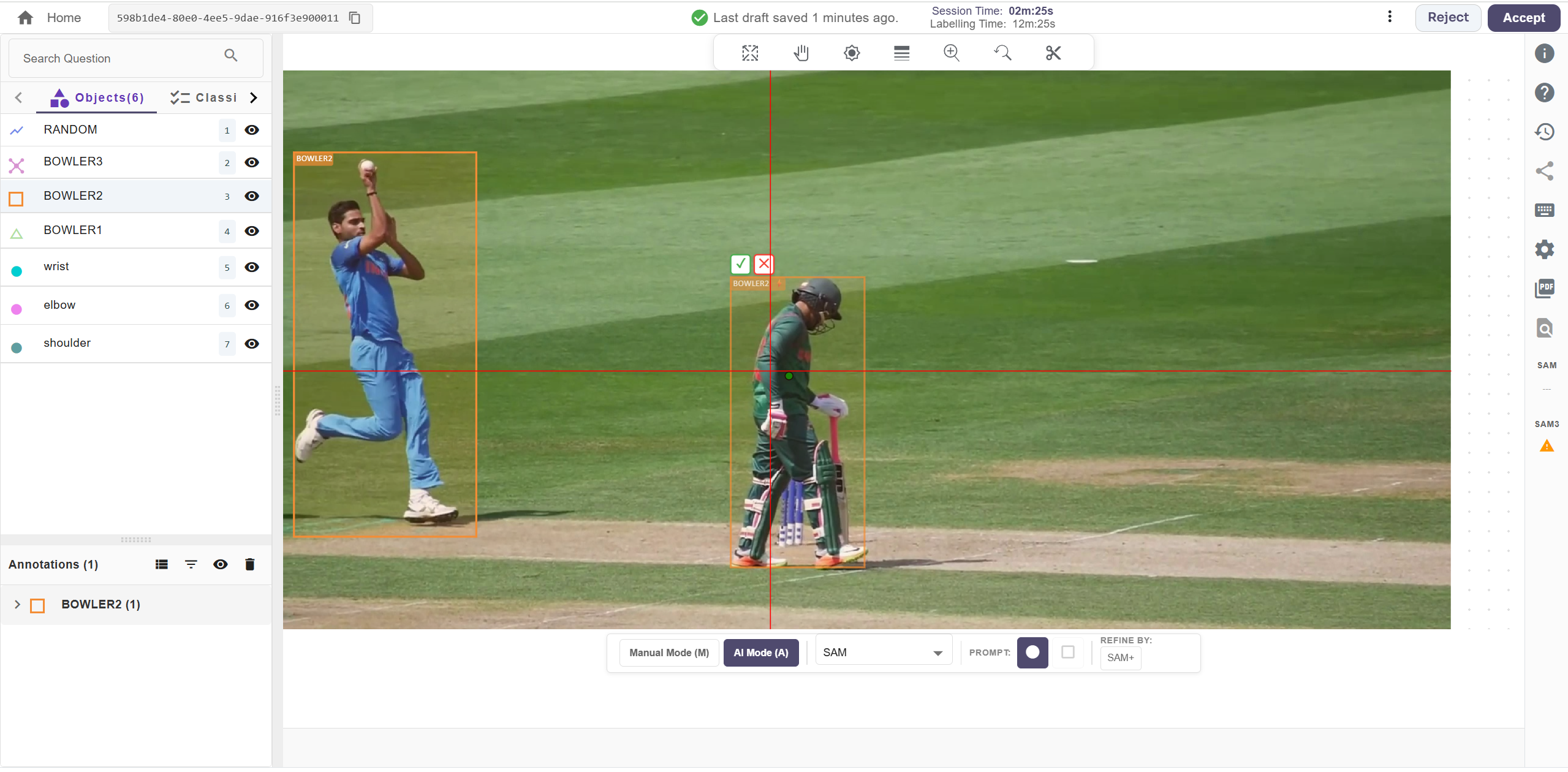
A bounding box is a rectangular frame used to mark the location of an object in an image. It is one of the most common annotation methods, typically used for object detection and localization. Use M for manual bounding box and A for AI-assisted bounding box.
 ### Keypoint
Landmark and Key-point annotation is used in shape variation and small object detection. It works by creating dots across an image, usually used for the detection of facial features, gestures, emotions, poses and body part distinction.
### Keypoint
Landmark and Key-point annotation is used in shape variation and small object detection. It works by creating dots across an image, usually used for the detection of facial features, gestures, emotions, poses and body part distinction.
 ### Dot Annotation
Dot annotation is used to mark specific points in an image by placing single dots. It is commonly used for object counting, small object detection, and identifying points of interest.
### Dot Annotation
Dot annotation is used to mark specific points in an image by placing single dots. It is commonly used for object counting, small object detection, and identifying points of interest.
 To predict the description/brief/keywords about the image using Generative AI, visit the [Image Captioning Using Generative AI](/features/image-captioning) guide.