> ## Documentation Index
> Fetch the complete documentation index at: https://docs.labellerr.com/llms.txt
> Use this file to discover all available pages before exploring further.
# View on Files Page
> Explore different viewing options on the Files page in Labellerr, including Files View, Statistics View, Grid View, and Object View.
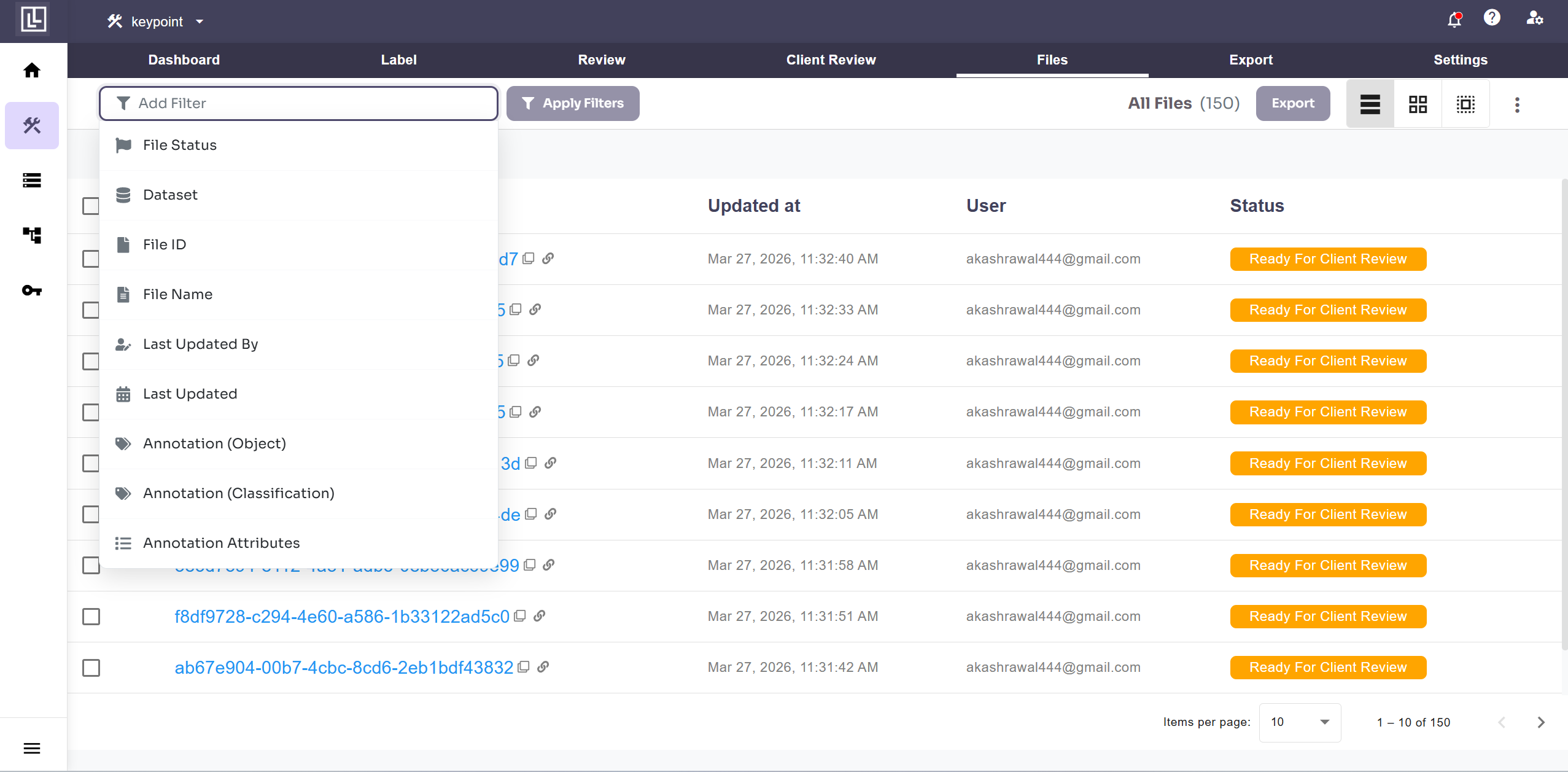
### Files View
To view the list of files based on the filter applied on the add Filter option.
 ### Grid View
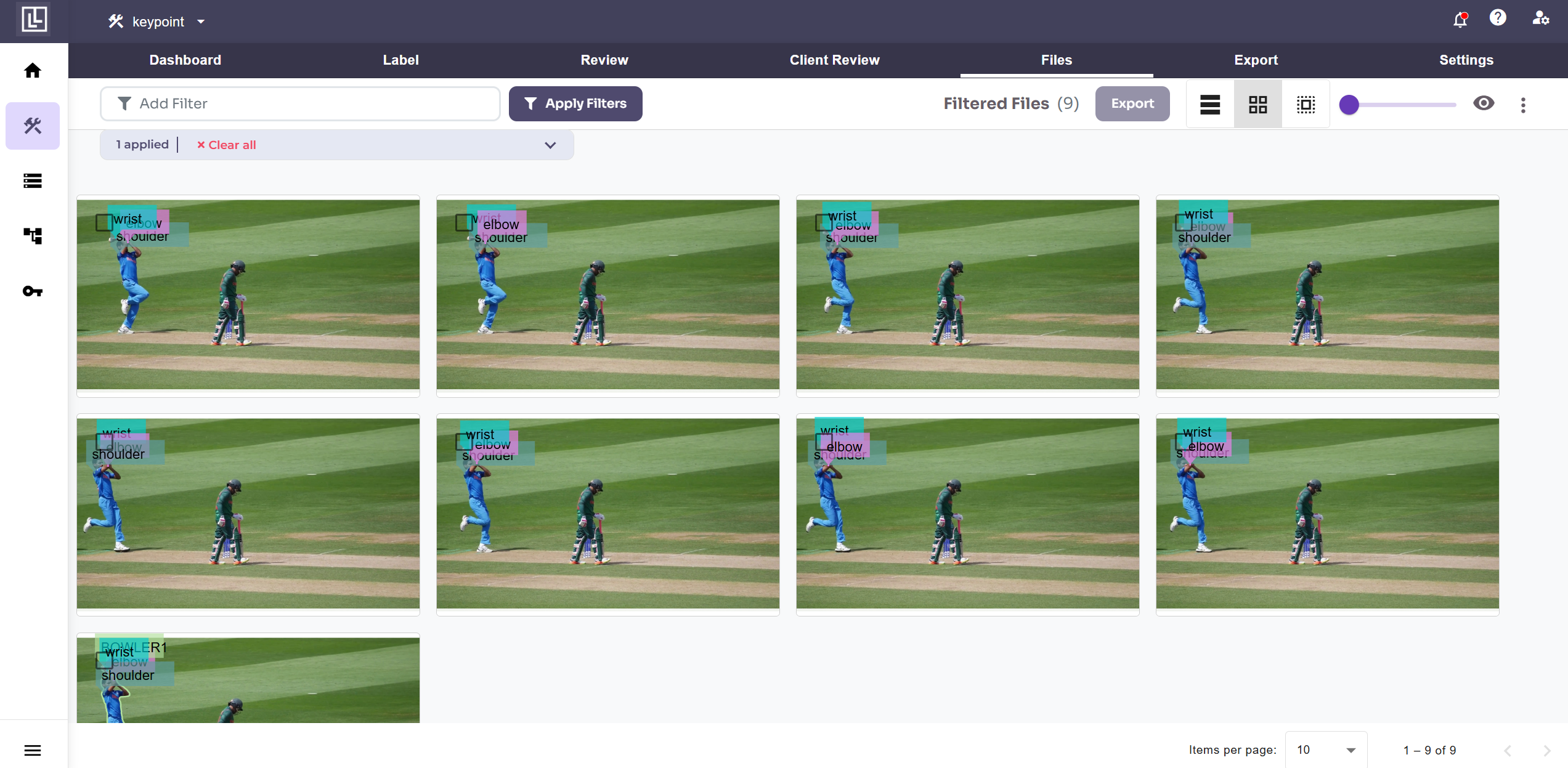
After applying the filters, the grid view can be enabled by clicking on the grid icon in the top right section of the page.
This view enables the users to easily see the annotation present within the filtered files at a glance.
### Grid View
After applying the filters, the grid view can be enabled by clicking on the grid icon in the top right section of the page.
This view enables the users to easily see the annotation present within the filtered files at a glance.
 ### Object View
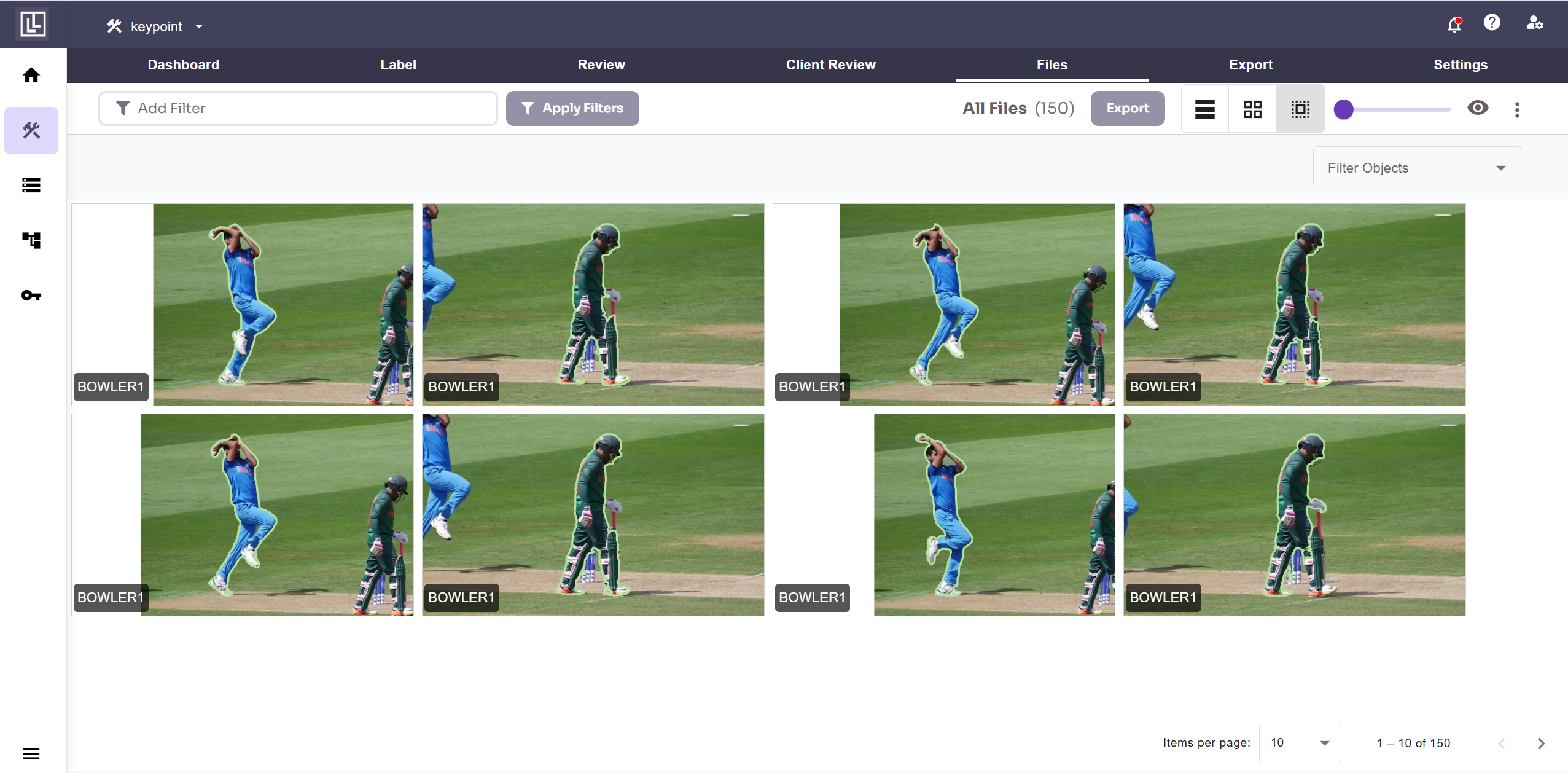
With object view, you can access each annotated object individually and can change the 'label' name to correct one while reviewing.
### Object View
With object view, you can access each annotated object individually and can change the 'label' name to correct one while reviewing.
 For further assistance contact [support@tensormatics.com](mailto:support@tensormatics.com)