> ## Documentation Index
> Fetch the complete documentation index at: https://docs.labellerr.com/llms.txt
> Use this file to discover all available pages before exploring further.
# Single Sign-On (SSO) Enforcement
> Enforce Single Sign-On (SSO) authentication for all members of your Labellerr workspace.
## Overview
Single Sign-On (SSO) Enforcement lets you enforce sign-in through a designated identity provider — **Google Workspace** or **Okta** — for all members of your workspace. Once enabled, every user must authenticate through the selected provider.
Only users with **super admin** privileges can enable or disable SSO Enforcement for a workspace.
## Enabling SSO Enforcement
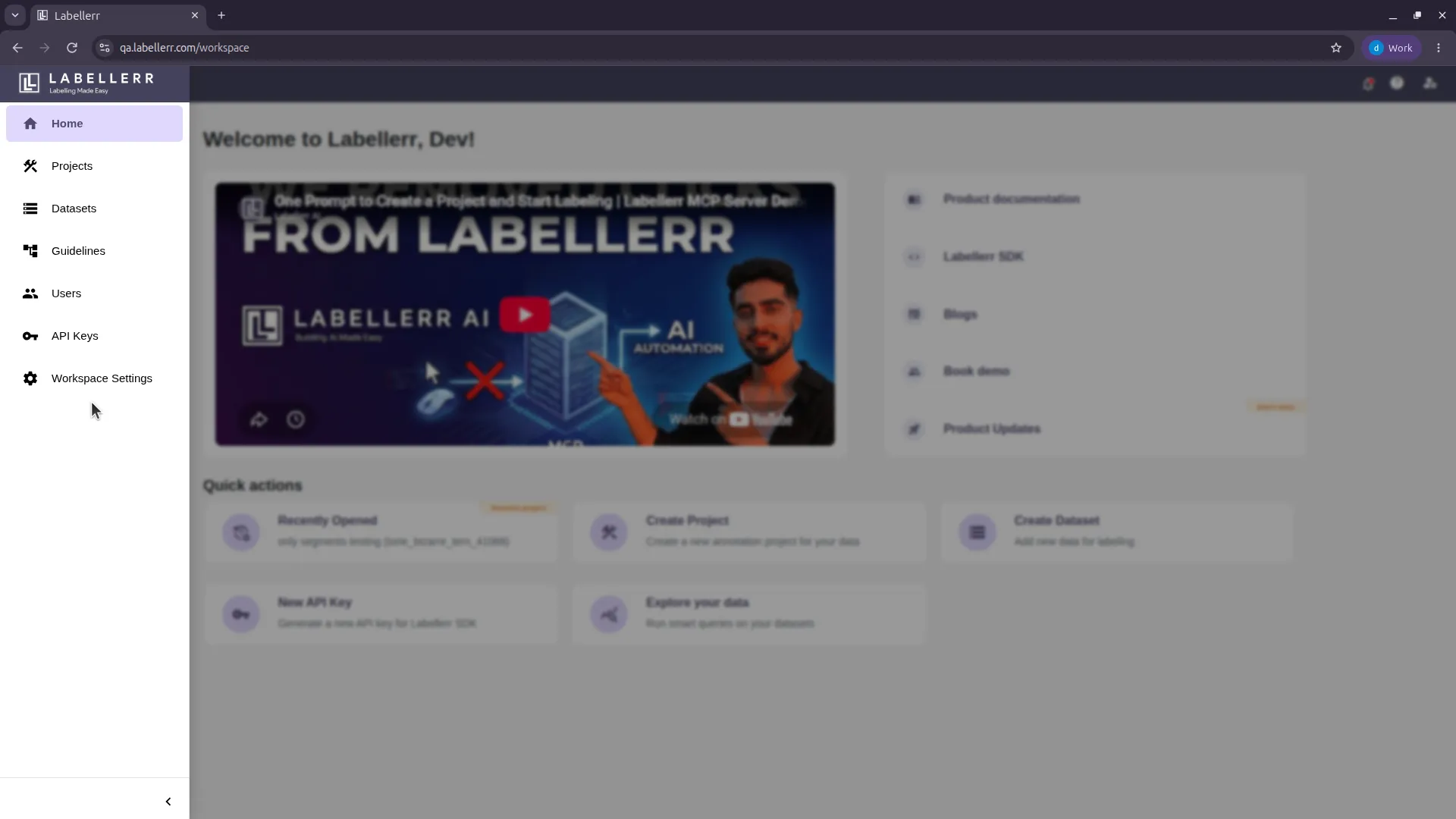
Open the **Workspace Settings** option from the left sidebar.
 Toggle on **Single Sign-on (SSO) Enforcement**.
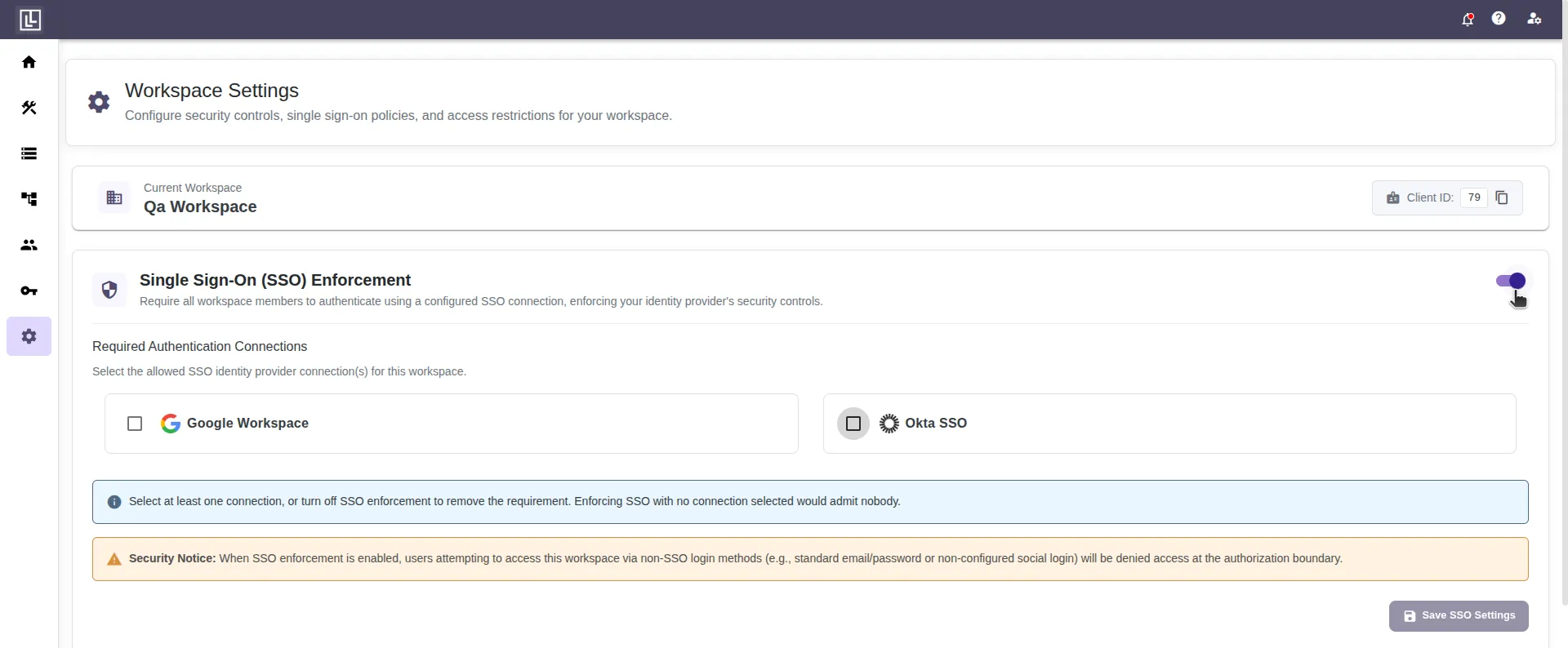 Check the box for the SSO identity provider you want to enforce: **Google Workspace** or **Okta**.
## How It Works
Once SSO Enforcement is enabled, all users must sign in through the designated identity provider. Users are forced to re-authenticate with the provider on login, and there is no alternative login path.
Keep your login credentials safe and remembered. After SSO Enforcement is enabled, a user can only log in using the designated provider.
## Disabling SSO
Only a **super admin** can disable SSO Enforcement from the same **Workspace Settings** screen by toggling it off.
For further assistance contact [support@tensormatics.com](mailto:support@tensormatics.com)
Check the box for the SSO identity provider you want to enforce: **Google Workspace** or **Okta**.
## How It Works
Once SSO Enforcement is enabled, all users must sign in through the designated identity provider. Users are forced to re-authenticate with the provider on login, and there is no alternative login path.
Keep your login credentials safe and remembered. After SSO Enforcement is enabled, a user can only log in using the designated provider.
## Disabling SSO
Only a **super admin** can disable SSO Enforcement from the same **Workspace Settings** screen by toggling it off.
For further assistance contact [support@tensormatics.com](mailto:support@tensormatics.com)