> ## Documentation Index
> Fetch the complete documentation index at: https://docs.labellerr.com/llms.txt
> Use this file to discover all available pages before exploring further.
# Event/Action Tagging
> Learn how Labellerr's Event Tagging feature transforms raw video into structured, searchable data by marking and labeling specific segments in a video timeline.
**Event/Action Tagging** is the process of marking specific segments or moments in a video timeline that correspond to important or noteworthy events. Each tag typically includes:
* The **start time** of the event.
* The **end time** (adjustable).
* A **name or label** describing the event (e.g., "Goran Dragic’s clutch 2-pointer" or "Foul on LeBron").
* Custom **attributes** to capture additional details and metadata (e.g., player names, game situation, or action intensity).
This transforms raw video into structured, searchable data that can be accessed instantly.
## How to Use Labellerr’s Event/Action Tagging Tool
### Step 1: Create a Video Annotation Project
* Create a video annotation project in Labellerr designed for event tagging.
### Step 2: Create an Annotation Template
* Create an annotations template configured with the "event" criteria object.
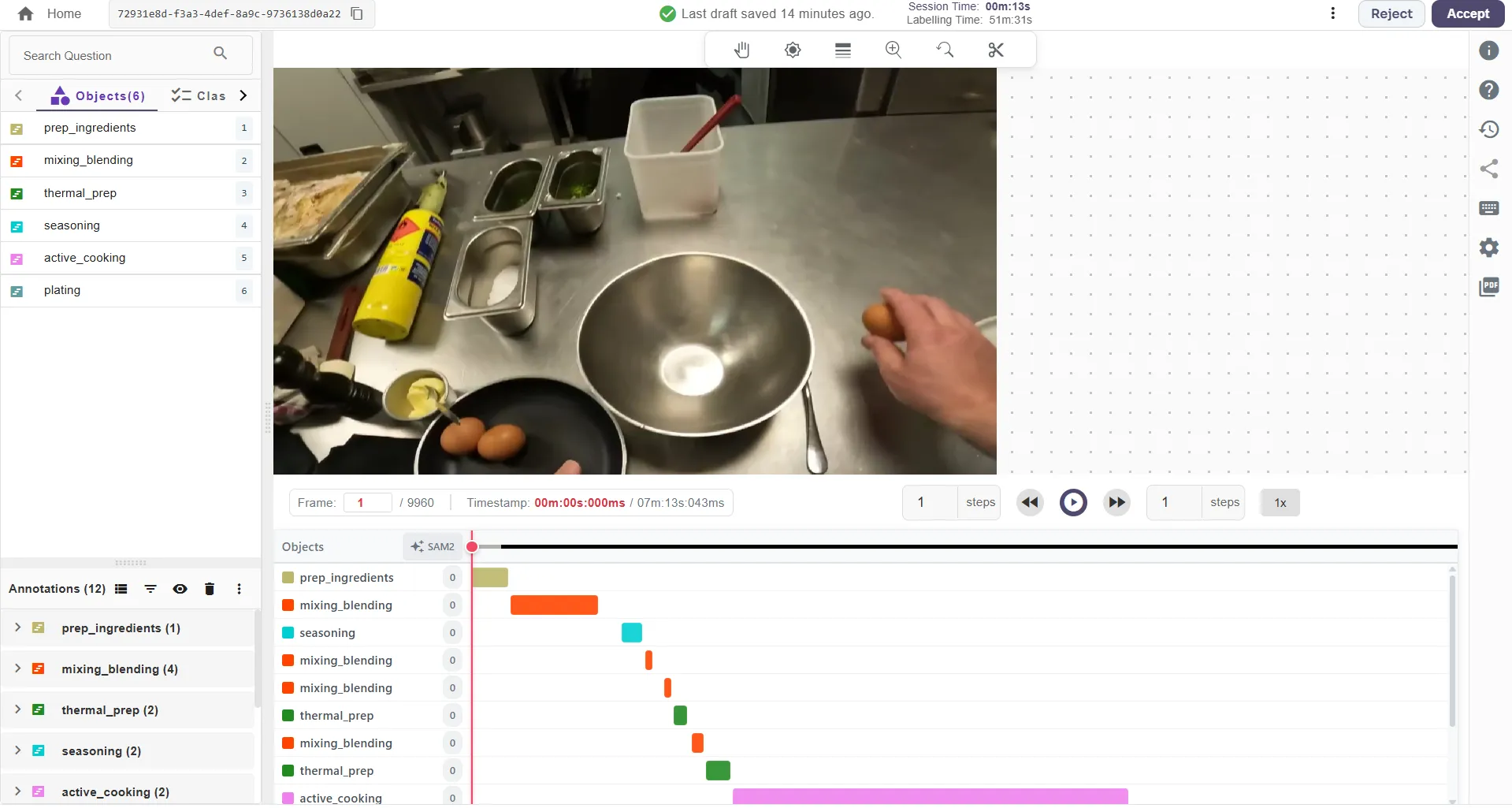
### Step 3: Select and Adjust Event on the Timeline
* While performing the video annotation, select the event annotation.
* Adjust the start frame and end frame of that specific event directly on the timeline.
### Step 4: Locate Created Event Annotations
* Once configured, your event annotation will be displayed below the annotation bar.
### Step 5: Repeat for Other Annotations
* Repeat the process for all other event annotations you want to tag in the video.
***
## Event/Action Tag Attributes
Event tagging in Labellerr supports adding **attributes** directly to event annotations. With this capability, you can attach additional context, metadata, or specific details to any tagged event (e.g., player names, action intensity, success/failure states, or game quarters).
### How to Add Attributes to Event/Action Tags
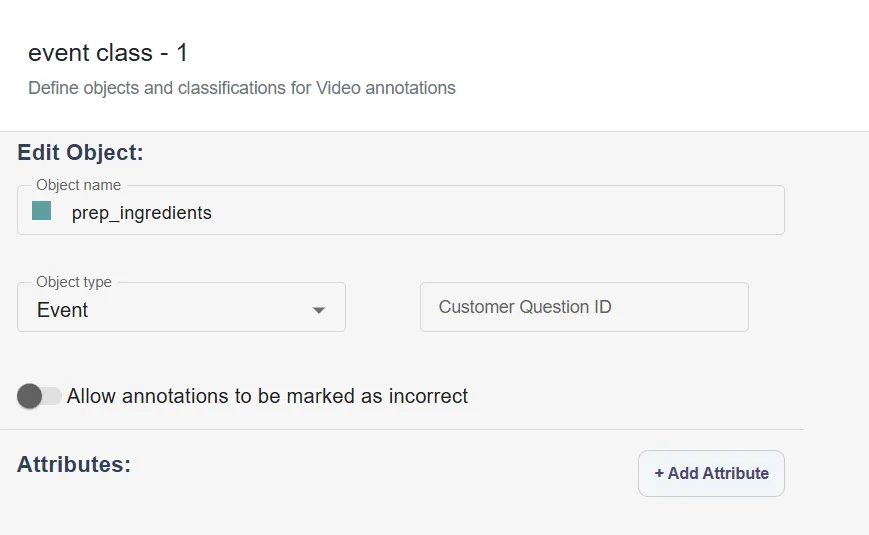
1. **Enable Attributes in Annotation Settings:** When creating your project annotation guidelines, click **Edit** on your annotation class and click on **Add Attribute**.
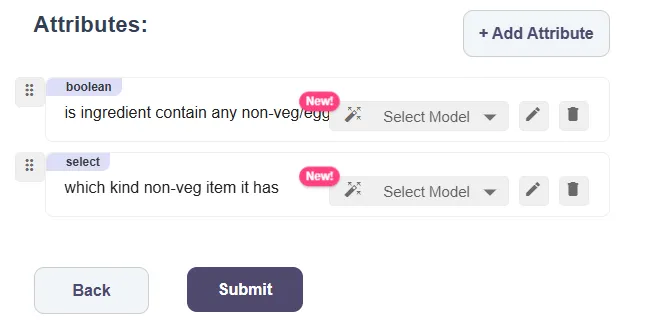
2. **Add Attributes:** Configure the various attributes that you want to associate with your annotation class.
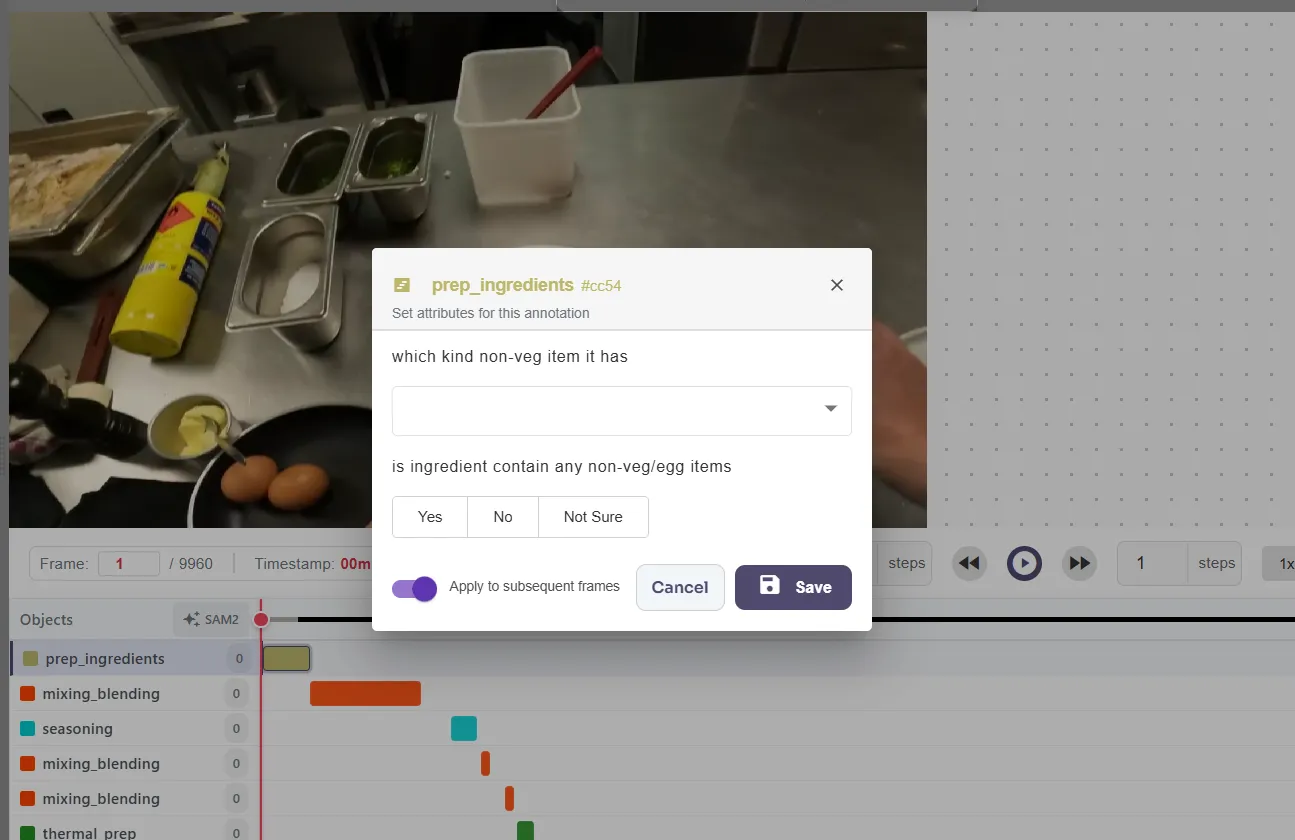
3. **Fill Attributes During Annotation:** While annotating, once you select your event annotation class, an attribute filling box will appear on the screen automatically. Alternatively, you can press **E** on your keyboard to bring the attribute box onto the screen, and then fill in the attributes.
## Benefits of Event/Action Tagging with Labellerr
* **Instant Access to Highlights:** Skip long videos to jump directly to key moments.
* **Structured Data for ML:** Tagged moments become datasets for machine learning, enabling recognition of patterns and automated video understanding.
* **Multi-Industry Application:** Useful for sports, security monitoring, education, content creation, marketing, and more.
* **Saves Time:** No more manual scrubbing through hours of footage to find specific events.
* **Customizable:** Tags can be named, timed, edited, and organized to suit your project needs.
## Use Cases
* **Sports Analytics:** Tag game highlights such as dunks, fouls, goals, or plays—ideal for broadcasters and coaching staff.
* **Security & Surveillance:** Mark suspicious activities for fast review and incident documentation.
* **Education & Content Creation:** Highlight key concepts, demos, or tutorial sections for streamlined video content.
* **Media & Entertainment:** Quickly generate clips for social media, marketing, or highlight reels.
## Best Practices
* Tag events precisely at their start time for easy navigation.
* Use descriptive, consistent naming conventions to organize tags efficiently.
* Adjust the length of tags to cover entire events but keep them concise.
* Regularly review and update tags for accuracy as video content is refined.
* Combine event tagging with other Labellerr annotation tools for enriched datasets.
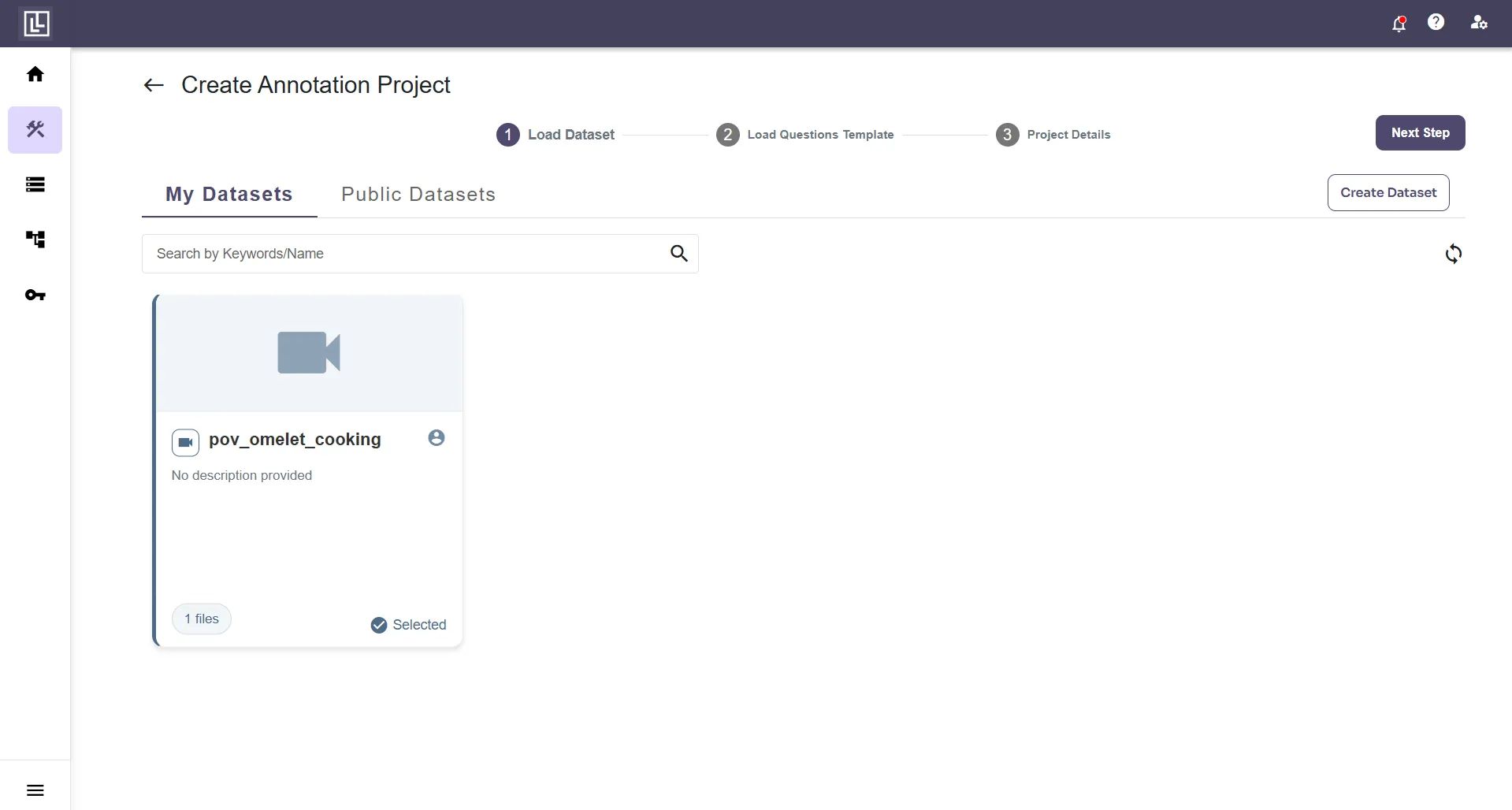 ### Step 2: Create an Annotation Template
* Create an annotations template configured with the "event" criteria object.
### Step 2: Create an Annotation Template
* Create an annotations template configured with the "event" criteria object.
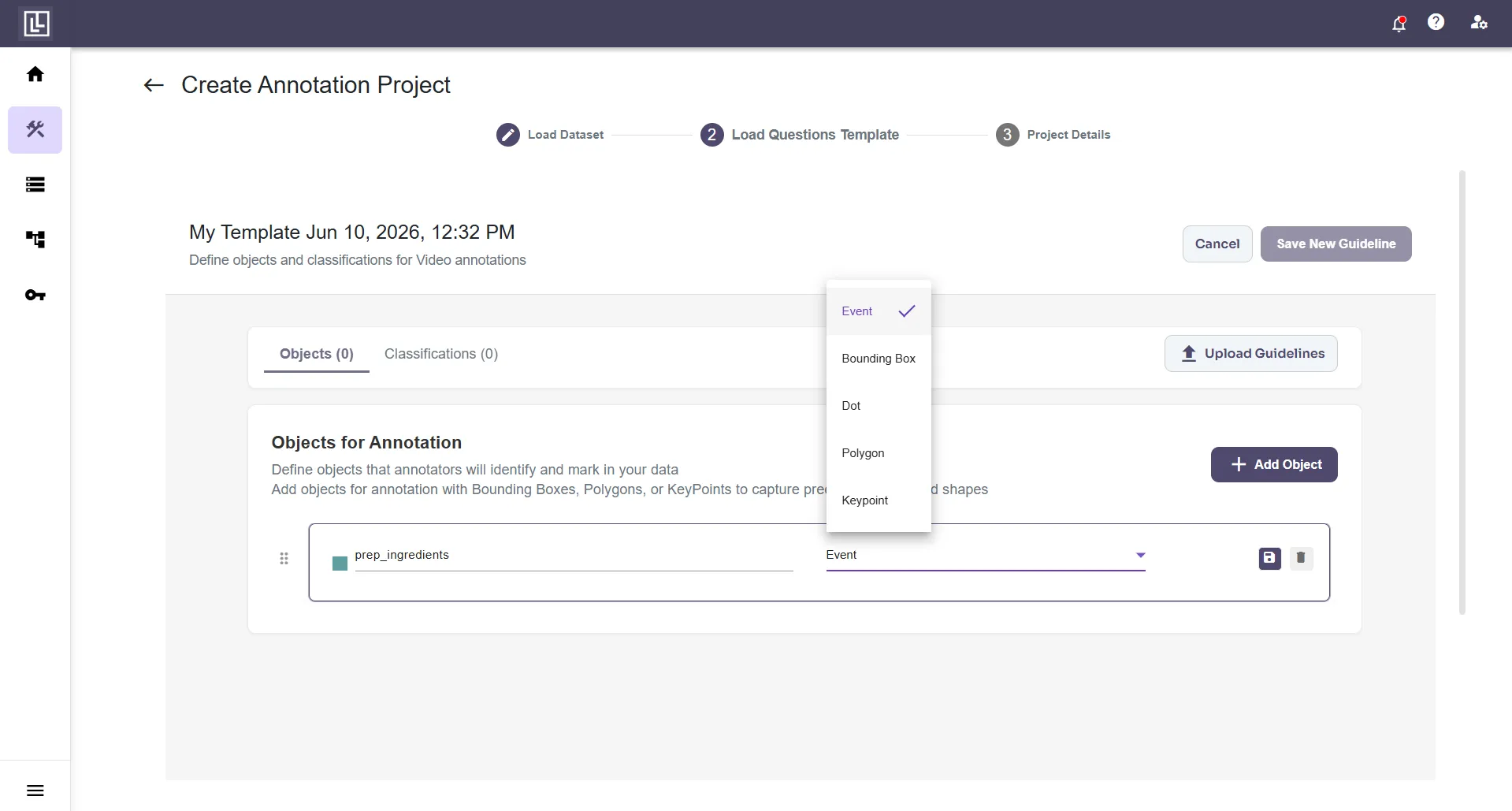 ### Step 3: Select and Adjust Event on the Timeline
* While performing the video annotation, select the event annotation.
* Adjust the start frame and end frame of that specific event directly on the timeline.
### Step 3: Select and Adjust Event on the Timeline
* While performing the video annotation, select the event annotation.
* Adjust the start frame and end frame of that specific event directly on the timeline.
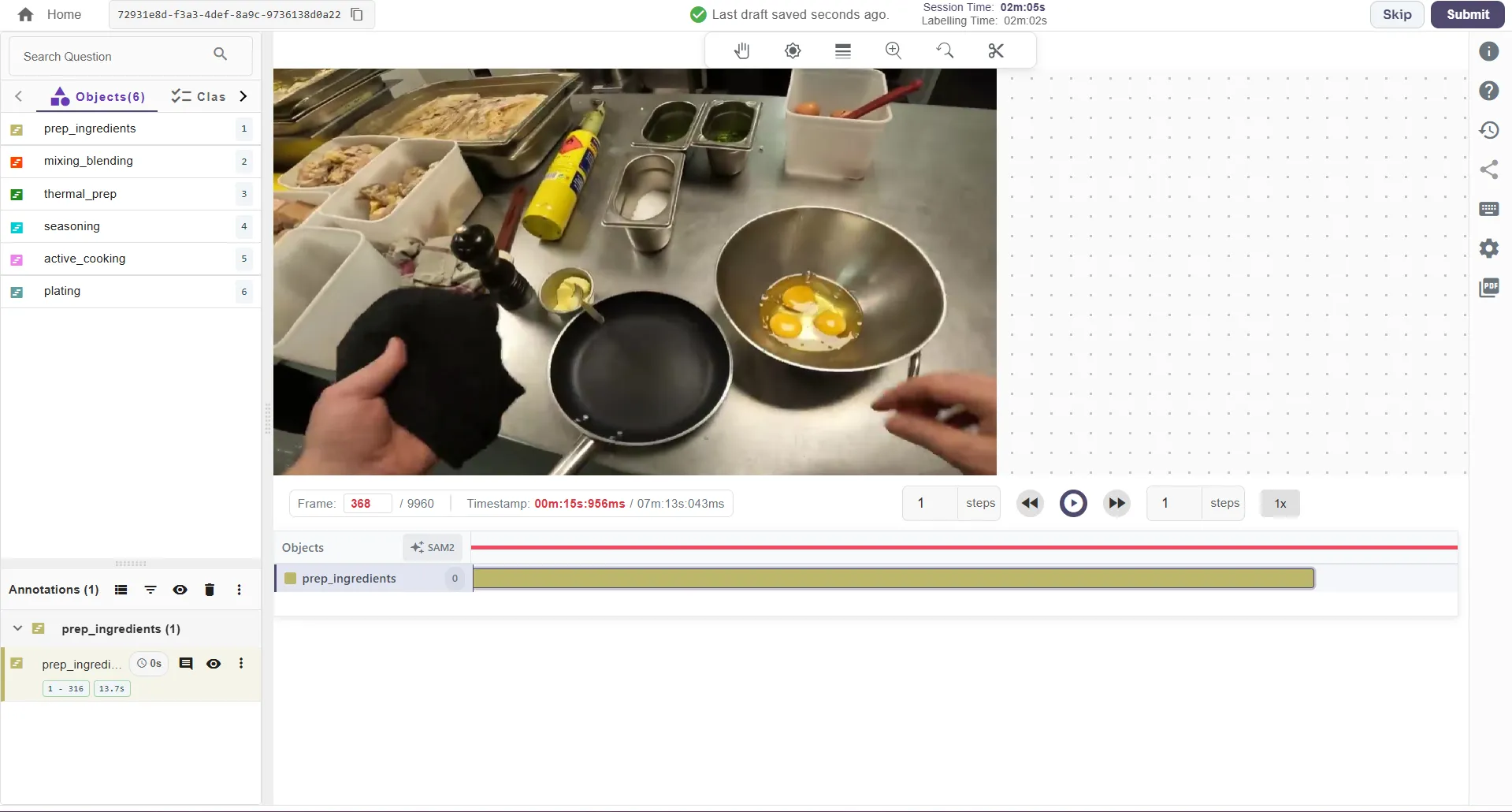 ### Step 4: Locate Created Event Annotations
* Once configured, your event annotation will be displayed below the annotation bar.
### Step 4: Locate Created Event Annotations
* Once configured, your event annotation will be displayed below the annotation bar.
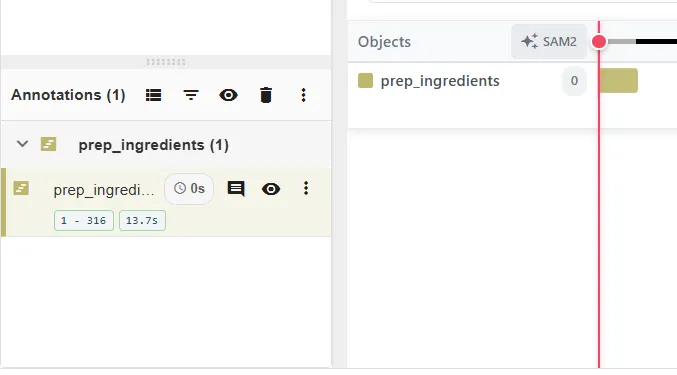 ### Step 5: Repeat for Other Annotations
* Repeat the process for all other event annotations you want to tag in the video.
### Step 5: Repeat for Other Annotations
* Repeat the process for all other event annotations you want to tag in the video.
 ***
## Event/Action Tag Attributes
Event tagging in Labellerr supports adding **attributes** directly to event annotations. With this capability, you can attach additional context, metadata, or specific details to any tagged event (e.g., player names, action intensity, success/failure states, or game quarters).
### How to Add Attributes to Event/Action Tags
1. **Enable Attributes in Annotation Settings:** When creating your project annotation guidelines, click **Edit** on your annotation class and click on **Add Attribute**.
***
## Event/Action Tag Attributes
Event tagging in Labellerr supports adding **attributes** directly to event annotations. With this capability, you can attach additional context, metadata, or specific details to any tagged event (e.g., player names, action intensity, success/failure states, or game quarters).
### How to Add Attributes to Event/Action Tags
1. **Enable Attributes in Annotation Settings:** When creating your project annotation guidelines, click **Edit** on your annotation class and click on **Add Attribute**.
 2. **Add Attributes:** Configure the various attributes that you want to associate with your annotation class.
 3. **Fill Attributes During Annotation:** While annotating, once you select your event annotation class, an attribute filling box will appear on the screen automatically. Alternatively, you can press **E** on your keyboard to bring the attribute box onto the screen, and then fill in the attributes.
 ## Benefits of Event/Action Tagging with Labellerr
* **Instant Access to Highlights:** Skip long videos to jump directly to key moments.
* **Structured Data for ML:** Tagged moments become datasets for machine learning, enabling recognition of patterns and automated video understanding.
* **Multi-Industry Application:** Useful for sports, security monitoring, education, content creation, marketing, and more.
* **Saves Time:** No more manual scrubbing through hours of footage to find specific events.
* **Customizable:** Tags can be named, timed, edited, and organized to suit your project needs.
## Use Cases
* **Sports Analytics:** Tag game highlights such as dunks, fouls, goals, or plays—ideal for broadcasters and coaching staff.
* **Security & Surveillance:** Mark suspicious activities for fast review and incident documentation.
* **Education & Content Creation:** Highlight key concepts, demos, or tutorial sections for streamlined video content.
* **Media & Entertainment:** Quickly generate clips for social media, marketing, or highlight reels.
## Best Practices
* Tag events precisely at their start time for easy navigation.
* Use descriptive, consistent naming conventions to organize tags efficiently.
* Adjust the length of tags to cover entire events but keep them concise.
* Regularly review and update tags for accuracy as video content is refined.
* Combine event tagging with other Labellerr annotation tools for enriched datasets.
## Benefits of Event/Action Tagging with Labellerr
* **Instant Access to Highlights:** Skip long videos to jump directly to key moments.
* **Structured Data for ML:** Tagged moments become datasets for machine learning, enabling recognition of patterns and automated video understanding.
* **Multi-Industry Application:** Useful for sports, security monitoring, education, content creation, marketing, and more.
* **Saves Time:** No more manual scrubbing through hours of footage to find specific events.
* **Customizable:** Tags can be named, timed, edited, and organized to suit your project needs.
## Use Cases
* **Sports Analytics:** Tag game highlights such as dunks, fouls, goals, or plays—ideal for broadcasters and coaching staff.
* **Security & Surveillance:** Mark suspicious activities for fast review and incident documentation.
* **Education & Content Creation:** Highlight key concepts, demos, or tutorial sections for streamlined video content.
* **Media & Entertainment:** Quickly generate clips for social media, marketing, or highlight reels.
## Best Practices
* Tag events precisely at their start time for easy navigation.
* Use descriptive, consistent naming conventions to organize tags efficiently.
* Adjust the length of tags to cover entire events but keep them concise.
* Regularly review and update tags for accuracy as video content is refined.
* Combine event tagging with other Labellerr annotation tools for enriched datasets.