> ## Documentation Index
> Fetch the complete documentation index at: https://docs.labellerr.com/llms.txt
> Use this file to discover all available pages before exploring further.

# Image Similarity

> Understand Image Similarity in Labellerr, a capability used to automate repetitive data preparation tasks for faster, more efficient, and accurate pipelines.

<Note>
  This guide is meant for users to understand the concept of Image Similarity, how can we use this capability to automate the repetitive tasks to make the data-preparation pipeline more faster, efficient, accurate & convenient .
</Note>

<Card title="Topics Covered" icon="images">
  This guide covers image similarity capabilities in Labellerr:

  * **What is Image Similarity** - Understanding the concept and measurements
  * **Image Similarity at Labellerr** - How the feature works in our platform
  * **Use Cases in Data Preparation** - Real-world applications and benefits
  * **Data Preparation Automation** - How to streamline annotation workflows
  * **Practical Implementation** - Step-by-step usage guide
</Card>

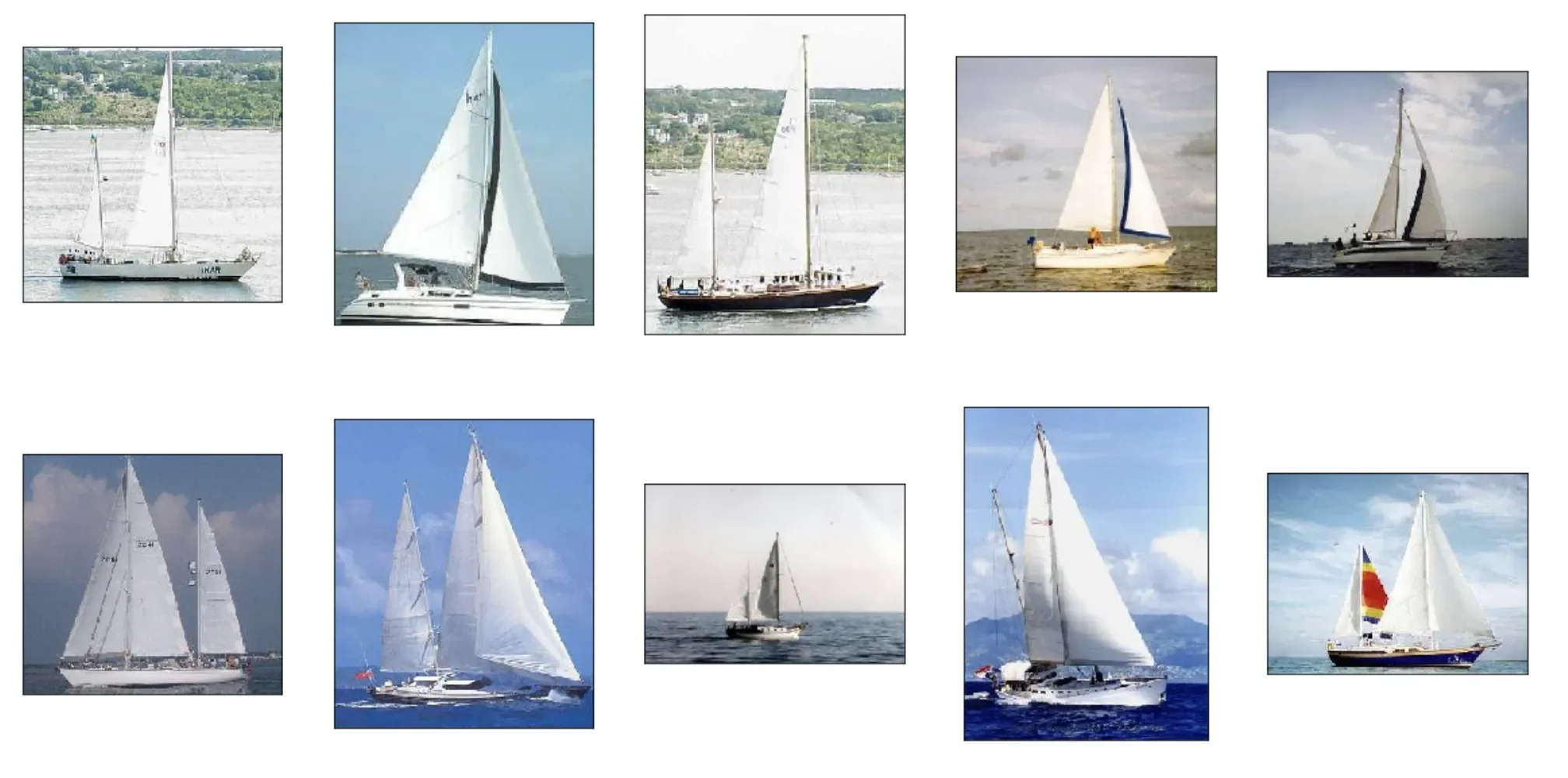
Image similarity is the measure of how similar two images are. In other words, It quantifies the degree of similarity between intensity patterns in two images.

#### Similar Images

<Frame>
  <img src="https://cdn.labellerr.com/1%20%20Documentation/7cbdd36a-46fc-4bc4-ab15-792b278d410e.webp" alt="Similar Images Example" />
</Frame>

### IMAGE SIMILARITY & DATA PREPARATION

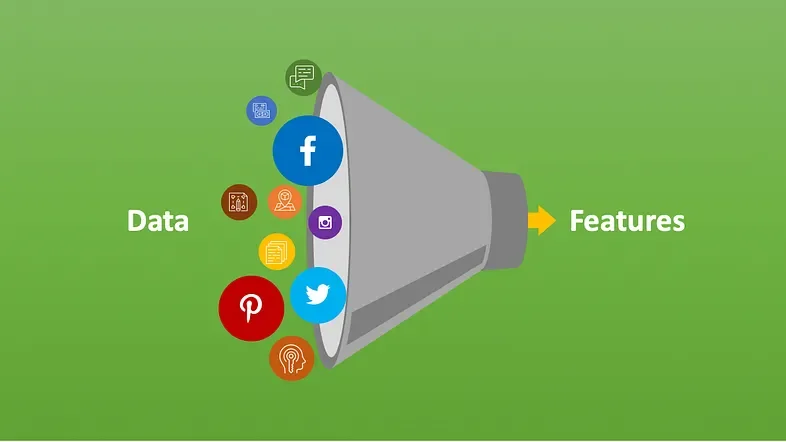
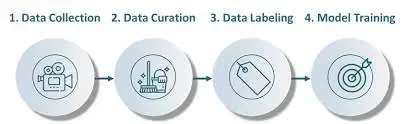
**Data preparation** is the process of transforming raw data so that data scientists and analysts can run it through machine learning models to uncover insights or make predictions. There are different steps in data preparation like, **Data-Collection**, **Data-Curation** & **Data-Annotations**. These steps are **very time-consuming and requires a lots to resources and cost for doing them on scale**, which can be automate or reduced by the capability of **IMAGE SIMILARITY**. Following is some use-cases where we can use the capability of **IMAGE SIMILARITY** to automate the tasks and make the process faster .
<Frame>
  <img src="https://cdn.labellerr.com/1%20%20Documentation/bb69b43f-7291-46e1-ae50-c7d1c56a30f7.webp" alt="Image Similarity Data Prep" />
</Frame>

<Steps>
  <Step title="Data-Collection:">
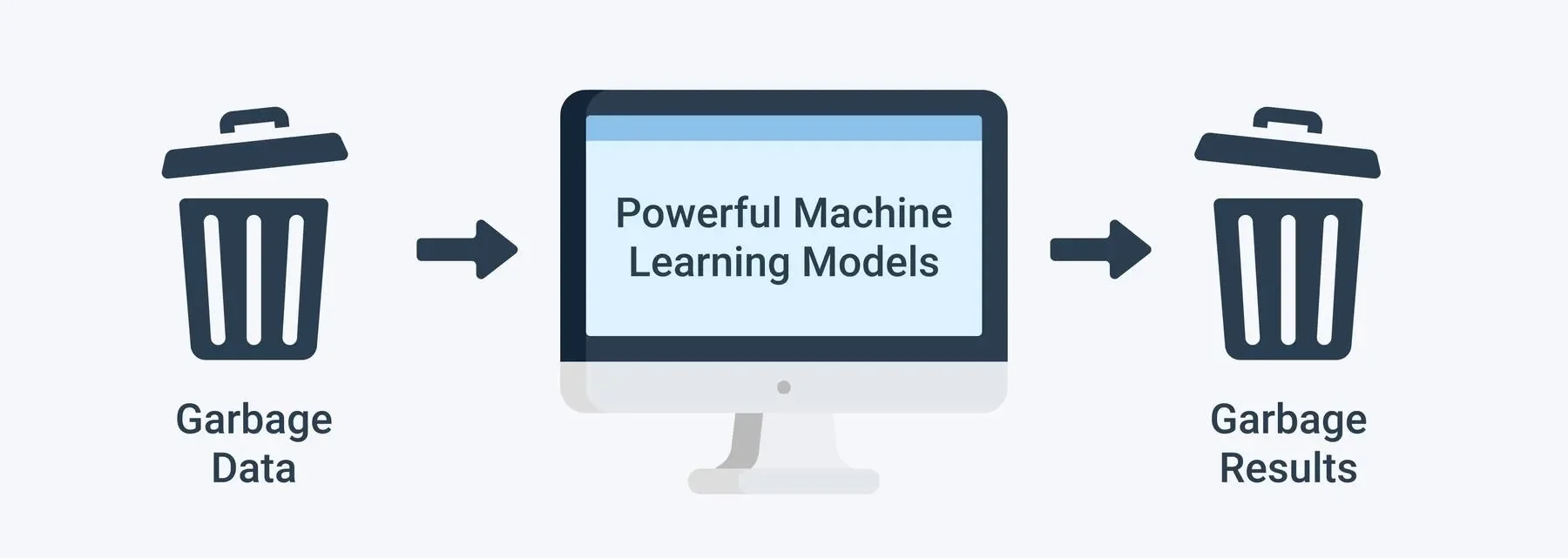
    <p>**Data-Collection:** Collecting data for training the ML model is the basic step in the machine learning pipeline. The predictions made by ML systems can only be as good as the data on which they have been trained.</p>

    <Frame>
      <img src="https://cdn.labellerr.com/1%20%20Documentation/86eaa66b-a502-48c3-9541-da9ff676f6c5.webp" alt="Data Collection" />
    </Frame>

    <p>Following are some of the **problems** that can arise in **data collection**:-</p>

    <ul>
      <li>**Inaccurate data**. The collected datasets could have some data/files that are **unrelated to the problem statement**. After finding one such file that is inaccurate as per the problem statement we can find out all similar files and remove them from datasets .</li>
      <li>**Data imbalance**. Some classes or categories in the data may have a disproportionately high or low number of corresponding samples. As a result, they risk being under-represented in the model. We can use the **IMAGE SIMILARITY** capability to find out the disproportion via finding out the similar images and then accordingly collect more data or remove data to ensure the proportion .</li>
    </ul>

    <Frame>
      <img src="https://cdn.labellerr.com/1%20%20Documentation/039f54f3-78be-43d9-a453-ab6eeaa5d43d.webp" alt="Data Imbalance" />
    </Frame>
  </Step>

  <Step title="Data-Curation :">
    **Data-Curation :** Data curation is a critical part of model development as Computer Vision models are derived by learning from the data they see. We define data curation as the process of **selecting**, **preparing** and **organising** a collection of data such that the value of the data can be maintained over time.

    **DUPLICATION :-** When the **same datasets are available at different sources**, challenges such as **duplication occurs**. Transformation of data may alter one source leaving the other source and result in incorrect data usage. **IMAGE SIMILARITY** can be used to find out the similar datasets or files .

    <Frame>
      <img src="https://cdn.labellerr.com/1%20%20Documentation/4766b57f-6496-4989-81a9-c81665ab7d73.webp" alt="Data Curation" />
    </Frame>
  </Step>

  <Step title="Data-Annotation:-">
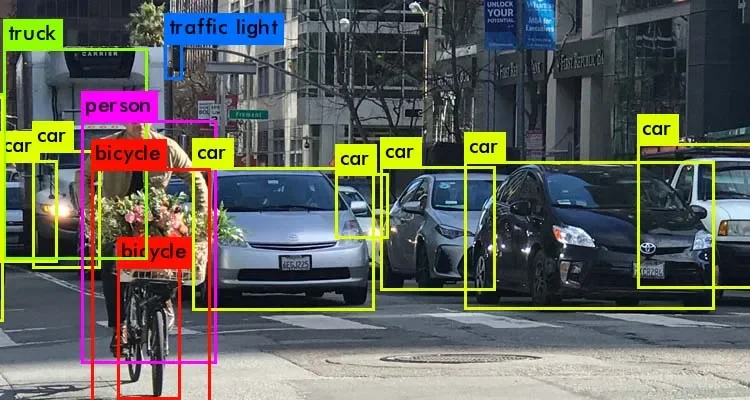
    Data annotation is the process of Labelling data in various formats such as video, images, or text so that machines can understand it. So, as you now know, Image Annotation is vital in modules that involve facial recognition, computer vision, robotic vision, and more.

    <Frame>
      <img src="https://cdn.labellerr.com/1%20%20Documentation/f50cebc5-e53d-4b9f-9496-82bede399497.webp" alt="Data Annotation" />
    </Frame>
  </Step>
</Steps>

**Efficiency**, **Quality** and **time** are some of the **key challenges** of **data-annotation**. We can use the capability of **IMAGE SIMILARITY** to build a annotation pipeline which is better in terms of quality & efficiency & time-consumption .

### IMAGE SIMILARITY AT LABELLERR

We have used the capability of **IMAGE SIMILARITY** to build a feature called **COPY PREVIOUS** in our annotation pipeline. This feature **enables a user to copy answers from the similar files in the pipeline which have been already annotated.**

<Note>
  Before going forward, please ensure that you are familiar with the Annotation Projects, Datasets and Annotation Pipelines at Labellerr. If not please visit the below links :-

  1. [How to create a datasets at workspace level?](/tutorials/datasets)
  2. [How to create a new project](/getting-started/create-project)?
  3. [Start Labelling](/actions/start-labelling)
</Note>

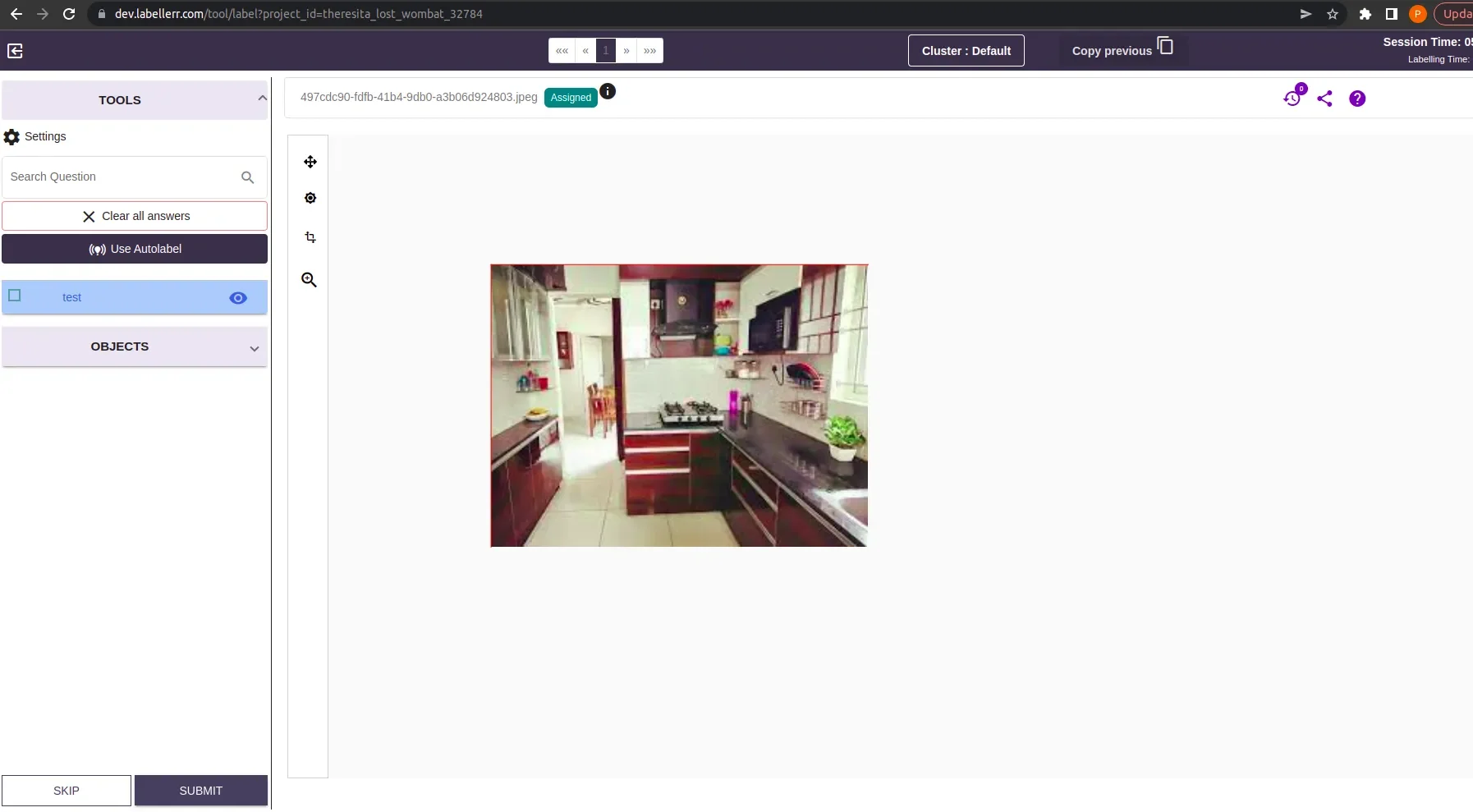
Suppose you are doing annotation. While annotating **for any specific image you feel that such image (similar-image) has been already annotated**. Now your **wish will be to just copy the labels of the similar previous file**. Following examples demonstrate the same functionality.

<Card title="Image Currently Under Annotation Process">
  <Frame>
    <img src="https://cdn.labellerr.com/1%20%20Documentation/c6d8641d-68bf-4e7b-8c14-5b78e350428b.webp" alt="Image under annotation" />
  </Frame>
</Card>

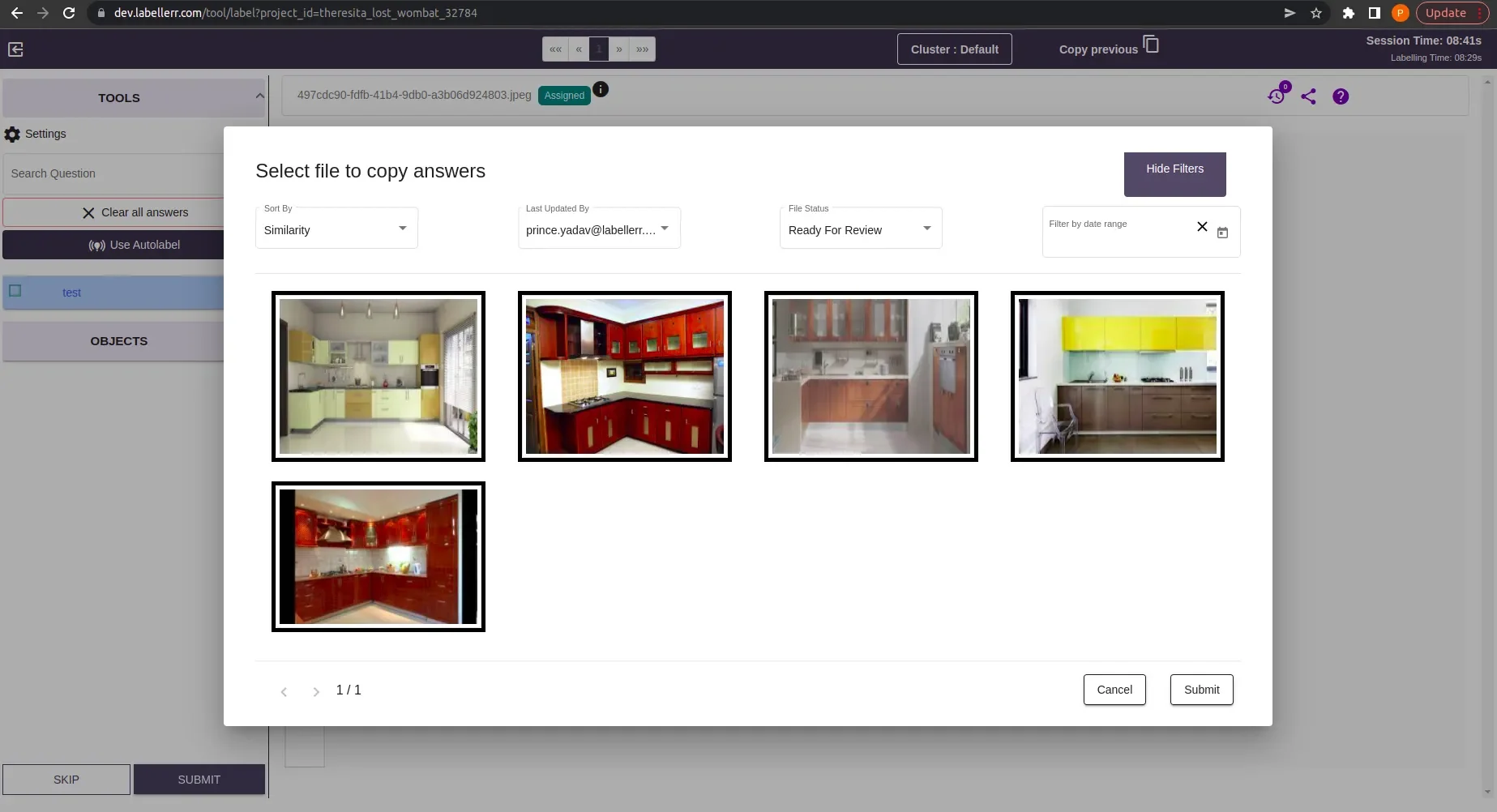
Now if you feel that a similar image is already annotated. Then click on the Button **Copy previous.** After this similar images(Make sure that **“sort by”** filter is set to **similarity** as shown in image) in the annotation pipeline will be rendered as follow :-

<Info>
  **Note-1:** When the **“sort by”** filter is set to **similarity.** The images are render in order of similarity. Means the **First image is the most similar** & **Last Image is least similar image.**

  **Note-2:** When the **“sort by”** filter is set to **Recently Annotated.** The images are rendered on the basis of time of annotation. Means the **First image is the most recently annotated** & **Last Image is least recently annotated.**
</Info>

<Frame>
  <img src="https://cdn.labellerr.com/1%20%20Documentation/04cb4064-141e-41e2-9ef6-1e2f5b4307dd.webp" alt="Similar Images Rendered" />
</Frame>

Now one can view any specific image via **hovering on image** & clicking on **view** button as follow.
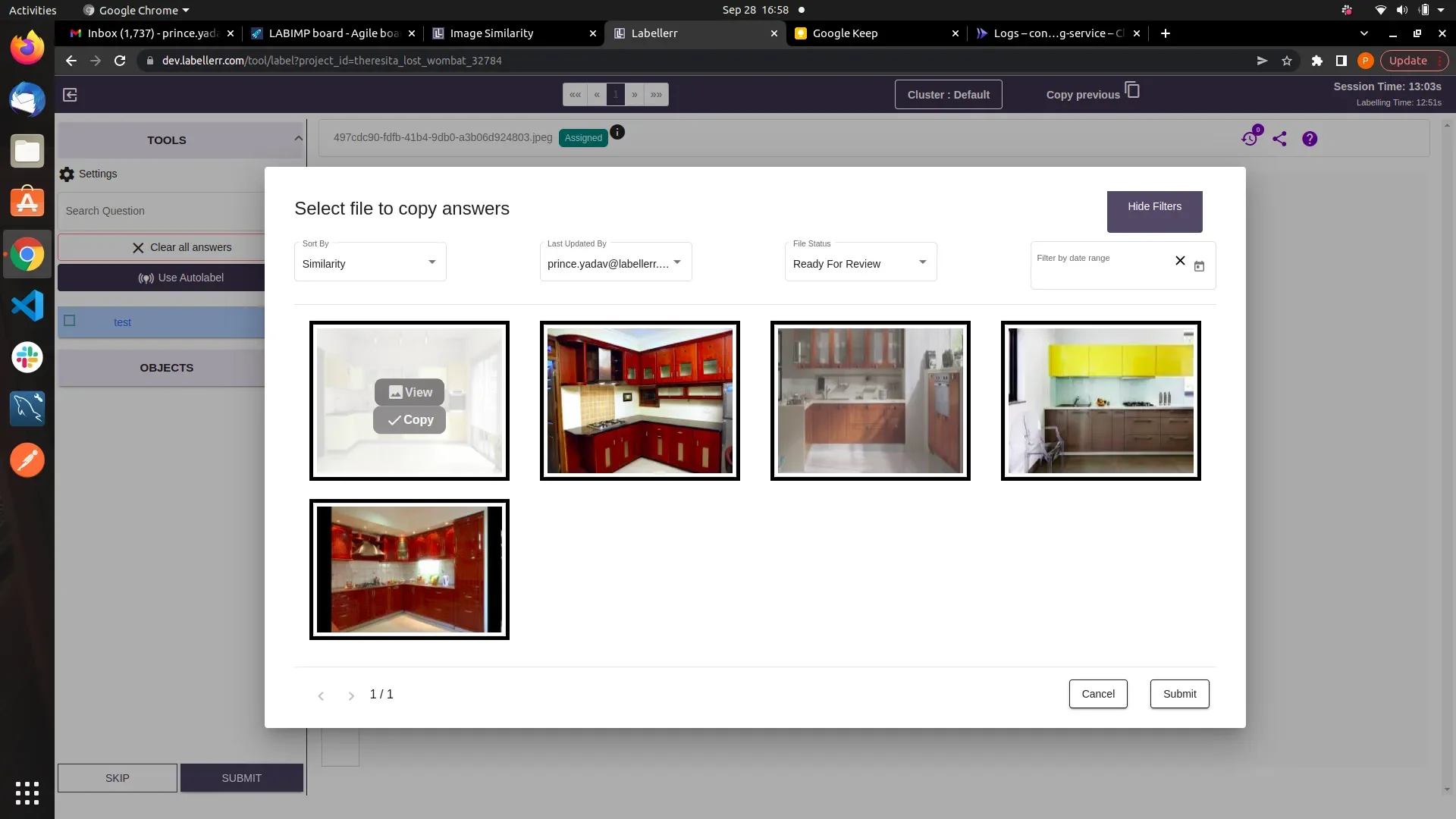
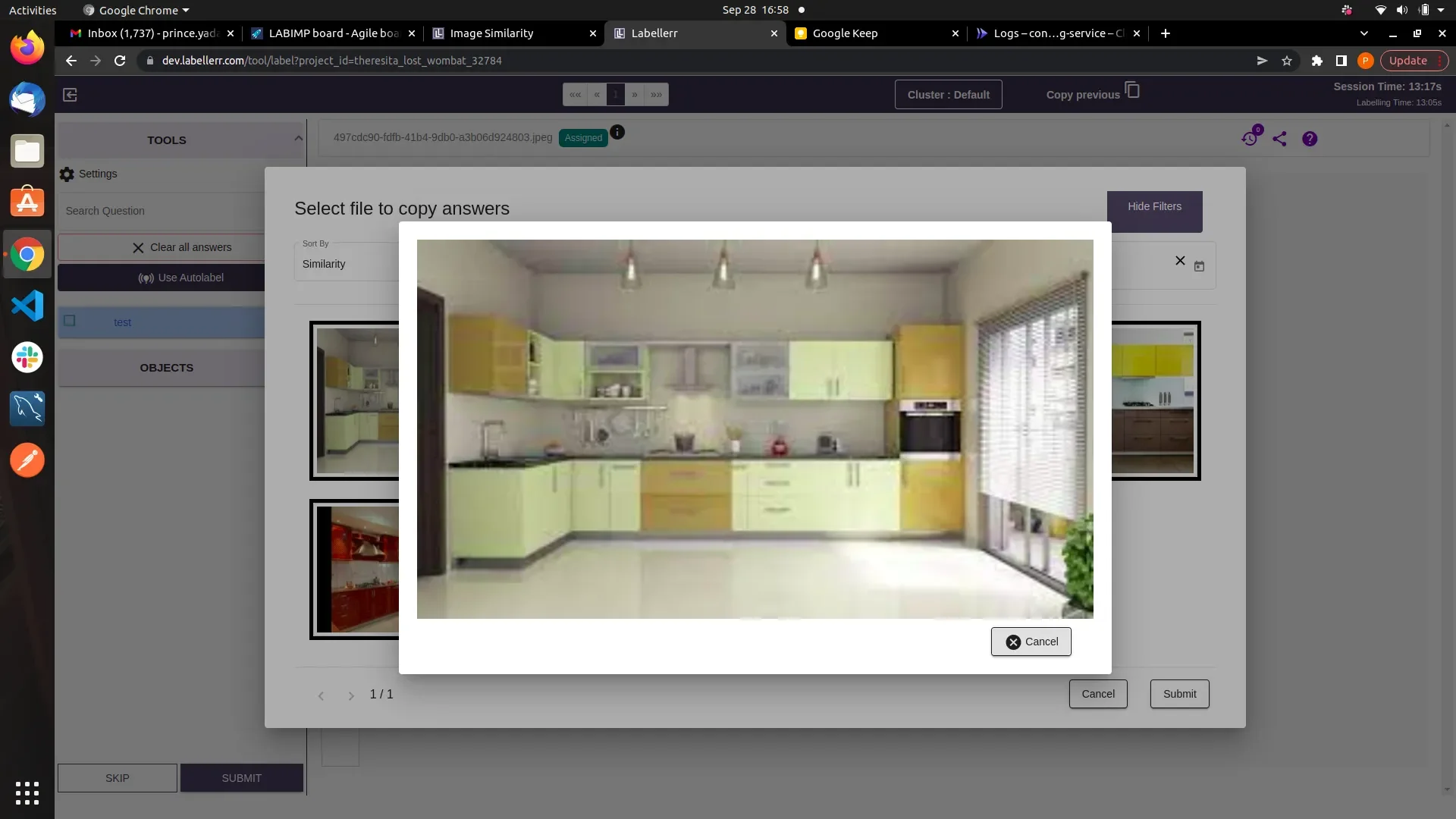
<Frame>
  <img src="https://cdn.labellerr.com/1%20%20Documentation/cb9adab3-a61e-4fce-a36f-9ebd21ffcfbc.webp" alt="View Image Button" />
</Frame>

<Frame>
  <img src="https://cdn.labellerr.com/1%20%20Documentation/d3eb7e94-8e72-4e3e-8b66-c034ab9f0013.webp" alt="Image View" />
</Frame>

To copy the answers from the compatible similar image. Click on **Copy Button** and then click the **Submit** button.
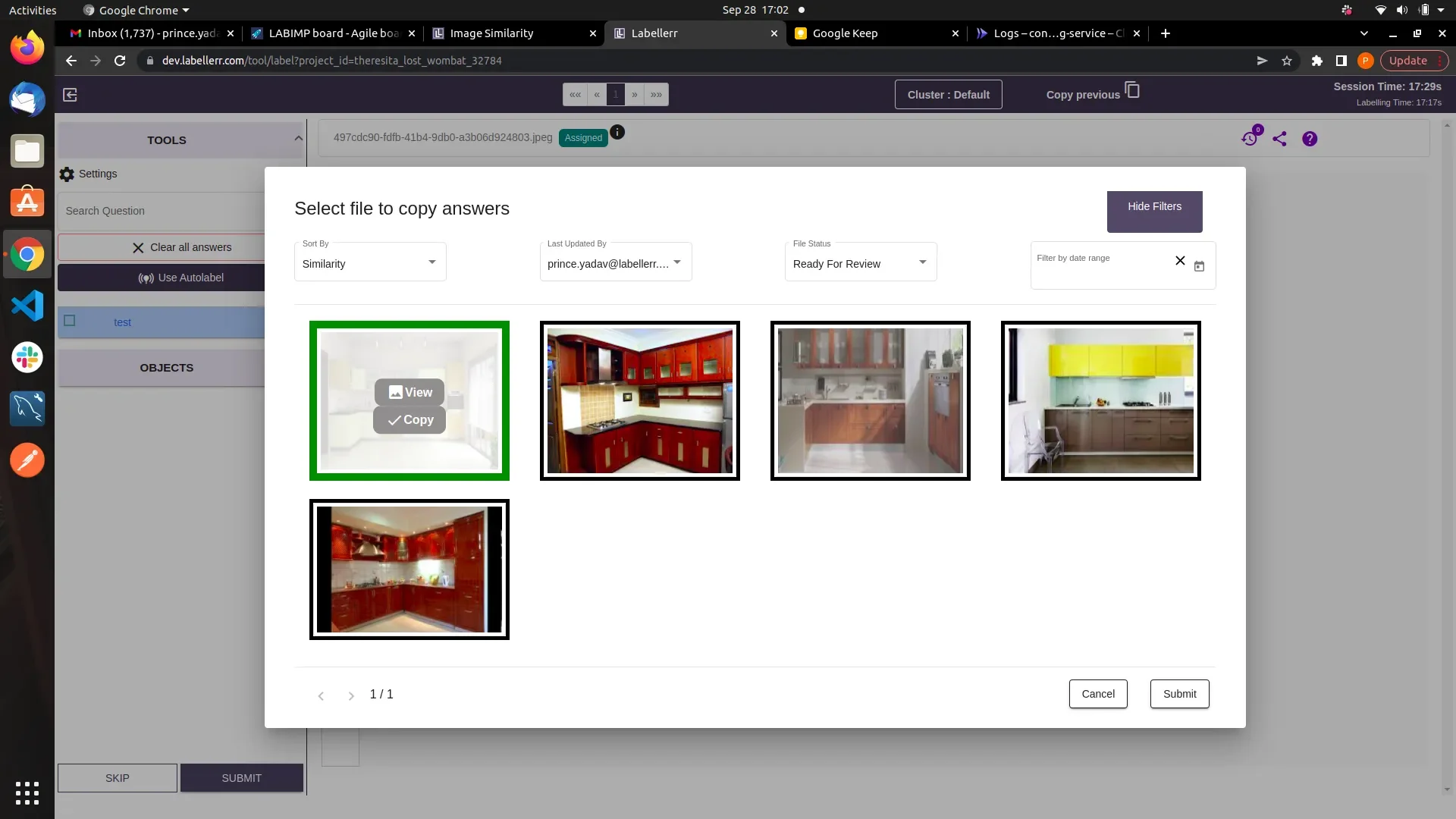
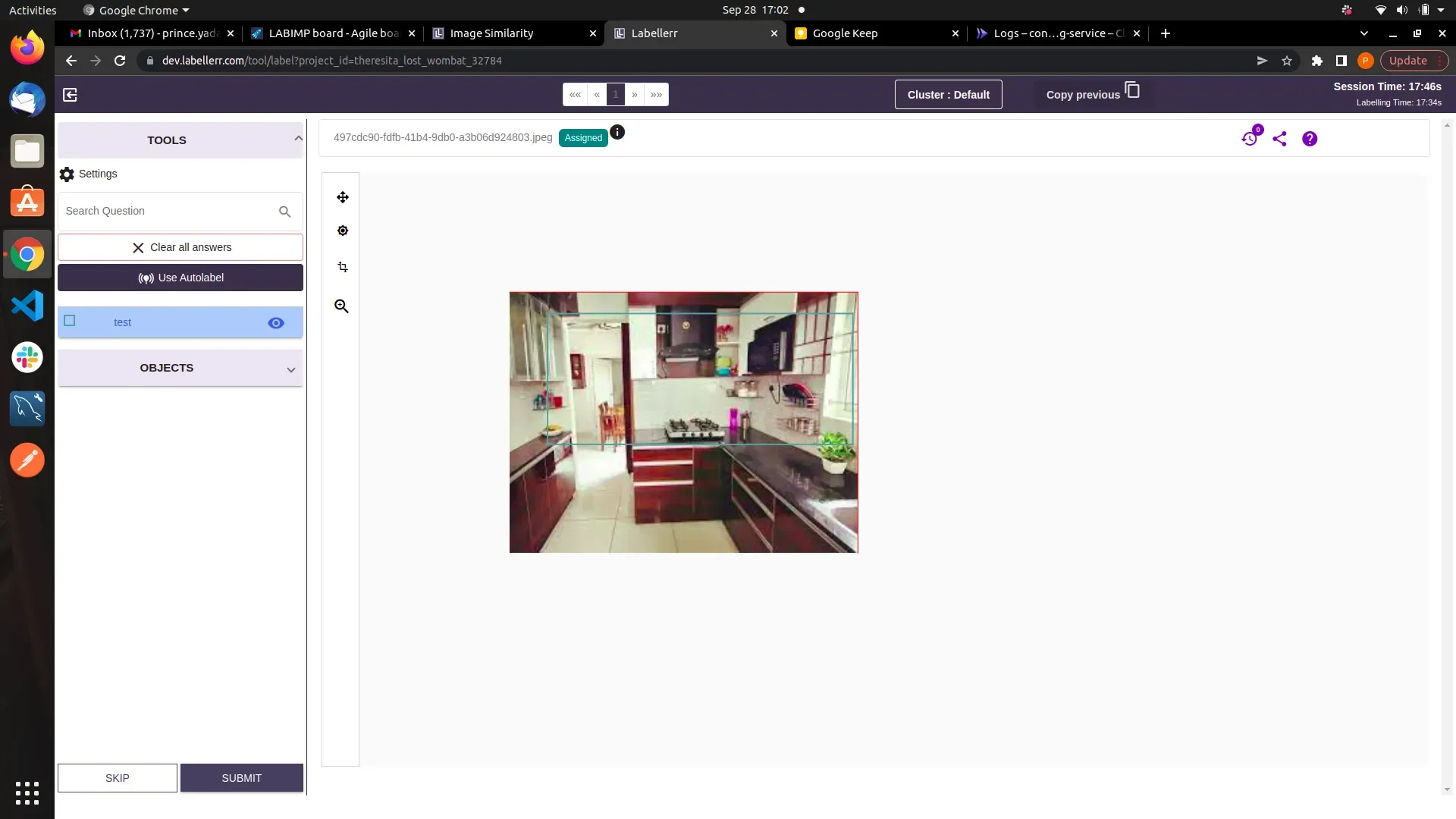
<Frame>
  <img src="https://cdn.labellerr.com/1%20%20Documentation/17d6c79a-7fe4-4b1a-bc50-5351dc372e67.webp" alt="Copy Button" />
</Frame>

<Frame>
  <img src="https://cdn.labellerr.com/1%20%20Documentation/c173f3f7-0253-4b11-8d88-d0d359245647.webp" alt="Submit Button" />
</Frame>

<Note>
  This feature can be use efficiently in annotation projects where the annotation questions are only the classification questions .
</Note>

### TRY IMAGE SIMILARITY AT LABELLERR

1. [**Create a new project**](/getting-started/create-project) along **with datasets**. Annotate some files in the pipeline and for any specific images that feels similar to any previous image, Try out the “Copy Previous”.

2. [**Create datasets**](/tutorials/datasets) at workspace level. Now **create a new project and link the same datasets** with the project. Annotate some files in the pipeline and for any specific images that feels similar to any previous image. Try out the “Copy Previous” .

3. **Create a project with multiple datasets**. Annotate some files in the pipeline and for any specific images that feels similar to any previous image. Try out the “Copy Previous” . **Observe that if the similar files are rendering from multiple datasets**.

4. **Add more data to a existing datasets**. Annotate some files in the pipeline and for any specific images that feels similar to any previous image. Try out the “Copy Previous” . **Observe that if the similar files are rendering from the added files**.

<Note>
  **Note:** After creating any project or linking any datasets with project, Please contact the back-end team. There is some work which is going on, till then after linking projects & datasets we need to invoke some APIs manually from back-end. This requires the project\_id & datasets\_id that are linked. This can be done anytime after linking project & datasets.
</Note>