> ## Documentation Index
> Fetch the complete documentation index at: https://docs.labellerr.com/llms.txt
> Use this file to discover all available pages before exploring further.
# Text Captioning Using Generative AI
> Learn how to use generative AI in Labellerr for text captioning, enabling you to generate detailed descriptions and keywords for your text annotation projects.
Start by creating a project following the steps outlined in the link provided below.
[How to Create a Text Project?](/getting-started/create-text-project)
### Setting Up Object/Classification template:
You can refer to the link mentioned above for guidance on how to create a template for objects/questions within a project.
Select a classification question and specify its type as '**captioning**' from the dropdown menu. Here, I've created a project and labeled a classification question as 'caption' with the question type set to 'captioning'.
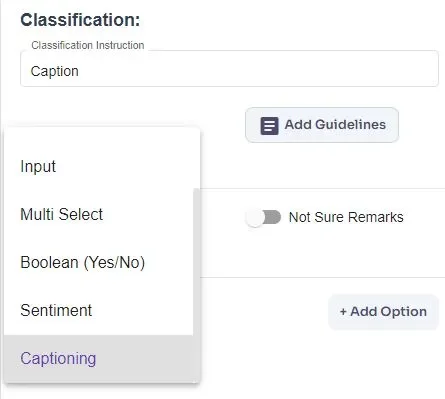 You have the option to create a new project or modify an existing project template according to your needs. Additionally, multiple questions can be set up to gather various types of details. You can choose to obtain all details at once or gather them one by one by providing different prompts.
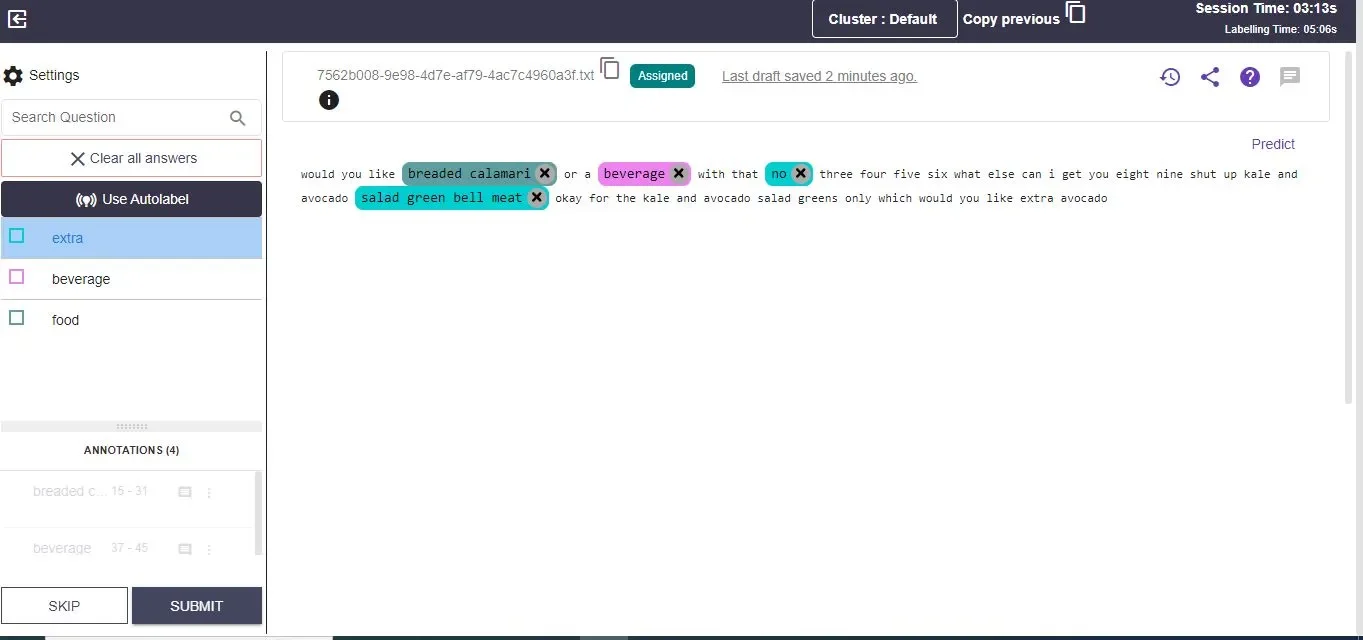
After setting the template, Go to Dashboard. Click on "**Start Labelling**" button on the dashboard. This will redirect you to the annotation canvas.
You have the option to create a new project or modify an existing project template according to your needs. Additionally, multiple questions can be set up to gather various types of details. You can choose to obtain all details at once or gather them one by one by providing different prompts.
After setting the template, Go to Dashboard. Click on "**Start Labelling**" button on the dashboard. This will redirect you to the annotation canvas.
 ### Predict Button:
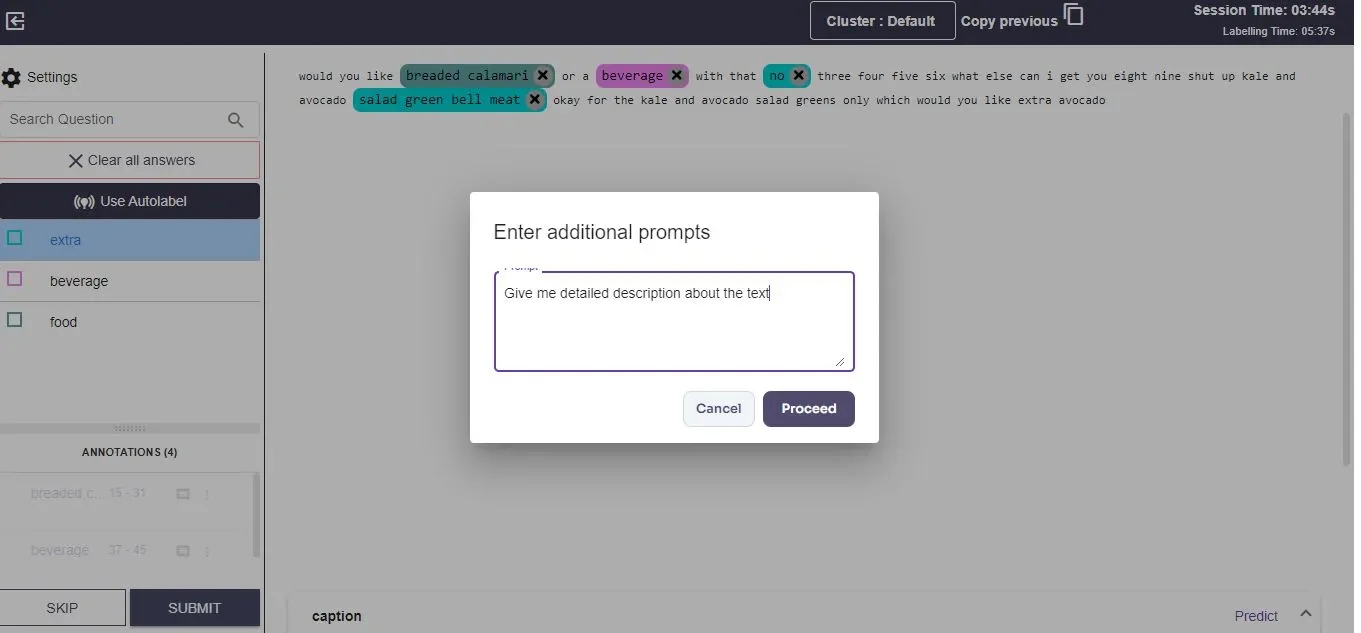
Below the displayed image, you will see the "**Predict**" button. Click on the "**Predict**" button to open a prompt box where you can input a prompt for the generative AI.
**Example prompt**: "Write a detailed description about this image".
### Predict Button:
Below the displayed image, you will see the "**Predict**" button. Click on the "**Predict**" button to open a prompt box where you can input a prompt for the generative AI.
**Example prompt**: "Write a detailed description about this image".
 ### Generating Descriptions:
Click "**Proceed**" after entering your prompt. The generative AI will then provide a description based on your input.
### Generating Descriptions:
Click "**Proceed**" after entering your prompt. The generative AI will then provide a description based on your input.
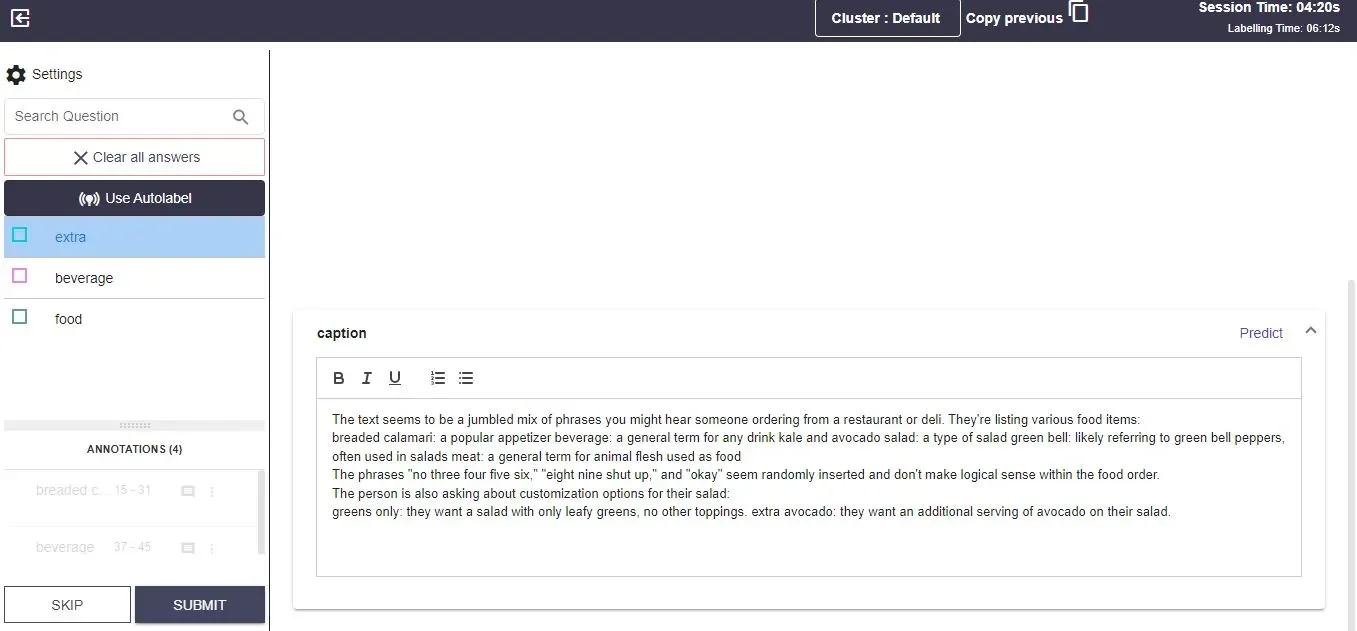 You can review and edit this output as needed.
**Further Prompts:** You can give additional prompts to get more details about the image, such as relevant keywords or a brief description.
If the API is available, the **meta description** can be displayed in the info icon. Click on the info icon to view the meta description, which includes keywords and descriptions related to the image provided by the API.
Once satisfied with the description, click the "**Submit**" button to submit the file.
The file will be sent to a reviewer, who can also view the image and edit the output if necessary.
Reviewers can access files for review by navigating to the "Review" page from the dashboard.
You can review and edit this output as needed.
**Further Prompts:** You can give additional prompts to get more details about the image, such as relevant keywords or a brief description.
If the API is available, the **meta description** can be displayed in the info icon. Click on the info icon to view the meta description, which includes keywords and descriptions related to the image provided by the API.
Once satisfied with the description, click the "**Submit**" button to submit the file.
The file will be sent to a reviewer, who can also view the image and edit the output if necessary.
Reviewers can access files for review by navigating to the "Review" page from the dashboard.