> ## Documentation Index
> Fetch the complete documentation index at: https://docs.labellerr.com/llms.txt
> Use this file to discover all available pages before exploring further.
# User Settings Guide
> Learn how to manage users in Labellerr, including adding, deleting, editing credentials, and assigning roles and projects to annotators.
### Managing Users
User settings allows you to add or delete new users and assign new roles and projects to existing annotator
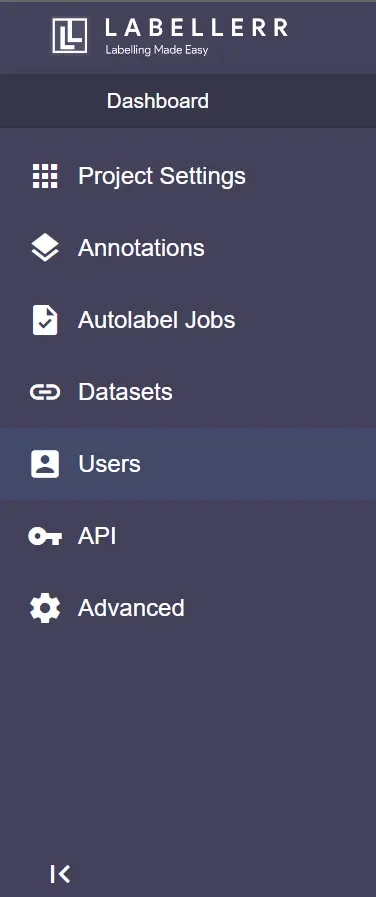
To access the user settings, click on the user icon from the settings list on the left.
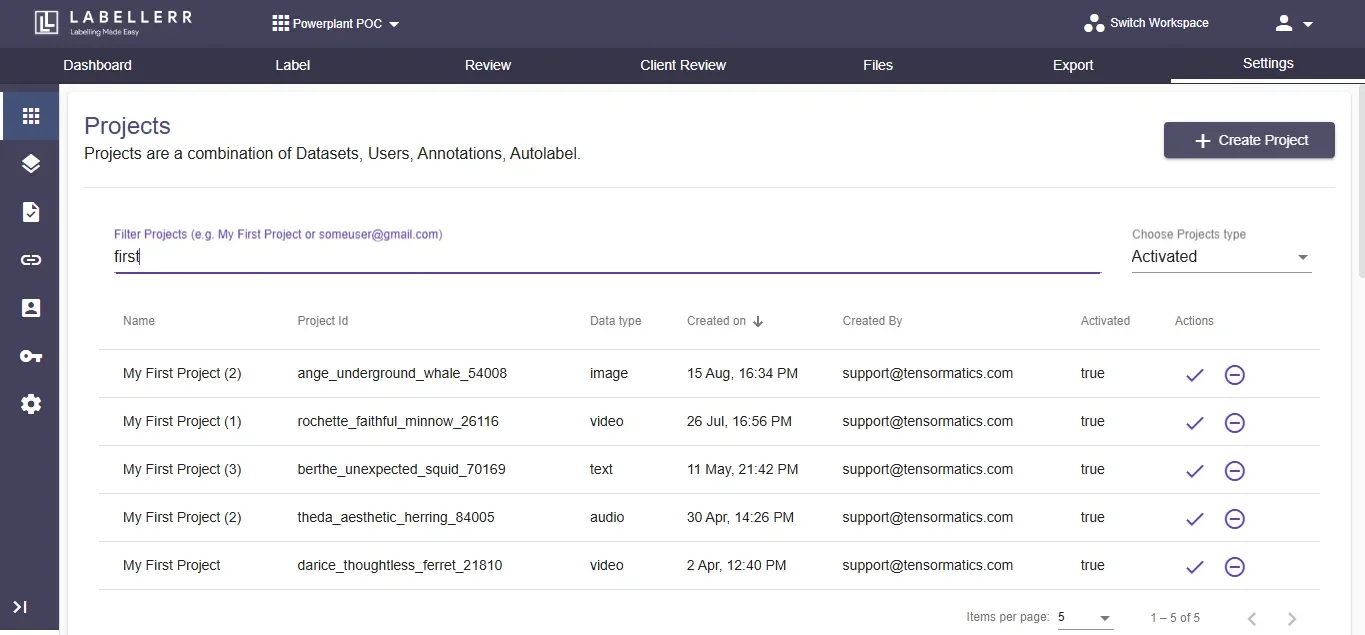 Click on Users Option.
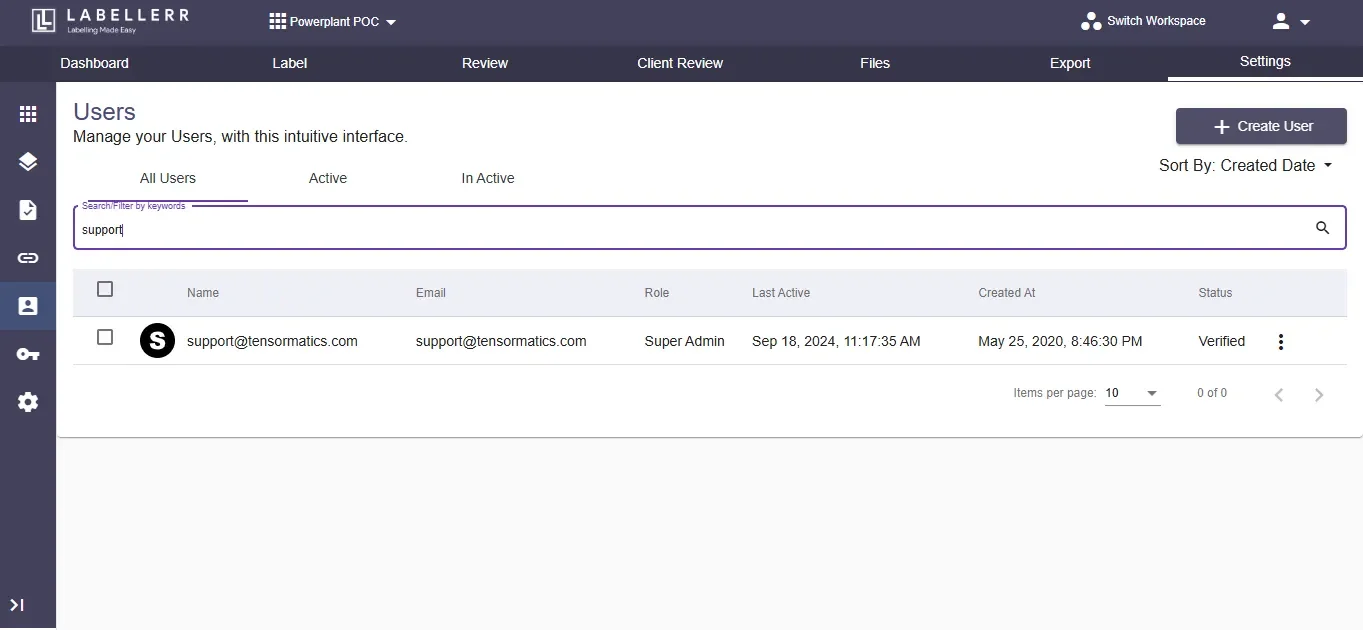
 The User settings screen should appear which lets you manage users. The following screen shows the list of all users working on a domain. Display on-screen also shows the role and the last date of work for each user. Multiple actions can be taken henceforth.
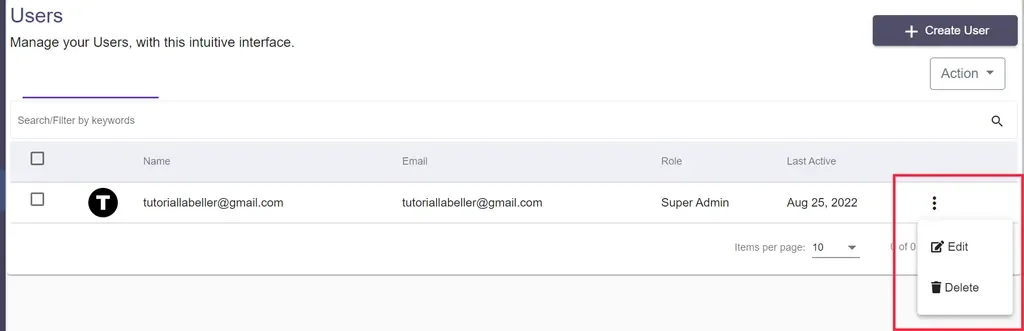
 The **search option** allows you to search for a user by name. The **Edit option** lets you edit user credentials, profile and assign or delete roles.
 To add a new user, simply click on the create user option located on the top right corner.
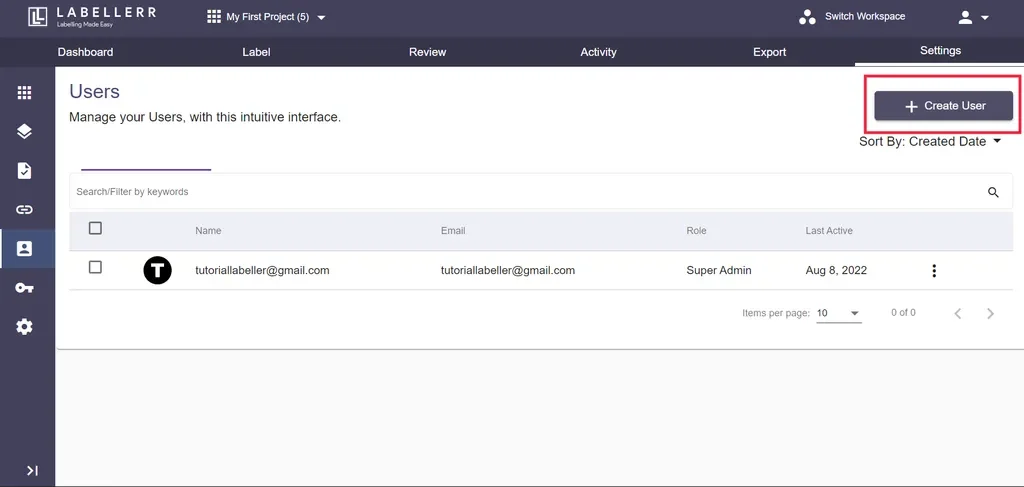 The following create user screen would appear.
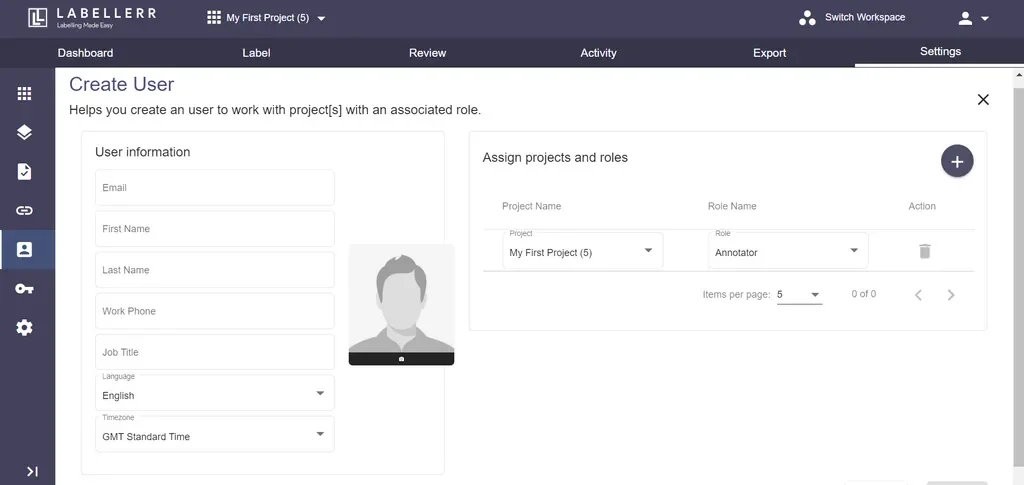
- On the left, basic user credentials are to be added. Email, First Name and Last name are mandatory fields.
- On the right, click on ‘+’ icon and then projects and roles can be assigned.
Once the input has been made, the new user profile would be made by clicking on save at the bottom right.