> ## Documentation Index
> Fetch the complete documentation index at: https://docs.labellerr.com/llms.txt
> Use this file to discover all available pages before exploring further.
# How to Delete a Dataset
> Learn how to permanently delete a dataset in Labellerr using the dataset options menu.
Deleting a dataset is a **permanent and irreversible action**. All files and data associated with the dataset will be removed. Make sure you no longer need the dataset before proceeding.
This guide walks you through the complete process of deleting a dataset in Labellerr:
* **Navigating** to the Datasets section from the left sidebar
* **Locating** the dataset you want to delete
* **Accessing** the dataset options via the three-dot menu
* **Confirming** the deletion
## How to Delete a Dataset?
From the **left sidebar**, click on **Datasets**. This will open the datasets listing page, showing all datasets available within your workspace.
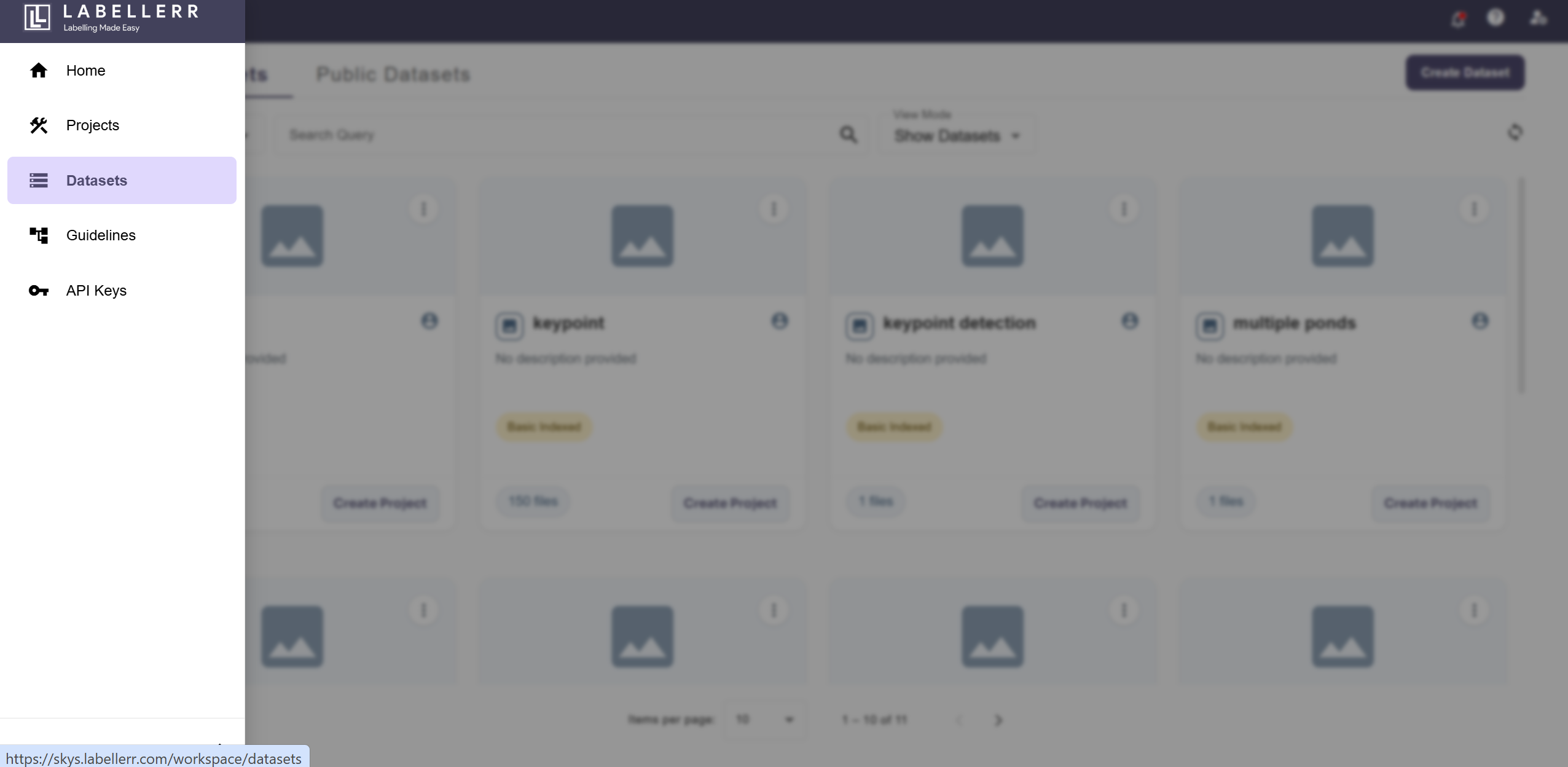 Ensure you are in the correct **workspace** before proceeding, as datasets are workspace-specific.
From the list of datasets, locate the dataset you wish to delete. Click on the **three-dot icon (⋮)** on the right side of that dataset row to open the options menu.
Ensure you are in the correct **workspace** before proceeding, as datasets are workspace-specific.
From the list of datasets, locate the dataset you wish to delete. Click on the **three-dot icon (⋮)** on the right side of that dataset row to open the options menu.
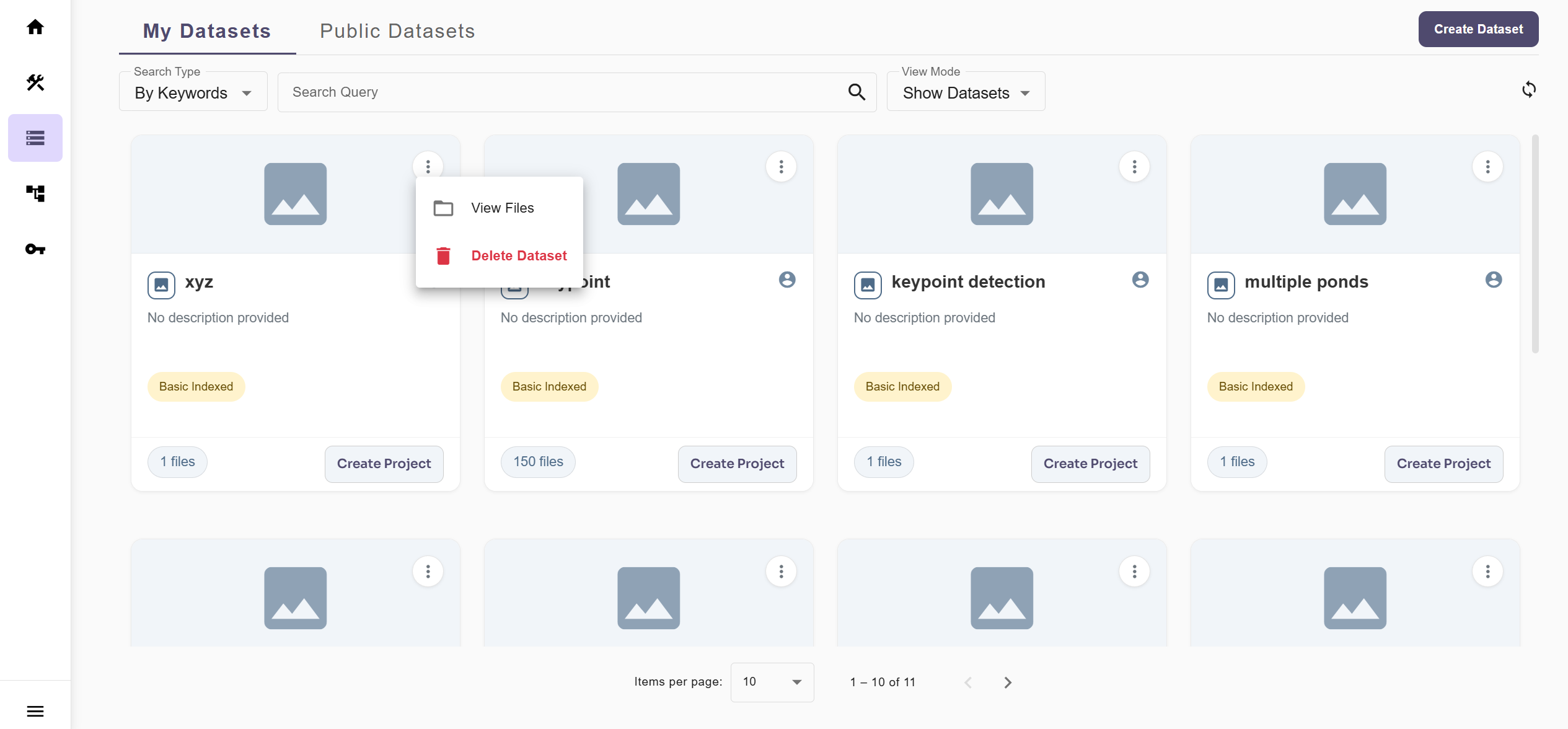 From the dropdown options menu that appears, click on **Delete Dataset**.
Only users with **Admin** or **Owner** level permissions can delete a dataset. If the option is not visible, contact your workspace administrator.
A confirmation dialog will appear asking you to confirm the deletion. Click the **Delete** button to permanently remove the dataset from your workspace.
From the dropdown options menu that appears, click on **Delete Dataset**.
Only users with **Admin** or **Owner** level permissions can delete a dataset. If the option is not visible, contact your workspace administrator.
A confirmation dialog will appear asking you to confirm the deletion. Click the **Delete** button to permanently remove the dataset from your workspace.
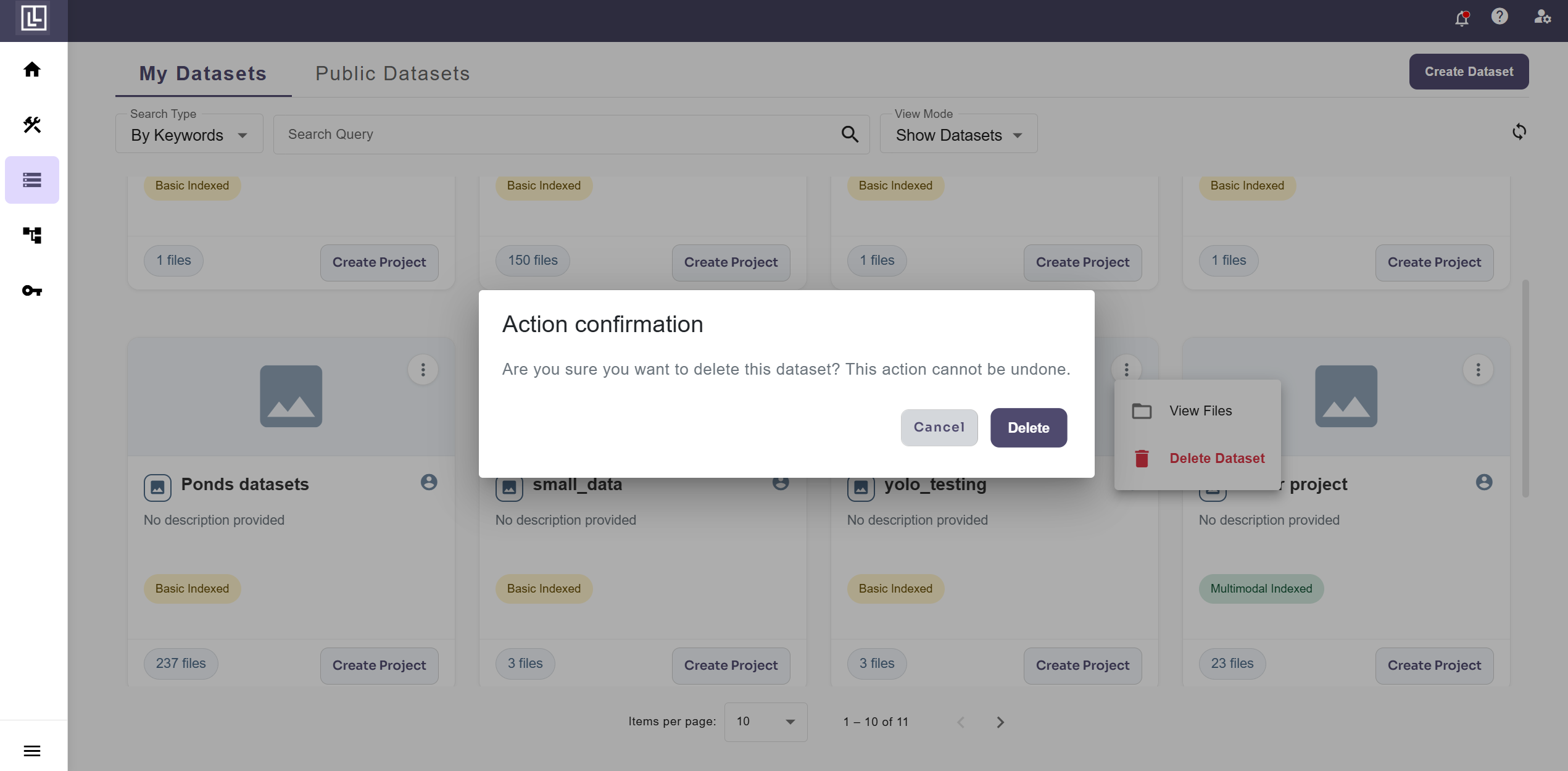 The dataset will be removed and will no longer appear in the datasets list.
For further assistance contact [support@tensormatics.com](mailto:support@tensormatics.com)
The dataset will be removed and will no longer appear in the datasets list.
For further assistance contact [support@tensormatics.com](mailto:support@tensormatics.com)