> ## Documentation Index
> Fetch the complete documentation index at: https://docs.labellerr.com/llms.txt
> Use this file to discover all available pages before exploring further.
# How to Delete a Project
> Learn how to permanently delete a project in Labellerr, including the confirmation steps required to prevent accidental deletion.
Deleting a project is a **permanent and irreversible action**. All associated data, annotations, and configurations will be lost. Please ensure you have exported any required data before proceeding.
This guide walks you through the complete process of safely deleting a project in Labellerr:
* **Navigating** to the Projects section
* **Locating** the delete option under project actions
* **Confirming** the deletion with a typed confirmation
* **Completing** the deletion
## How to Delete a Project?
From the **left sidebar**, click on **Projects** to open the projects listing page. This will display all the projects within your workspace.
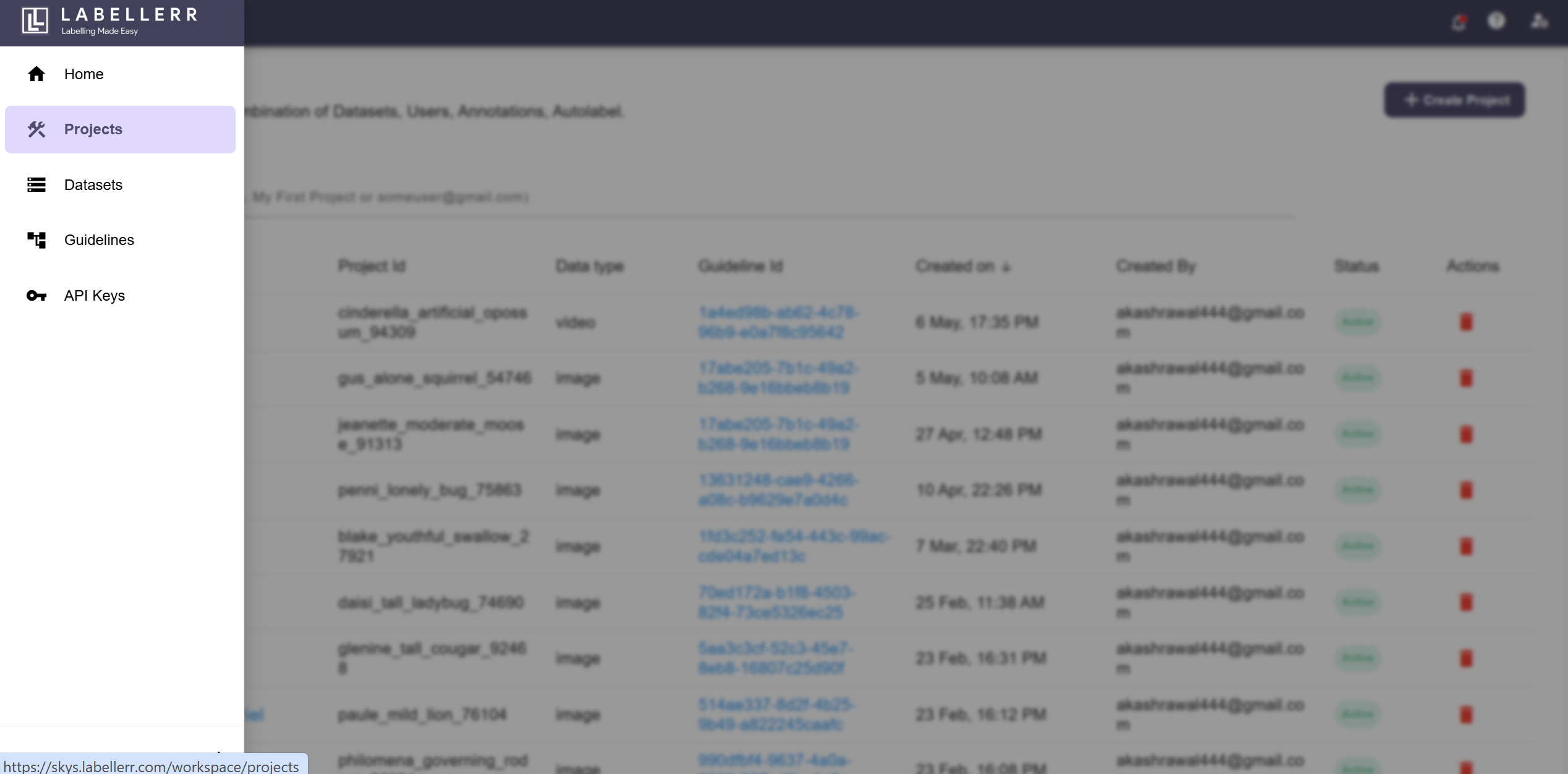 Make sure you are in the correct **workspace** before proceeding, as projects are workspace-specific.
On the **Projects** page, locate the project you want to delete. Under the **Actions** column, click on the **Delete icon** (🗑️) associated with that project.
Make sure you are in the correct **workspace** before proceeding, as projects are workspace-specific.
On the **Projects** page, locate the project you want to delete. Under the **Actions** column, click on the **Delete icon** (🗑️) associated with that project.
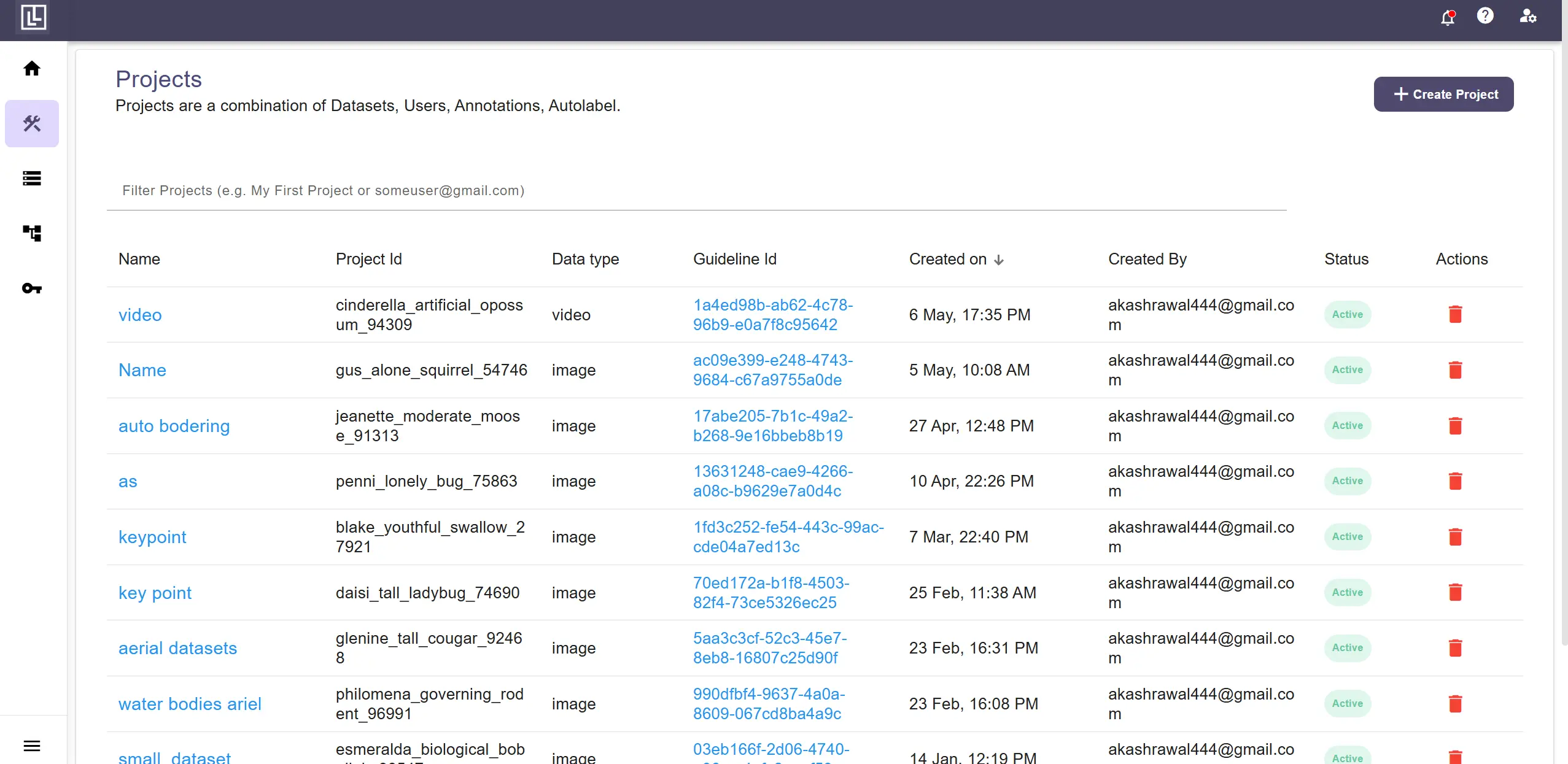 Only users with **Admin** or **Owner** level permissions can delete a project. If you do not see the delete icon, contact your workspace administrator.
A confirmation dialog will appear. To prevent accidental deletion, you are required to type **DELETE** (in all caps) in the confirmation input field.
Only users with **Admin** or **Owner** level permissions can delete a project. If you do not see the delete icon, contact your workspace administrator.
A confirmation dialog will appear. To prevent accidental deletion, you are required to type **DELETE** (in all caps) in the confirmation input field.
 The **Confirm** button will remain disabled until you type `DELETE` exactly as shown. This ensures that project deletions are always intentional.
Once you have typed **DELETE** in the input field, the **Confirm** button will become active. Click on **Confirm** to permanently delete the project.
The project will be removed from your workspace and will no longer appear in the projects list.
The **Confirm** button will remain disabled until you type `DELETE` exactly as shown. This ensures that project deletions are always intentional.
Once you have typed **DELETE** in the input field, the **Confirm** button will become active. Click on **Confirm** to permanently delete the project.
The project will be removed from your workspace and will no longer appear in the projects list.
 For further assistance contact [support@tensormatics.com](mailto:support@tensormatics.com)