> ## Documentation Index
> Fetch the complete documentation index at: https://docs.labellerr.com/llms.txt
> Use this file to discover all available pages before exploring further.
# How to Get Started with Labellerr
> Learn how to sign up, create a workspace, set up your first domain, and begin your first project in a few simple steps.
The objective of this tutorial is to help New and potential clients/users get started with labellerr. The tutorial covers all login procedures for convenience in the case of any issues faced by a new user with the signup process.
## Labellerr Signup
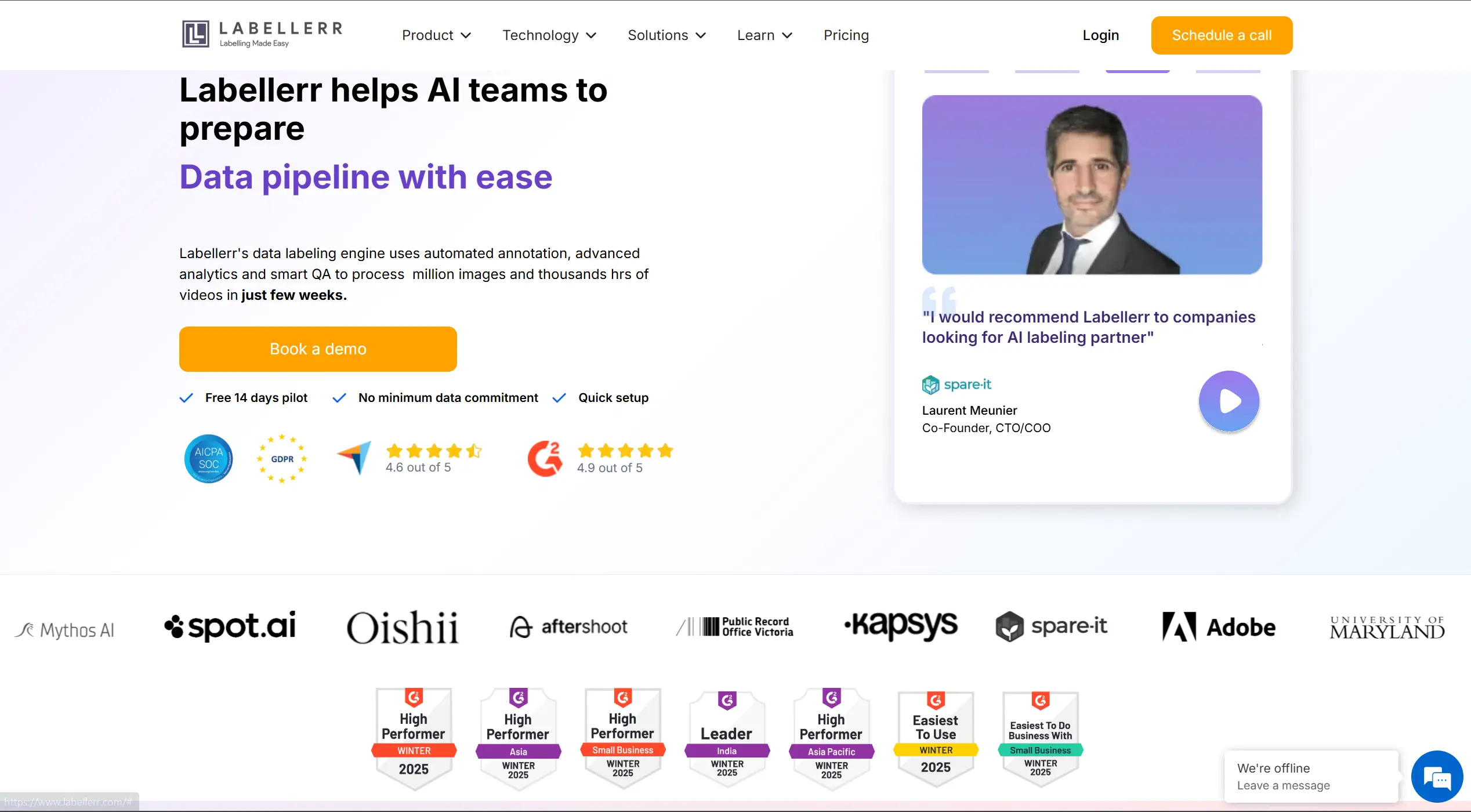
Once on our webpage, on the home screen, a floating toolbar with a few options is visible on the top. Click on the **Login Button**.
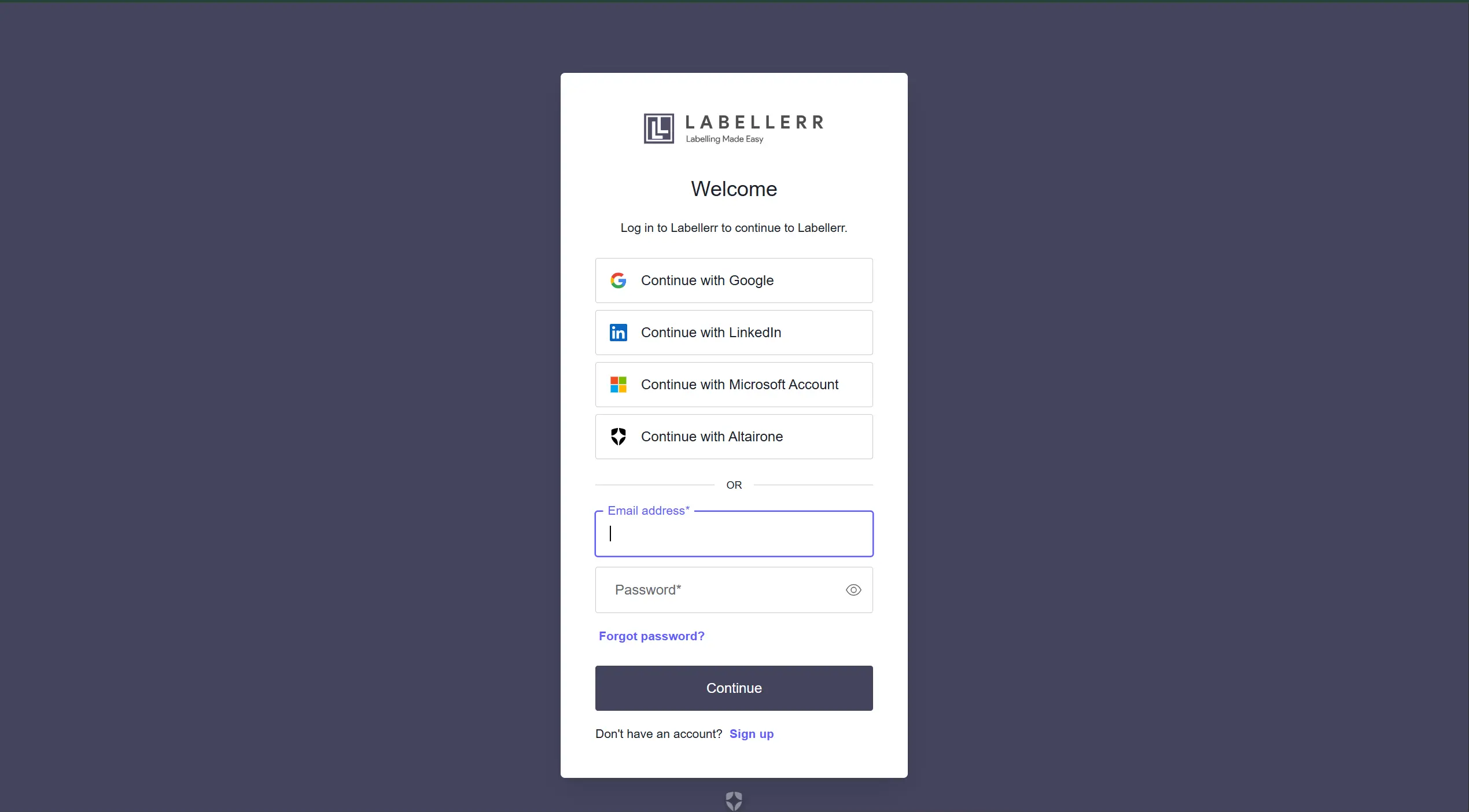
This would redirect you to the Login/Sign Up screen. Here, you can choose either to click on the **Sign Up** option or the **Continue with Google** option.
**If the 'Sign Up' option is selected:**
* A confirmation email would be sent to the registered email address
* Be sure to check the Socials/Promotion page if the email is not visible on your Primary list
* Click on the Verification link to proceed
**If the 'Continue with Google' option is selected:**
* Choose one of the active emails to proceed
Give your account a domain name that suits your preference. In case the suggested name is not accepted, try using a different name.
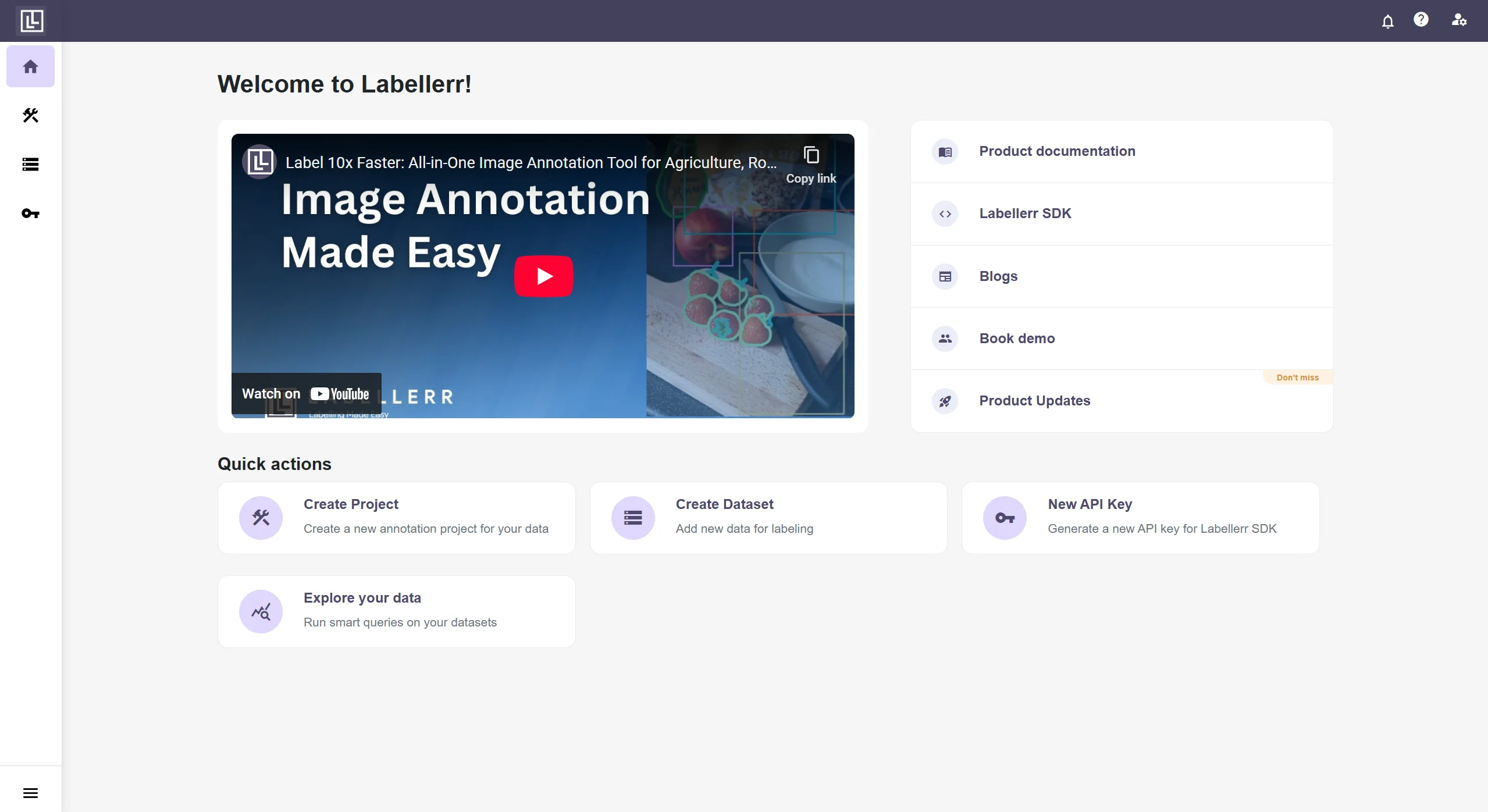
Once domain is created, you would be redirected to create project page. Give a suitable name to your project and you can get started right away!
For more, check out the video tutorial.
For further assistance contact **[support@tensormatics.com](mailto:support@tensormatics.com)**

 For more, check out the video tutorial.