> ## Documentation Index
> Fetch the complete documentation index at: https://docs.labellerr.com/llms.txt
> Use this file to discover all available pages before exploring further.
# How to Navigate Dashboard
> This tutorial helps new users get accustomed to the Dashboard and its elements, covering dashboard elements and self-generated graphs for activity tracking.
This tutorial is to help new users get accustomed to the Dashboard and its elements. It would cover the elements on the dashboard and self-generated graphs for activity tracking. Navigating the dashboard is swift and easy.
This guide covers navigating the Labellerr dashboard:
* **Dashboard Overview** - Your home screen and main navigation hub
* **Status Bar Elements** - Real-time annotation progress tracking
* **Self-Generated Graphs** - Activity tracking and progress visualization
* **Quick Actions** - Accessing projects and tasks efficiently
The dashboard is your home screen. All tasks can be accessed through the dashboard. Every time the user logs in, the dashboard displays all the actions and progress (which changes in real-time). The Dashboard Shows the Status Bar and some self-generated statistics used for tracking progress.
## Status bar Elements
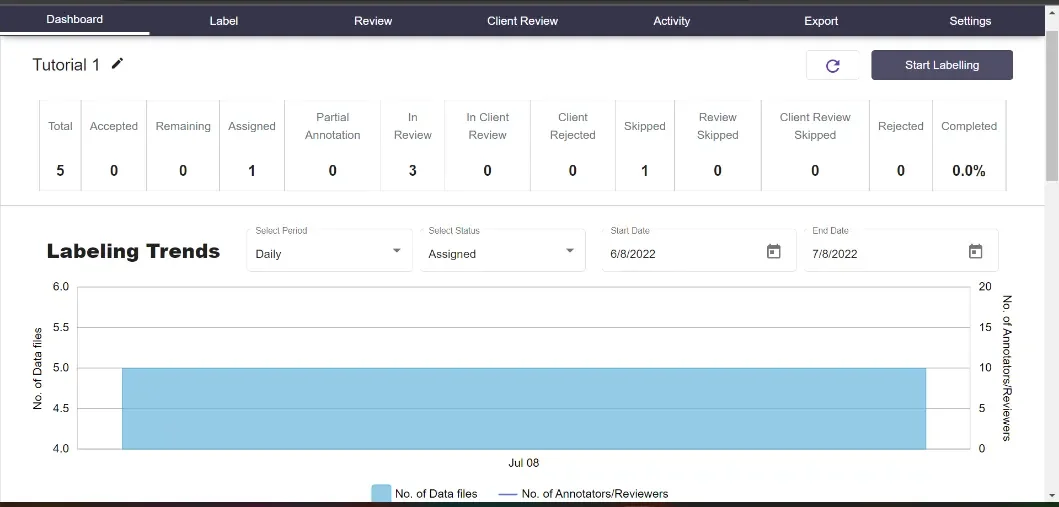
The Status bar displays Annotation progress in real-time and helps keep track of the user activity. The most important elements are the Total files, Accepted, remaining, and Percentage completion. This automatically updates itself when new files are added to the project.
To learn more about the status bar, check out the [Status Bar Elements guide](/getting-started/status-bar-elements).
## Self Generated Graphs
These are the four self-generated graphs:
**Labelling Trends**: Shows the trends of a specific time period and status
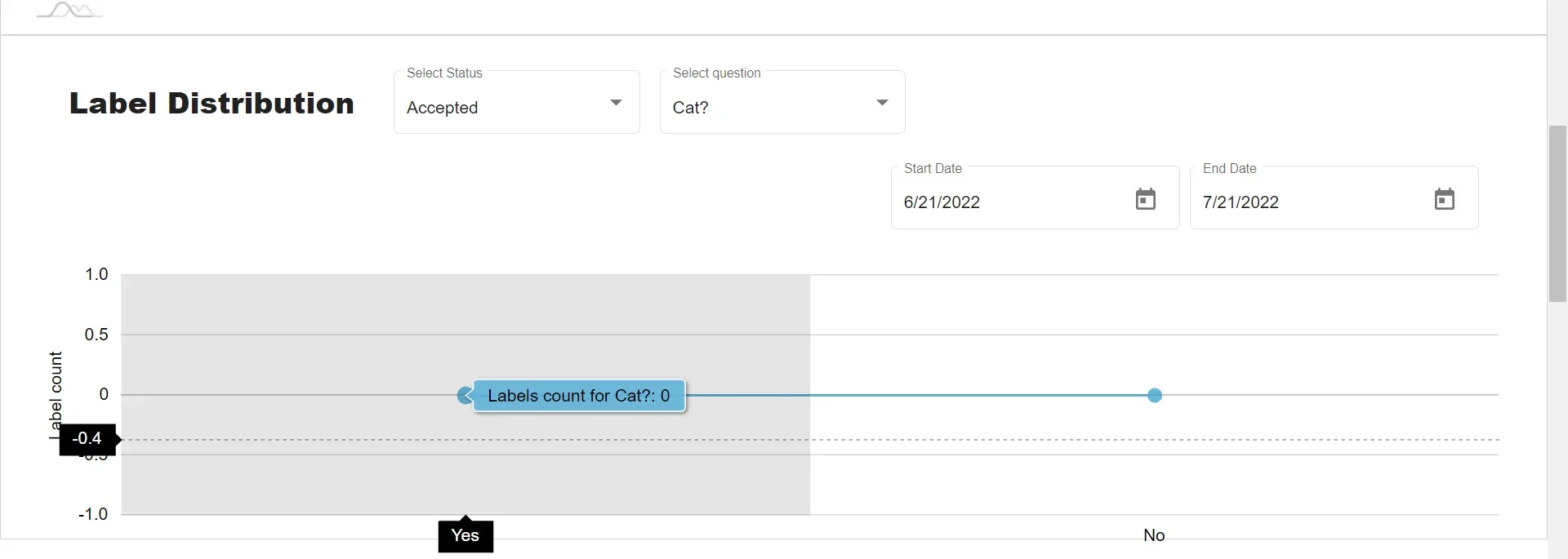
**Label Distribution**: Here the labelling trends are seen. Individual objects can also be selected for screening
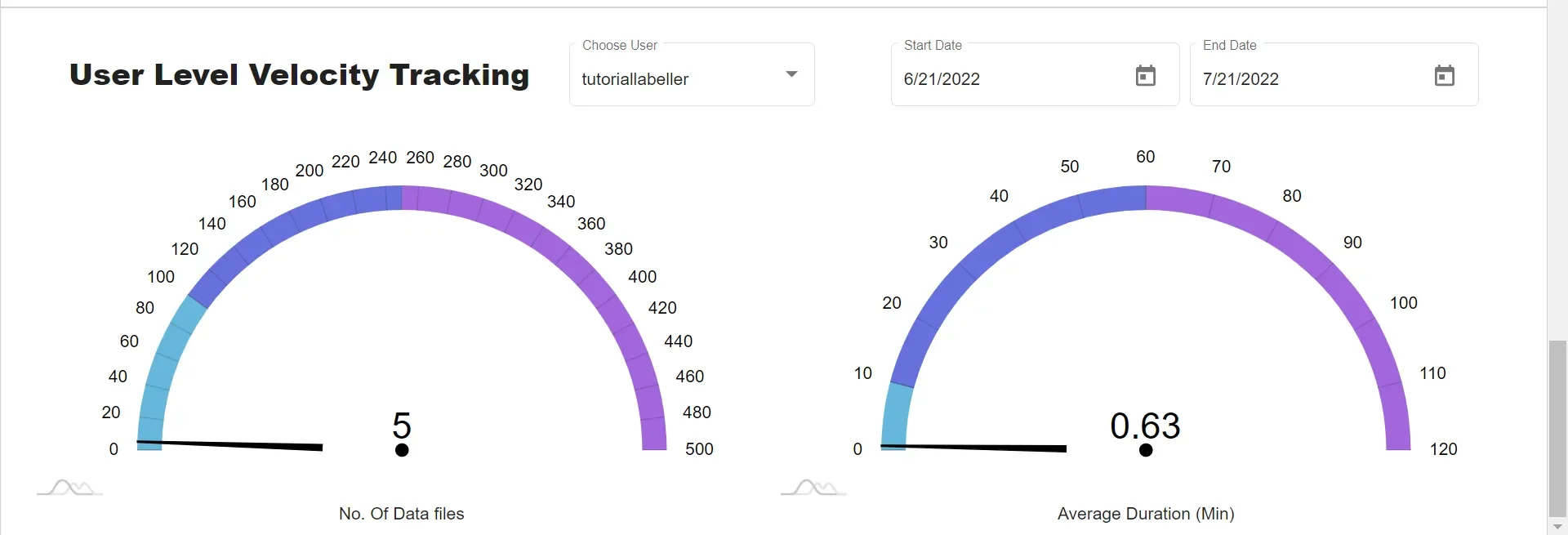
**User Level Velocity Tracking**: It is a graphical representation of average Data annotated and average Working time for a specific annotator.
**User Level Velocity Tracking**: It is a graphical representation of average Data annotated and average Working time for a specific annotator.
For further assistance contact **[support@tensormatics.com](mailto:support@tensormatics.com)**
 To learn more about the status bar, check out the [Status Bar Elements guide](/getting-started/status-bar-elements).
## Self Generated Graphs
These are the four self-generated graphs:
To learn more about the status bar, check out the [Status Bar Elements guide](/getting-started/status-bar-elements).
## Self Generated Graphs
These are the four self-generated graphs: