> ## Documentation Index
> Fetch the complete documentation index at: https://docs.labellerr.com/llms.txt
> Use this file to discover all available pages before exploring further.
# Image Editing Icons Guide
> Learn about the image editing tools available in Labellerr to enhance your annotation experience and improve labeling accuracy.
Labellerr provides additional tools to edit image samples for a better labelling experience.
 ## Available Tools
### Pan Tool (Hand Icon)
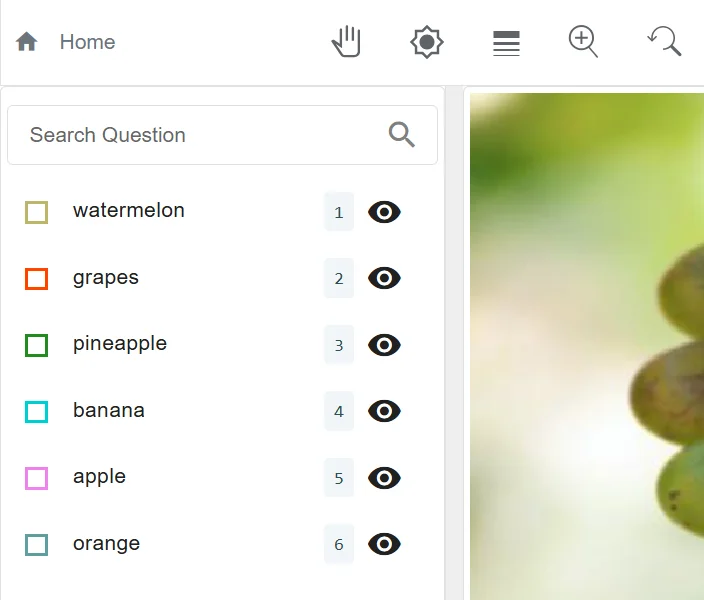
**Pan Tool(Hand)** icon lets you move the Image after selecting it. This is useful when you want a certain edge of the image or in complex images where detailed annotating is required.
### Display Settings (Gear Icon)
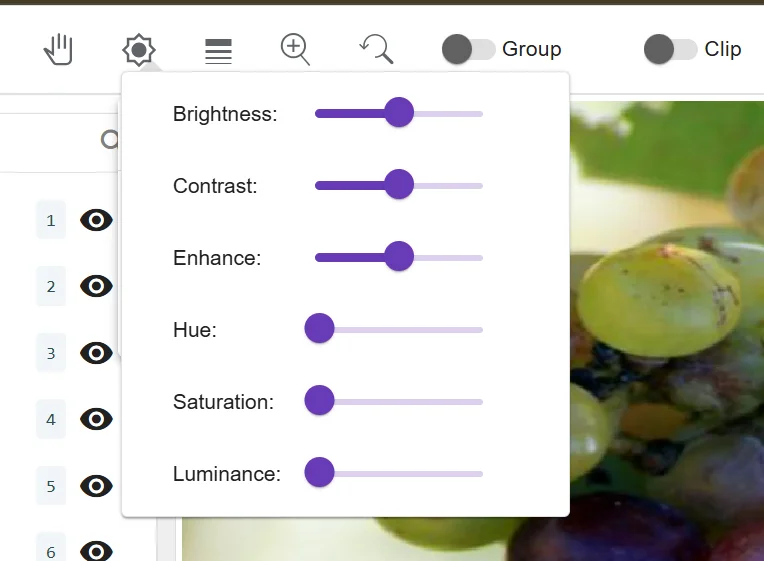
**Display(Gear)** icon lets you change the brightness, contrast, hue, saturation and luminance. It is especially useful for details that are often missed in a very dark/bright picture or for the detection of an object that blends with the environment.
## Available Tools
### Pan Tool (Hand Icon)
**Pan Tool(Hand)** icon lets you move the Image after selecting it. This is useful when you want a certain edge of the image or in complex images where detailed annotating is required.
### Display Settings (Gear Icon)
**Display(Gear)** icon lets you change the brightness, contrast, hue, saturation and luminance. It is especially useful for details that are often missed in a very dark/bright picture or for the detection of an object that blends with the environment.
 ### Configure Annotations (Stroke Icon)
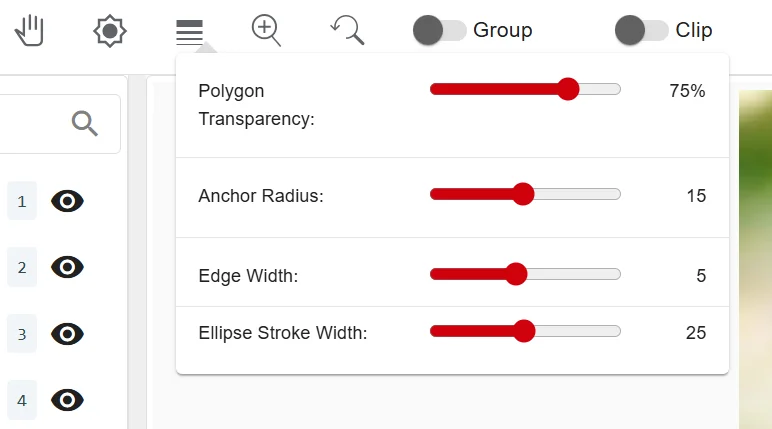
**Configure Annotations(Increasing Stroke)** icon allows edge reduction or anchor radius editing in different type of annotations like bounding box/polygon/line/segmentation.
### Configure Annotations (Stroke Icon)
**Configure Annotations(Increasing Stroke)** icon allows edge reduction or anchor radius editing in different type of annotations like bounding box/polygon/line/segmentation.
 ### Zoom Tool
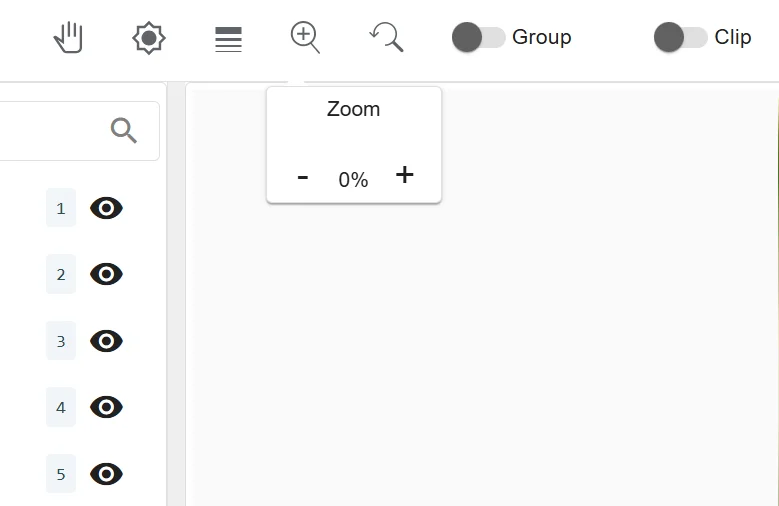
**Zoom** icon as the name suggests lets you zoom in and zoom out. This can be useful when the image pixels are huge and specific pixels have to be highlighted with precision. It also serves as useful while using dot annotation in high pixel images.
### Zoom Tool
**Zoom** icon as the name suggests lets you zoom in and zoom out. This can be useful when the image pixels are huge and specific pixels have to be highlighted with precision. It also serves as useful while using dot annotation in high pixel images.
 ### Reset Tool
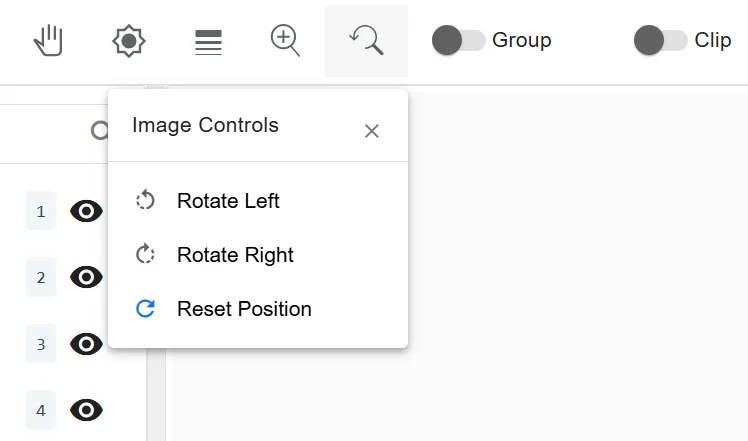
**Reset** icon allows you to rotate the image left or right or reset the file to its original position.
### Reset Tool
**Reset** icon allows you to rotate the image left or right or reset the file to its original position.
 These tools are designed to work together to give you maximum flexibility when annotating complex images or working with challenging lighting conditions.