> ## Documentation Index
> Fetch the complete documentation index at: https://docs.labellerr.com/llms.txt
> Use this file to discover all available pages before exploring further.
# Importing Users from One Project to Another
> Learn how to import users from one project to another within the same workspace in Labellerr.
## Overview
This guide provides step-by-step instructions on how to import users from a selected project into the required project within the same workspace.
## Prerequisites
* You must have the necessary permissions to import users
* Ensure that both the source and target projects exist within the same workspace
* Check this to learn about [Workspace](/tutorials/workspace)
## Steps to Import Users
1. Log in to your workspace
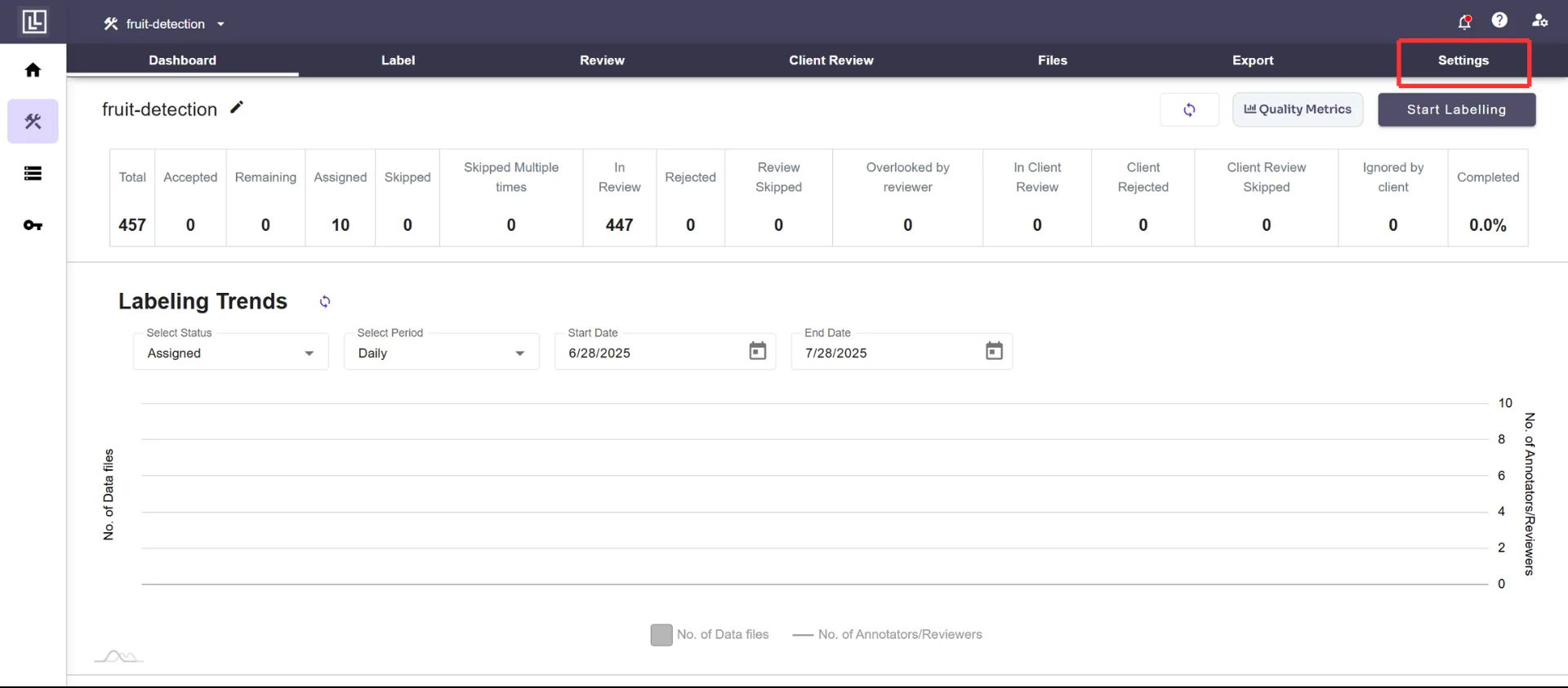
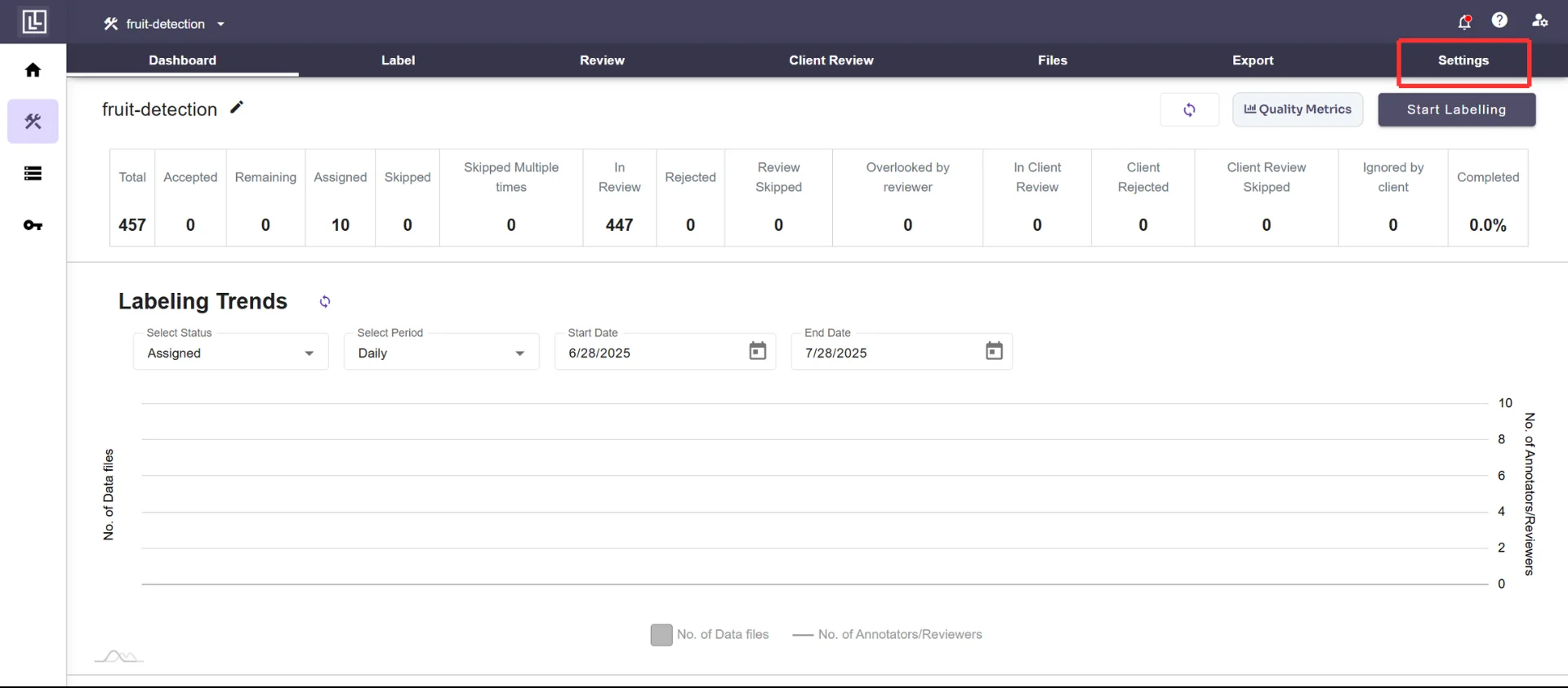
2. Go to the Settings section from the main dashboard of the current project
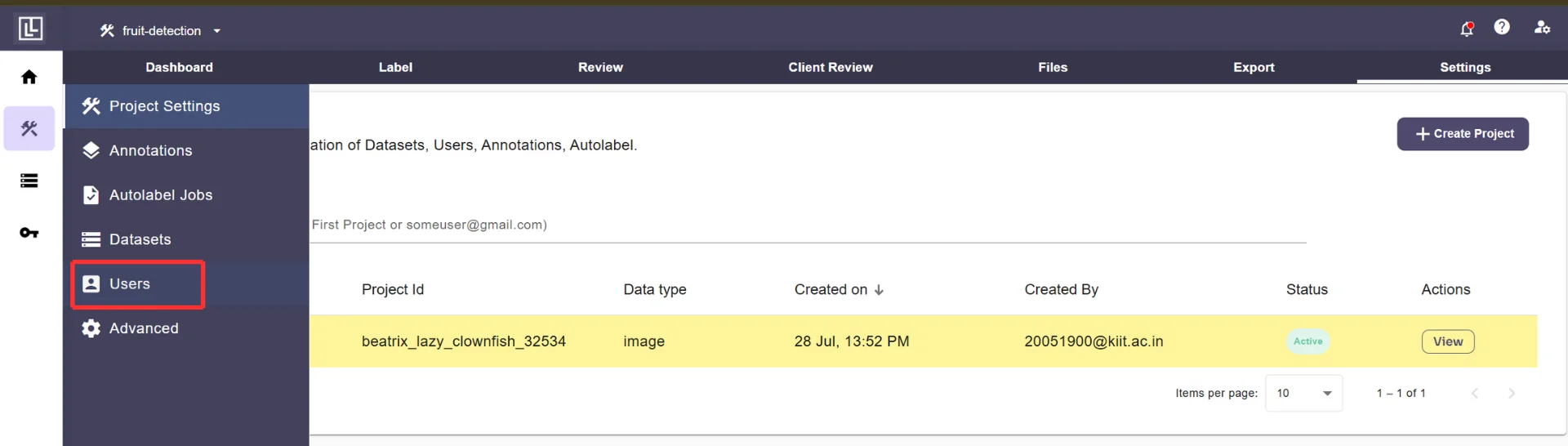
 1. Click on the **Users** option within the **Settings** section
 2. Locate and click on the **Import Users** button
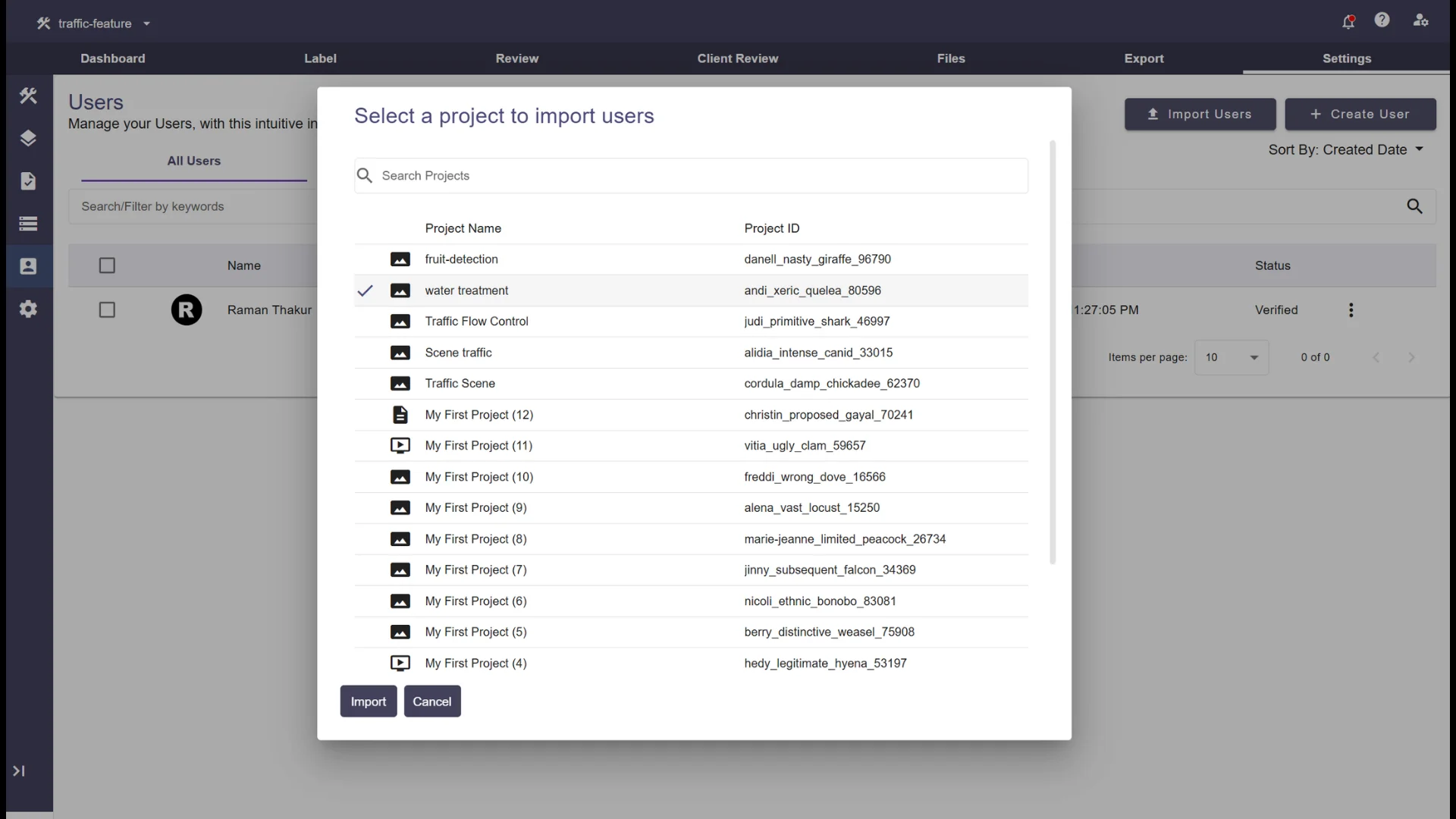 1. A dialog box will open, prompting you to select the project from which you want to import users
2. Choose the desired project from the drop-down list
3. Once the project is selected, the **Import** button will be enabled
4. Click on the **Import** button to finalize the import process
1. A dialog box will open, prompting you to select the project from which you want to import users
2. Choose the desired project from the drop-down list
3. Once the project is selected, the **Import** button will be enabled
4. Click on the **Import** button to finalize the import process
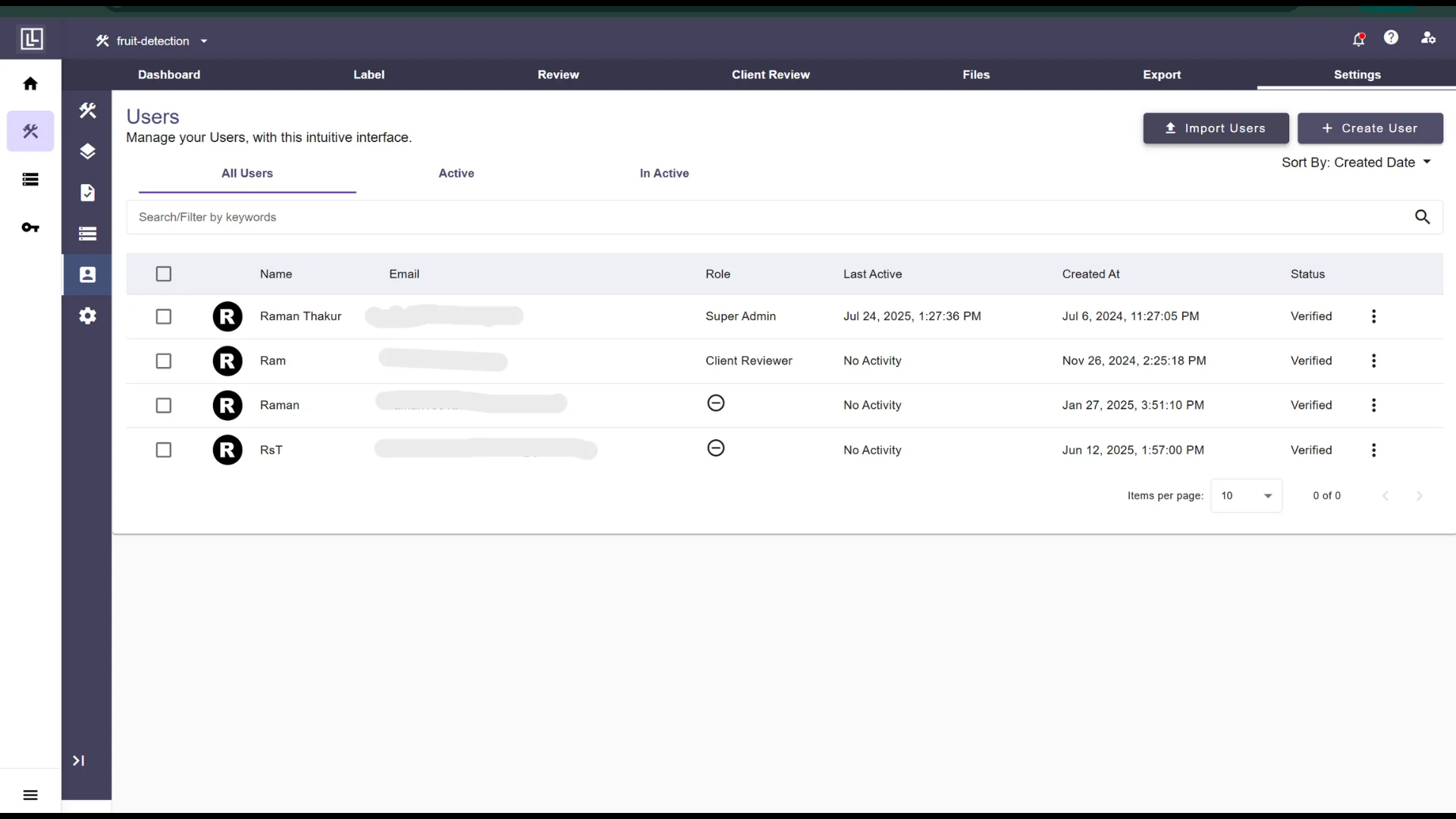 1. Verify that all the users are successfully imported to the project
2. All the imported users will be shown along with the current users list
## Additional Notes
* If a user already exists in the target project, they will not be duplicated
* Users will retain their roles and permissions as assigned in the source project
For further assistance, please contact [support@tensormatics.com](mailto:support@tensormatics.com).
1. Verify that all the users are successfully imported to the project
2. All the imported users will be shown along with the current users list
## Additional Notes
* If a user already exists in the target project, they will not be duplicated
* Users will retain their roles and permissions as assigned in the source project
For further assistance, please contact [support@tensormatics.com](mailto:support@tensormatics.com).