

Overview
IP Allowlisting restricts access to your Labellerr workspace to a set of allowed IP ranges. Once enabled, only users connecting from the listed IPs can access your data — such as images, videos, and annotations.Only users with workspace admin privileges can enable IP Allowlisting, add IP ranges, and remove them.
Enabling IP Allowlisting
1
Go to Workspace Settings
Open the Workspace Settings option from the left sidebar.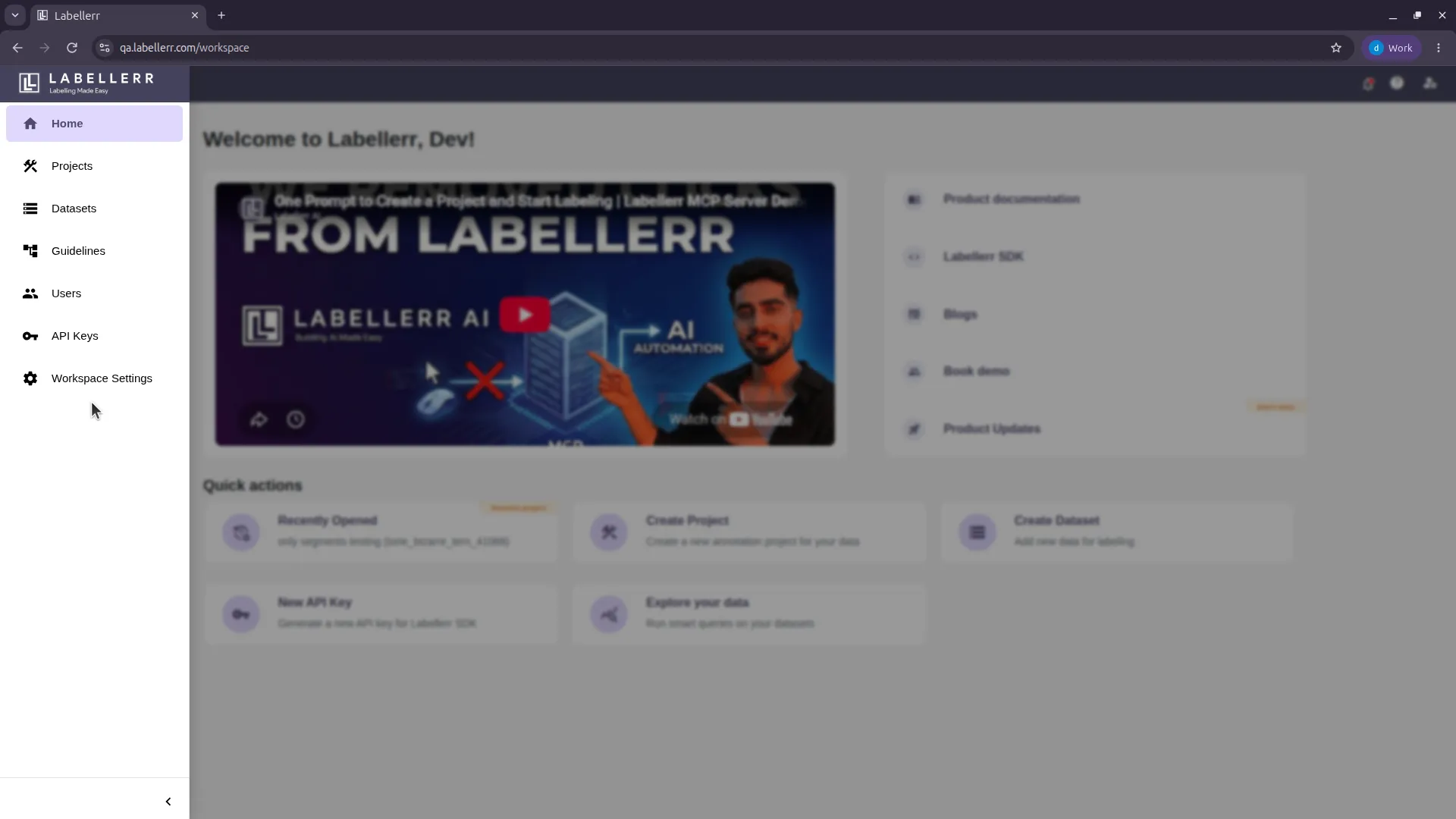
2
Toggle On IP Allowlisting
Toggle on IP Range Allowlist.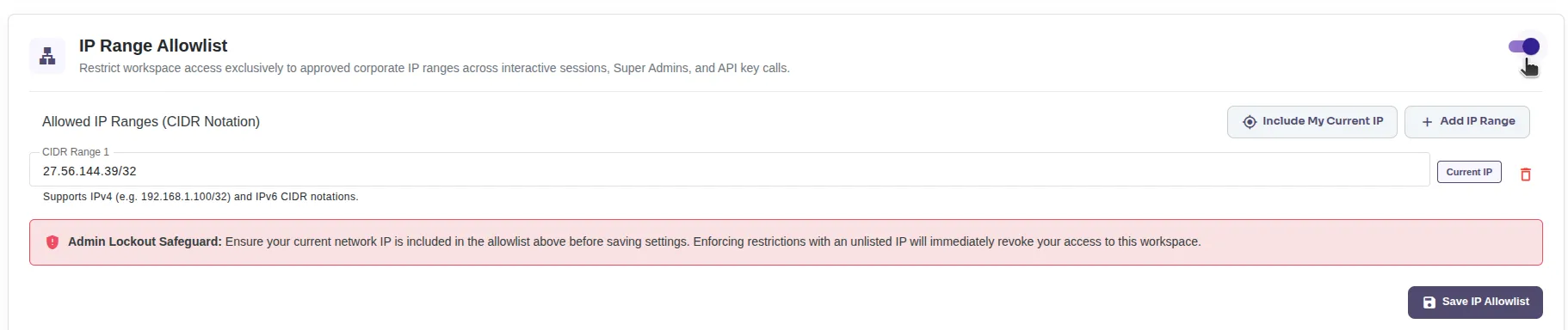
3
Add Allowed IP Ranges
Enter the IP ranges in CIDR notation. Multiple IPs are supported, for example:
192.168.1.100/32(IPv4)2001:db8::/32(IPv6)
4
Save
Save your changes to apply the allowlist.
How It Works
Once IP Allowlisting is enabled, only users connecting from the listed IP ranges can work in the tool — accessing data such as videos or images and performing annotations. Users connecting from unlisted IPs are blocked, including the workspace admin — after enabling the allowlist, even the workspace admin can only access the workspace from the listed IPs. Only a workspace admin can enable the allowlist, add IP ranges, and remove them.Removing IPs and Disabling
Only a workspace admin can manage the allowlist from the same Workspace Settings screen:- Remove IP ranges — delete entries from the list to revoke access for those IPs.
- Disable IP Allowlisting — toggle off IP Range Allowlist to restore access for all users.
For further assistance contact support@tensormatics.com