

Overview
Single Sign-On (SSO) Enforcement lets you enforce sign-in through a designated identity provider — Google Workspace or Okta — for all members of your workspace. Once enabled, every user must authenticate through the selected provider.Only users with workspace admin privileges can enable or disable SSO Enforcement for a workspace.
Enabling SSO Enforcement
1
Go to Workspace Settings
Open the Workspace Settings option from the left sidebar.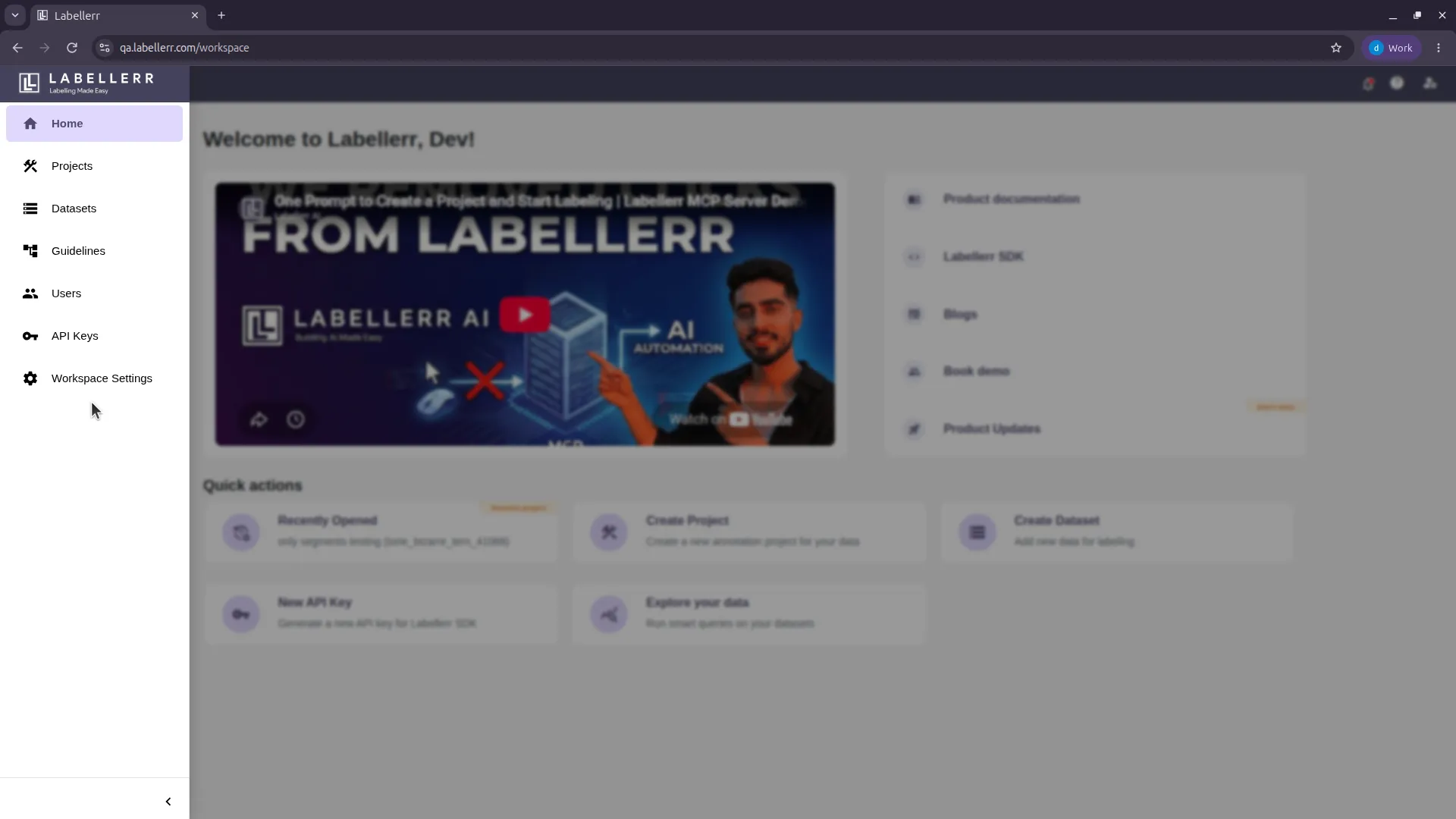
2
Toggle On SSO Enforcement
Toggle on Single Sign-on (SSO) Enforcement.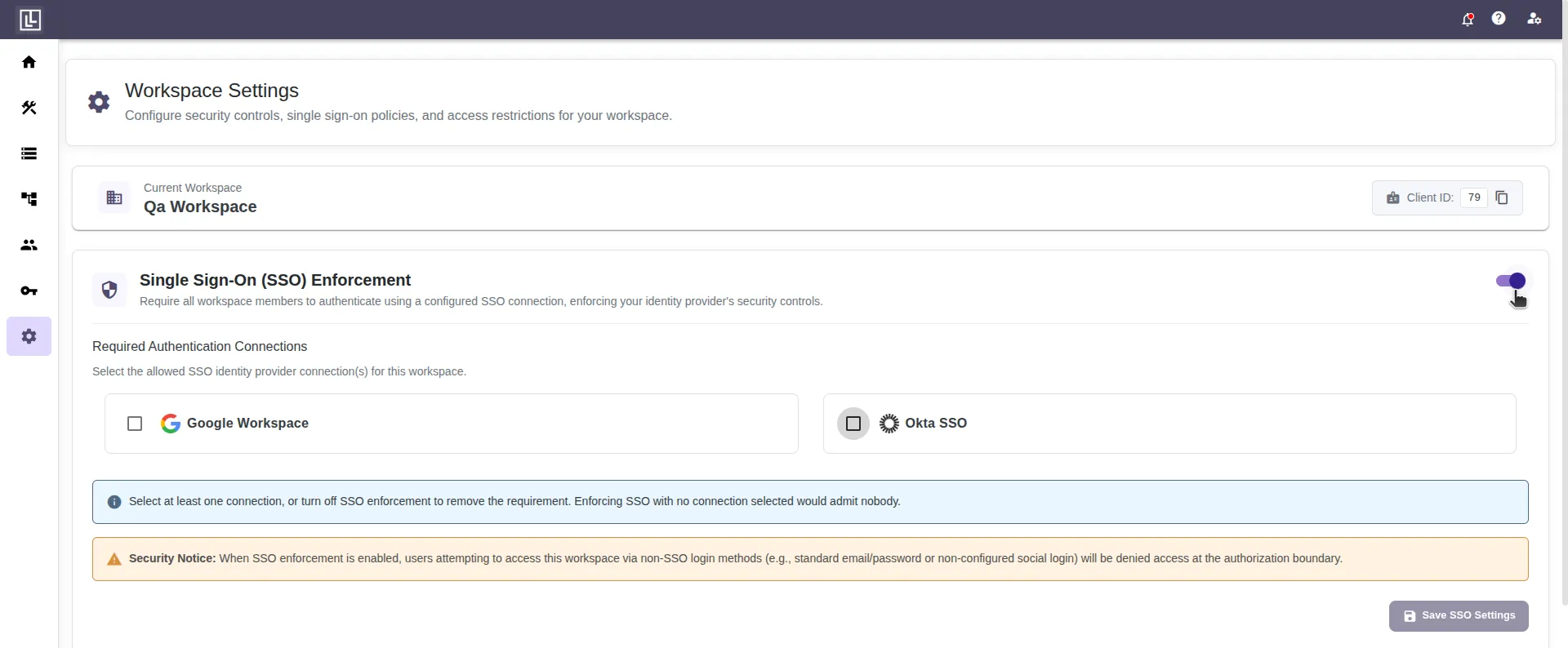
3
Select the SSO Identity Provider
Check the box for the SSO identity provider you want to enforce: Google Workspace or Okta.
How It Works
Once SSO Enforcement is enabled, all users must sign in through the designated identity provider. Users are forced to re-authenticate with the provider on login, and there is no alternative login path.Disabling SSO
Only a workspace admin can disable SSO Enforcement from the same Workspace Settings screen by toggling it off. To disable it, the workspace admin must first sign in through the designated SSO provider — SSO applies to the workspace admin as well.For further assistance contact support@tensormatics.com