Labellerr’s audio analyser would help the AI scientist obtain an accurate transcription of the audio recording. Also, the AI scientist can obtain the essence of the conversation, the next steps after the conversation, and things like that.
Gemini API, configured to send responses to the UI of the platform, sends measured analysis of data that has been integrated with Labellerr. (The user has to enter the right question in the prompt window).
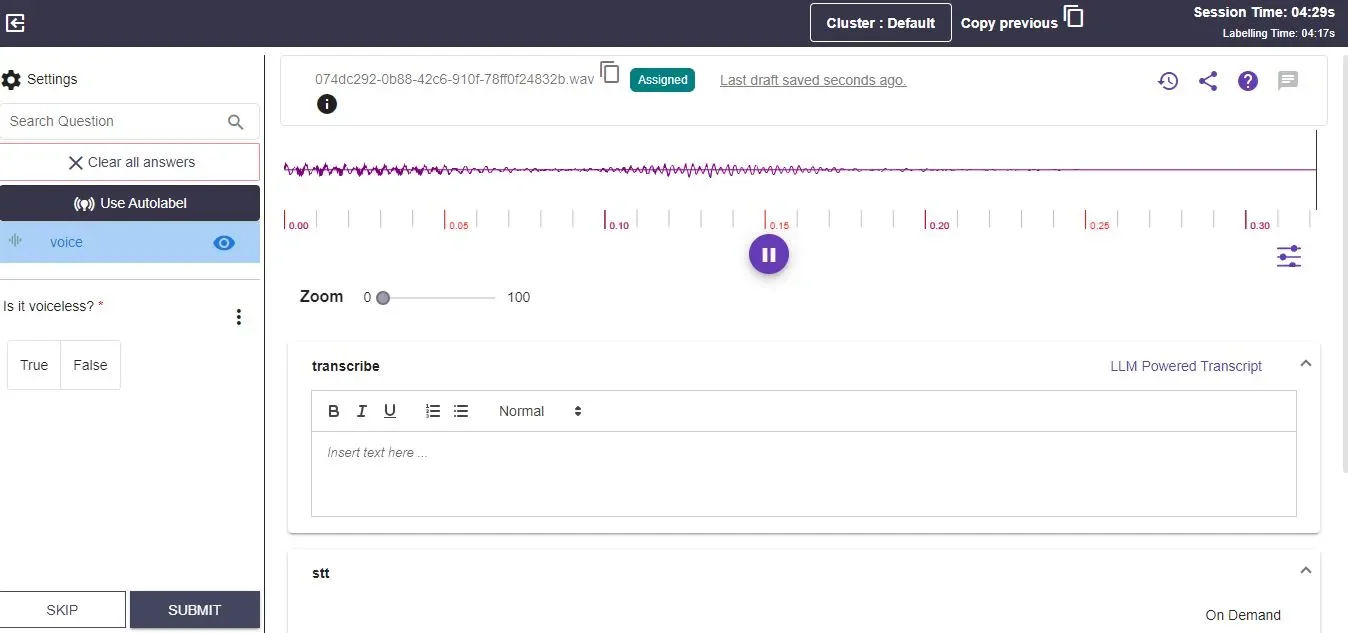
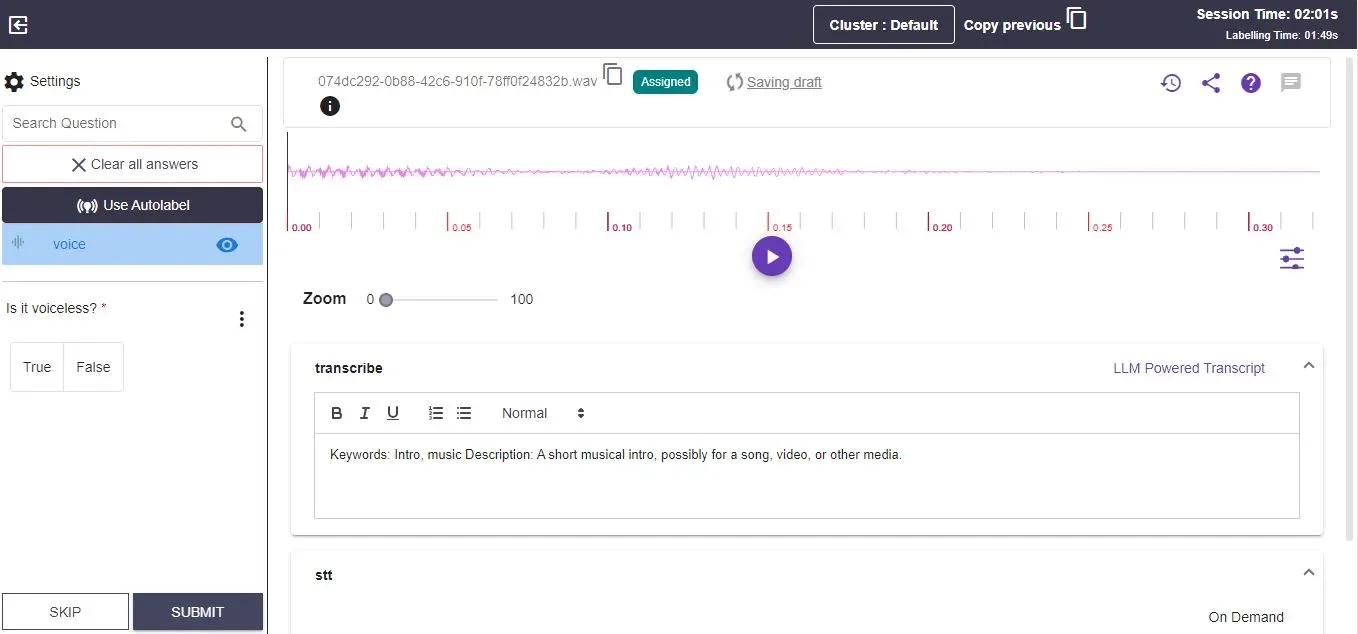
Below is a sample audio file analysed by Labellerr’s Audio analyser.
After setting up classification questions and creating the project, you will be directed to the dashboard. Click on the ‘Label’ tab to open the labeling screen.
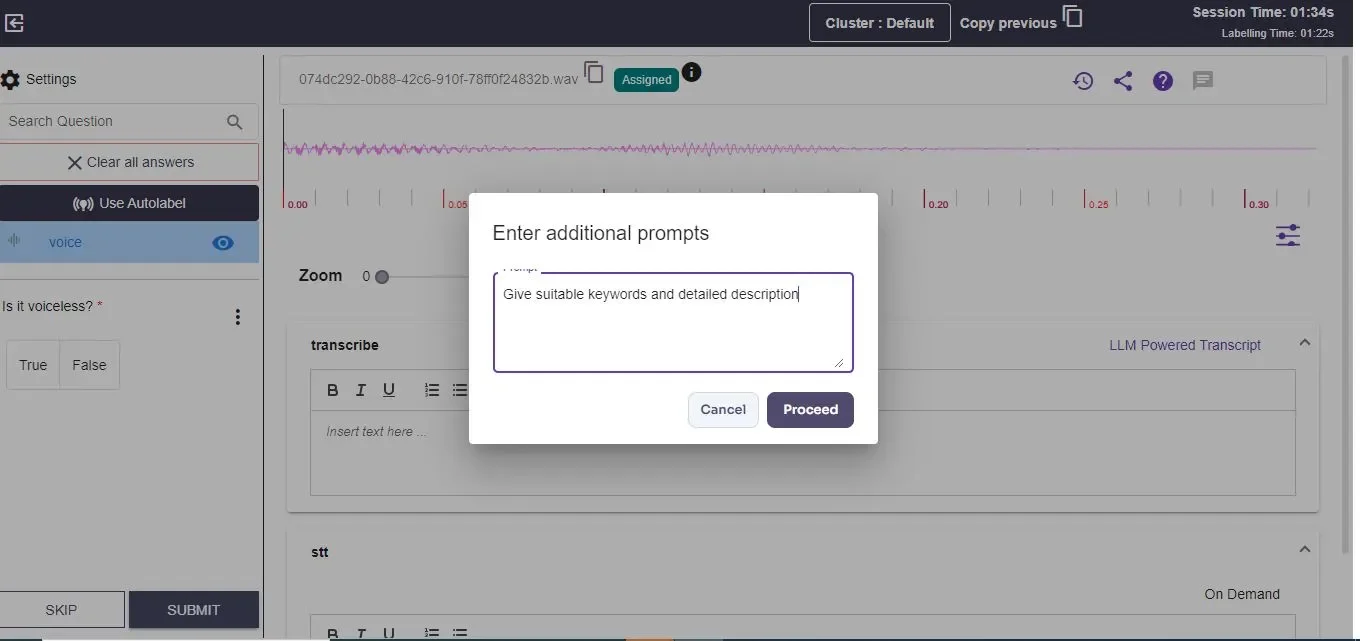
Next, click ‘LLM Powered Transcript.’ A small popup will appear where you can enter prompts or questions, such as how many people are in the audio, full transcription, highlighted keywords, summary of the audio, and more.
Click “Proceed” after entering your prompt. The generative AI will then provide a transcription/details based on your input.
You can review and edit this output as needed.
Further Prompts: You can provide additional prompts to obtain more specific details about the audio, such as the transcription of a particular person (male/female/first person, etc.).