
Template versioning gives teams full control over their annotation templates across projects. You can track changes, manage versions, and roll back when needed — without disrupting active workflows.
What This Guide Covers
This guide covers everything you need to know about Template Versioning in Labellerr:
- Creating and saving multiple versions of annotation templates
- Tracking changes across project timelines
- Reverting to previous versions with ease
- Viewing version history with creator name and timestamp
- Applying a specific version to a project from annotation settings
What is Template Versioning?
Template versioning allows teams to manage the lifecycle of annotation templates across different projects. Every time a template is modified, a new version can be saved — preserving the history of changes while keeping active projects unaffected. This is especially useful for large-scale annotation workflows where templates evolve over time and multiple projects share the same label configuration.Key Features
Version History
View a full history of all saved template versions, including the creator’s name and the timestamp of each change.
Create New Versions
Save any modification to a template as a new version, keeping previous versions intact and accessible.
Rollback Support
Revert to any previous version of a template instantly without disrupting other active projects using a different version.
Project-Level Application
Apply any specific template version to a project independently through the annotation settings — changes won’t impact other linked projects.
How to Use Template Versioning
1
Open the Template in Annotation Settings
Navigate to your project and go to the Annotation Settings (or Label Configuration). Here you will find the template associated with your project and the option to manage its versions.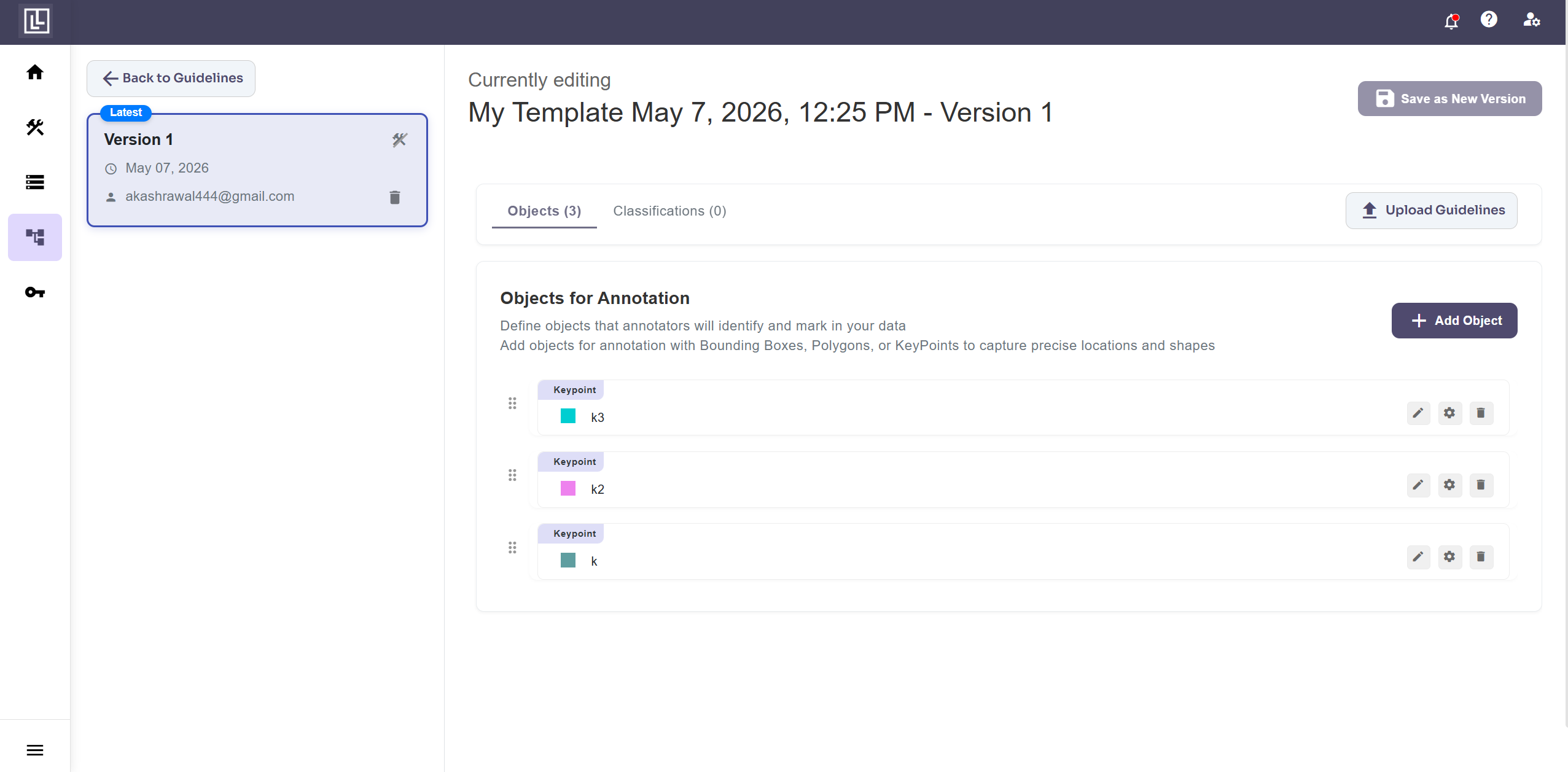
2
Create a New Version
After making changes to the template (adding/editing objects or classifications), save it as a new version. This preserves the existing version history and does not affect projects still using older versions.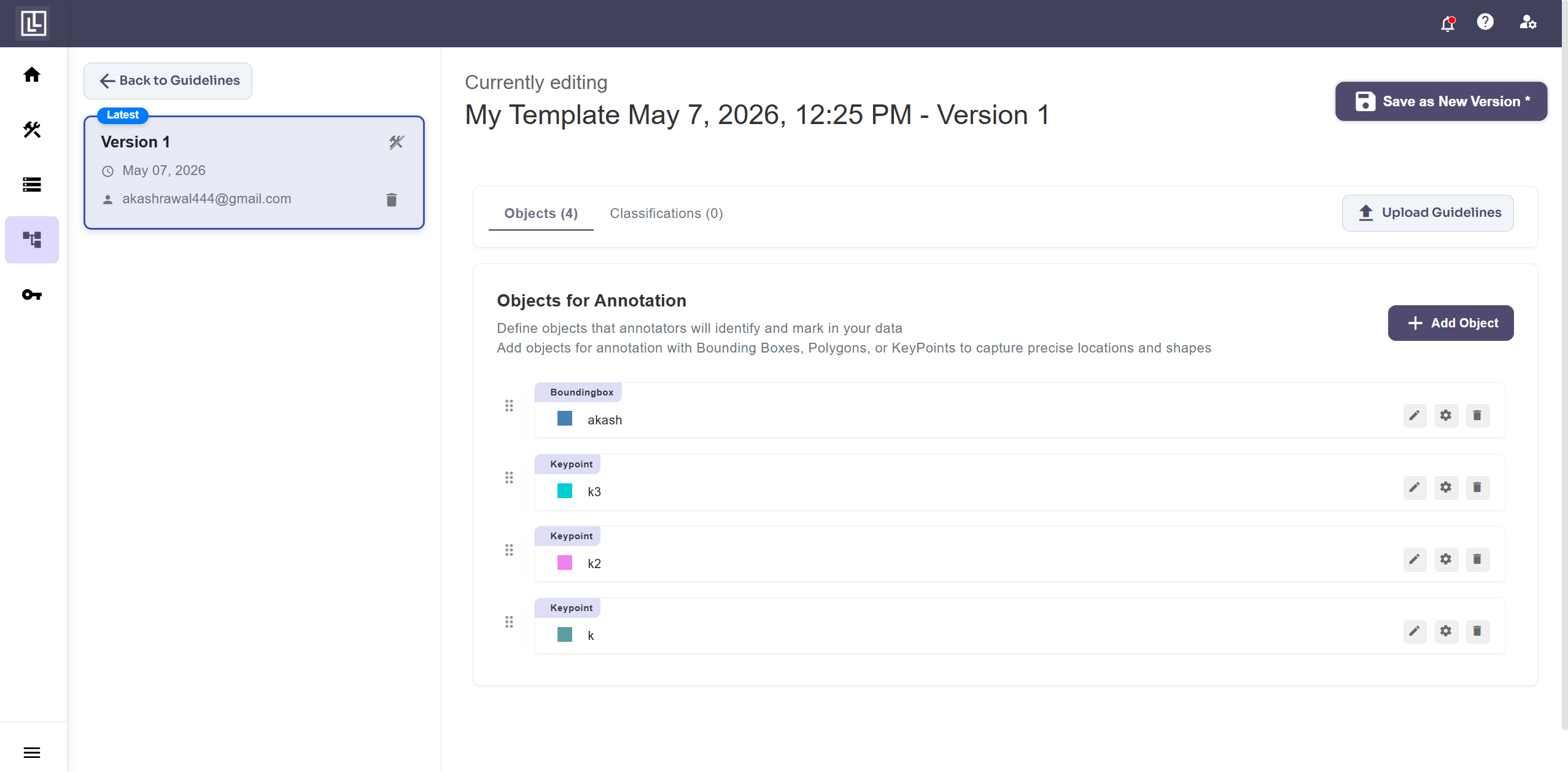
Each saved version is independent, updating a template to a new version in one project does not automatically update other projects using the same template.
3
Apply a Specific Version to a Project
From the annotation settings, you can browse all available versions and apply any specific version to the current project. This allows different projects to run on different template versions simultaneously.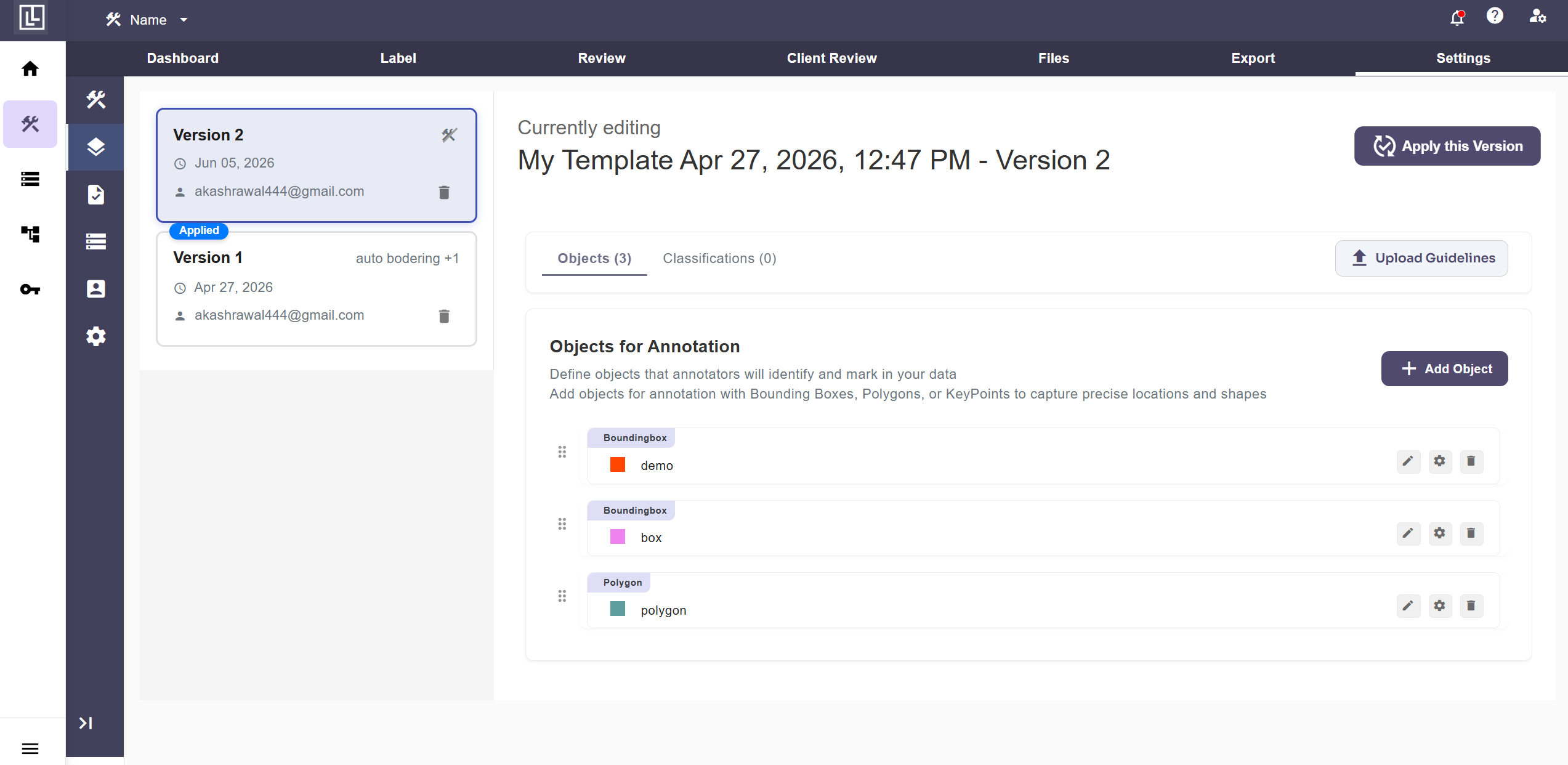
FAQs
Q. What is the difference between Template Versioning and Workspace Level Guidelines? Template Versioning allows teams to track, manage, and roll back changes to annotation templates across different versions, ensuring no work is lost during updates. Workspace Level Guidelines, on the other hand, provide a centralized place to define and share annotation standards that apply across all projects in a workspace, ensuring consistency without requiring per-project setup. Q. Can I apply a specific template version to an existing project without affecting other projects? Yes. Template versioning is managed at the project level through the annotation settings. You can view all available versions and apply any specific version to a project independently, without impacting other linked projects.For further assistance contact support@tensormatics.com